How to Recalibrate Your 120Hz Pro-Motion Display to Fix Touch Lag and Vertical Line Flickering

Written by: Ronnie Gonenc

Learn how to recalibrate 120Hz Pro-Motion display settings to fix touch lag and flickering. Expert repair tips to restore your screen's smooth performance.

High-refresh-rate screens have changed how we interact with our devices, making every scroll feel fluid. However, when that fluidity breaks down, it is incredibly noticeable. If you are seeing vertical line flickering or experiencing a frustrating delay when you tap an icon, your screen’s synchronization is likely off. As a specialist in high-end mobile tech, I know that hardware isn’t always the culprit; often, the software controlling the refresh rate needs a nudge.

In this guide, I will explain how to recalibrate 120Hz Pro-Motion display settings to eliminate lag and visual artifacts. We will focus on non-invasive recalibration techniques that refresh the display driver without risking your personal data. Because screen issues can sometimes signal deeper hardware stress, we will also identify when it is time to seek a professional technician.


Section 1: Why 120Hz Displays Develop Touch Lag

The “Pro-Motion” technology found in modern smartphones is dynamic. This means the screen constantly shifts between 10Hz and 120Hz to save battery life. Touch lag usually occurs when the device fails to “ramp up” the refresh rate quickly enough in response to your finger. This mismatch creates a heavy, unresponsive feeling.

Vertical line flickering is often a separate issue related to the voltage sent to the pixels. If the display controller loses its calibration, the refresh cycles can overlap, causing those distracting lines. Based on industry standards for OLED panels, these glitches are frequently linked to “ghost touches” or static buildup behind the glass. Understanding this helps you realize that a software refresh can often re-align these cycles.


Section 2: Step-by-Step Recalibration Methods

Follow these steps to refresh your screen’s logic. These methods are designed to be safe and effective for all 120Hz-capable devices.

1. The Refresh Rate “Hard Toggle”

The simplest way to force a recalibration is to manually break the dynamic cycle.

  1. Go to Settings > Display > Motion Smoothness (or Pro-Motion).
  2. Switch the setting from “Adaptive/High” to “Standard” (60Hz).
  3. Restart your device completely.
  4. Return to settings and switch back to “Adaptive/High.” This forces the display driver to reload its configuration files from scratch.

2. Clearing the System Cache Partition

Sometimes, residual files from a system update interfere with touch sensitivity. To fix this, you may need to enter your device’s recovery menu to “Wipe Cache Partition.” If you are unsure how to access this menu for your specific model, feel free to contact us for guidance. This process does not delete your photos, but it clears out “junk” data that can cause display lag.

3. Digitizer Calibration via Developer Options

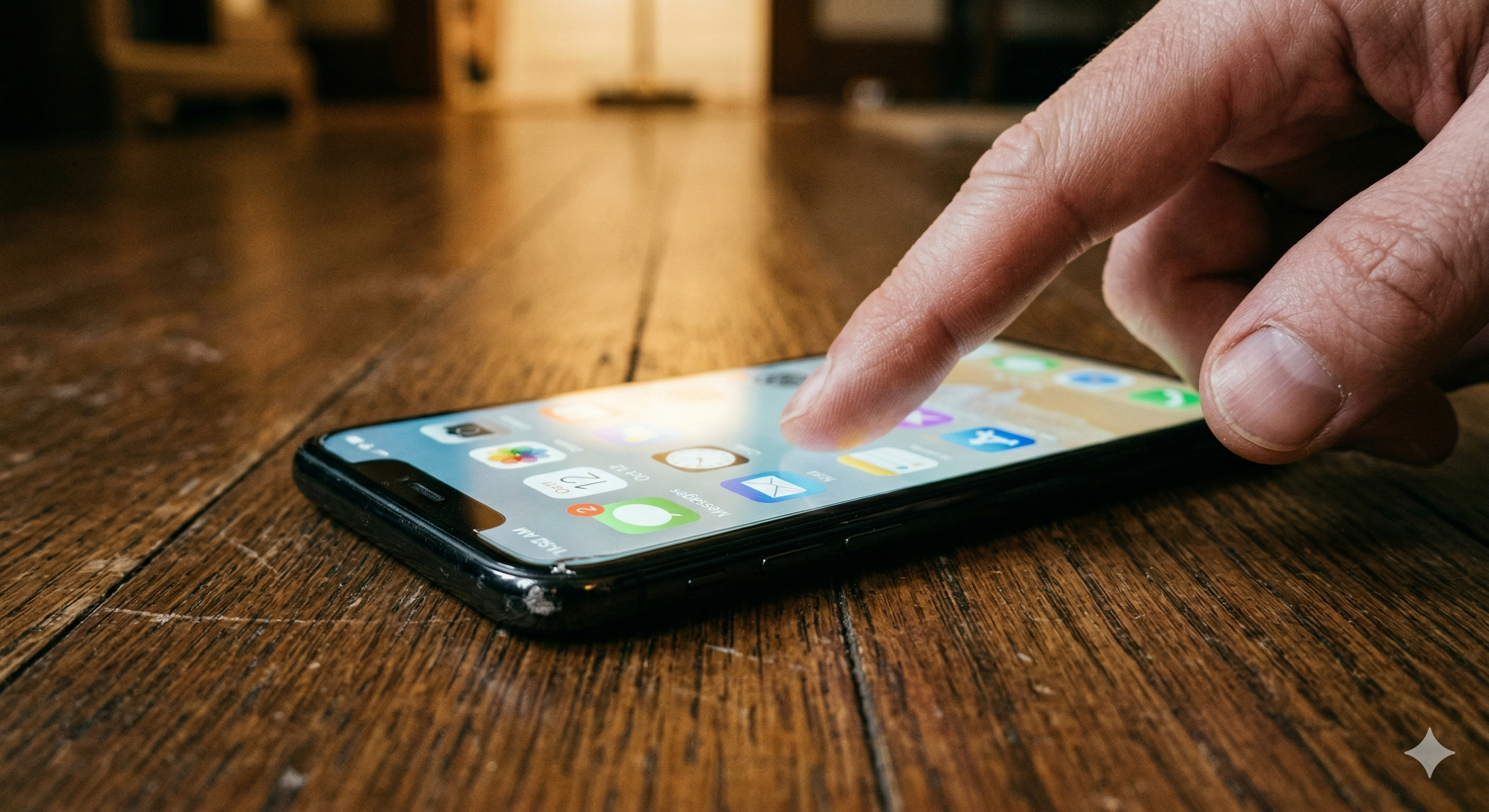
For advanced users, enabling “Show Taps” in Developer Options can help you see if the lag is consistent. If you notice the visual feedback is behind your finger, the digitizer needs a reset. You can often trigger this by performing a “Force Restart” (Volume Up, Volume Down, then hold the Power Button) while the device is plugged into a certified charger.


Section 3: When to Consider Professional Repair

If you have tried to recalibrate 120Hz Pro-Motion display settings and still see permanent vertical lines, you may be facing a “flexgate” issue. This happens when the delicate ribbon cables inside the phone become strained or damaged. At this stage, software adjustments cannot bridge a physical break in the connection.

In these instances, continuing to use a flickering screen can lead to a total “black out” of the panel. We recommend visiting our smartphone repairs page to see how we handle delicate OLED replacements. If the cost of repair is too high for an older model, you might prefer to buy or sell through our verified platform instead.


Section 4: Conclusion and Final Thoughts

A 120Hz display is a premium feature, and you shouldn’t have to settle for a laggy experience. By taking the time to recalibrate 120Hz Pro-Motion display settings, you can often restore that “out of the box” smoothness without spending a dime. Remember to keep your software updated, as manufacturers frequently release patches for display driver stability.

If you want to learn more about the technology we use to test these screens, you can read about us and our commitment to using OEM-grade parts. Don’t let a flickering screen ruin your productivity—most of the time, the fix is just a few taps away.


FAQs

Does vertical line flickering mean I need a new screen?

Not always. While it can be a hardware fault, it is often caused by a software glitch in the display controller. Always try a hard reset first.

Will a screen protector cause touch lag?

Yes, especially if it isn’t “High-Sensitivity” rated. If you experience lag, try turning on “Touch Sensitivity” in your display settings before removing the protector.

How much does it cost to check my screen?

You can use our instant quote widget to get a transparent price for diagnostics and repairs in seconds.


Disclaimer: This article provides informational troubleshooting steps. Screen flickering can sometimes indicate battery swelling or internal hardware failure. If your device feels excessively hot or the screen is lifting, stop use immediately and seek professional help.

How to Manually Reset Your 2026 Smartphone’s Satellite Modem and 5G Connectivity Without Data Loss

Written by: Ronnie Gonenc

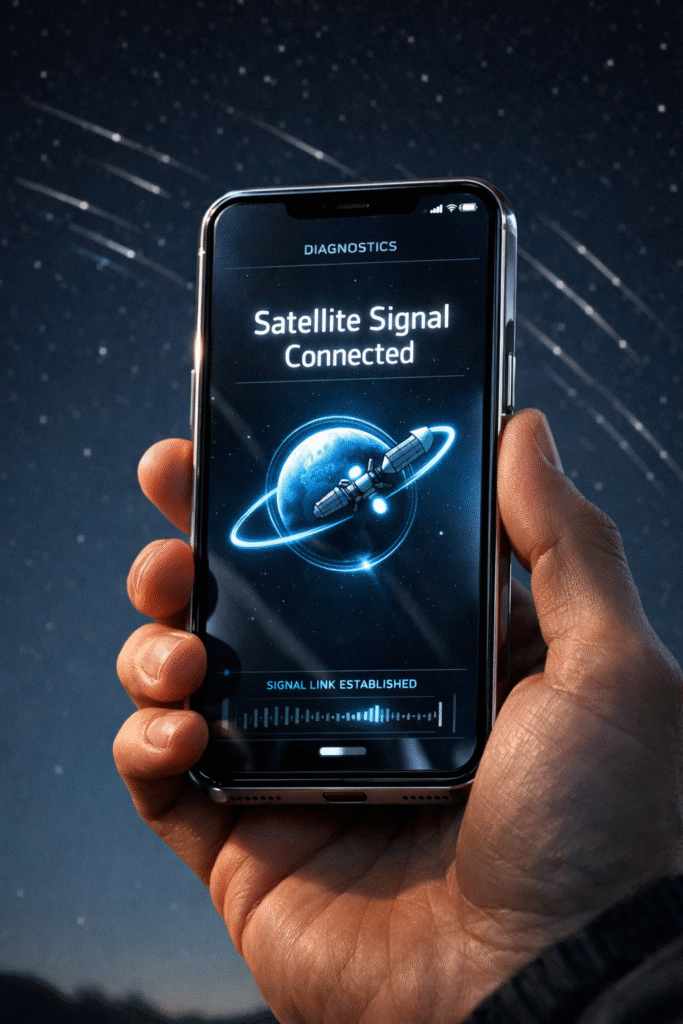
Satellite connection under the night sky

There is nothing more frustrating than looking at your brand-new 2026 flagship device only to see a “No Service” message or a hanging satellite SOS icon when you’re miles away from a Wi-Fi router. As mobile technology integrates non-terrestrial networks (NTN) more deeply into our daily lives, the complexity of our hardware increases. Having spent years in the trenches of device repair, I’ve seen how a simple software handshake failure can make a $1,200 phone feel like a paperweight.

In this guide, I’ll walk you through the precise steps to reset 2026 smartphone satellite modem components and 5G configurations. The goal here is a “soft” logic reset—fixing the signal without wiping your photos, messages, or apps. Because this involves critical communication hardware, we prioritize accuracy and manufacturer-recommended sequences to ensure your device stays functional and secure.


Section 1: Understanding the 2026 Connectivity Stack

The latest generation of smartphones doesn’t just rely on local cell towers; they use a sophisticated handoff system between high-frequency 5G bands and low-earth orbit (LEO) satellites. When your connectivity drops, it is rarely a total hardware failure. Instead, it’s usually a “state-table” error where the modem is stuck searching for a satellite that has already passed over the horizon.

According to technical standards from the 3GPP, the integration of satellite-to-cell features requires a specific authentication token that can sometimes expire or glitch. Understanding that your phone is essentially a two-way radio helps take the mystery out of why a manual reset is occasionally necessary. Before you assume the worst, a targeted refresh of these network credentials can often solve the problem in under two minutes.


Section 2: Step-by-Step Manual Reset Procedures

If you find yourself stuck without a signal, follow these steps in order. We want to start with the least intrusive methods first to preserve your settings.

The “Triple Toggle” Method

This isn’t just turning Airplane Mode on and off. For 2026 models, you need to cycle the specific NTN (Non-Terrestrial Network) toggle found in your Connection Settings.

  1. Open Settings > Connections > Mobile Networks.
  2. Locate the Satellite Communication toggle.
  3. Turn it off, wait 30 seconds, and turn it back on. This forces the modem to re-scan the sky for the nearest active satellite constellation.

Resetting Network Settings

If a toggle doesn’t work, a deeper logic reset is required. You can contact us if the menus look different on your specific model, but generally, you’ll navigate to General Management > Reset > Reset Network Settings.

  • Note: This will remove saved Wi-Fi passwords and Bluetooth pairings, but it is the single most effective way to clear a “stuck” 5G or satellite modem cache.

Forcing a Modem Re-Initialization

For persistent 5G drops, we often recommend a physical “re-seat” of the logic. Even with eSIM technology becoming standard, most 2026 devices still maintain a physical or digital partition for identity modules. Restarting the phone while in an open-sky environment allows the GPS and modem to sync time-stamps simultaneously, which is critical for satellite positioning.


Section 3: Professional Recommendations and Best Practices

While manual resets fix 90% of software-related signal issues, hardware damage is a different story. If you’ve recently dropped your phone and notice the “Searching…” text never disappears, you might be looking at a dislodged internal antenna flex cable. In these cases, software tweaks won’t help.

If your 5G is working but the satellite features remain grayed out, check your service provider’s active “Emergency SOS” or “Remote Messaging” subscription status. Many 2026 data plans require these to be provisioned at the account level. For those dealing with physical damage or more complex internal issues, our smartphone repairs team can run a diagnostic on the RF (Radio Frequency) chips to see if the modem itself has failed.


Section 4: Conclusion and Final Thoughts

Technology in 2026 has made us more connected than ever, but that connectivity relies on a delicate balance of software and hardware. Being able to reset 2026 smartphone satellite modem settings yourself is an essential skill for the modern user. It saves time, reduces stress during travel, and ensures you aren’t left stranded when you need a signal most.

If you’ve tried these steps and you’re still seeing a “dead” device, don’t keep hammering at the software. Sometimes the best move is to let a professional look under the hood. You can read more about us and our history with high-end tech to see why we’re the trusted choice for complex mobile issues.


FAQs

Will resetting my modem delete my photos?

No. Following the “Reset Network Settings” or “Toggle” methods only clears connection data like Wi-Fi passwords and Bluetooth pairings. Your personal files remain untouched.

Why does my 5G work but my Satellite SOS doesn’t?

Satellite connectivity requires a clear line of sight to the sky. If you are indoors or under heavy tree cover, the modem may fail to initialize even after a reset.

Is it worth fixing an older model if the modem fails?

It depends on the device’s overall health. You can get an instant quote to see the repair cost versus the current value of your phone before deciding to buy or sell a replacement.


Disclaimer: This guide is for informational purposes only. While resetting network settings is a standard troubleshooting step, always ensure your device is backed up. If you are unsure about performing these steps, consult a professional technician to avoid accidental setting changes.

Beyond the Flickering: Why 120Hz Pro-Motion Displays are Spontaneously Developing ‘Vertical Line’ Failures

Written by: Ronnie Gonenc

If you own a flagship device, you likely love the butter-smooth scrolling of a 120Hz Pro-Motion display. However, many users are waking up to a frustrating sight: a permanent, bright green or pink vertical line slicing through their screen. As a repair professional handling smartphone repairs daily, I can tell you this isn’t usually a simple software glitch. It is often a physical hardware failure linked to the technology that makes your screen look so good. High-refresh-rate panels push mobile display technology to its limits, and sometimes those limits lead to hardware fatigue. Understanding the root cause is the first step toward a permanent vertical line phone screen repair.

Section 1: The Anatomy of a High-Refresh Failure

A 120Hz display refreshes its image 120 times every second. This requires a significant amount of data and power to be sent through the “COF” (Chip-on-Flex) connector. This connector is a microscopic ribbon cable bonded directly to the bottom of the glass panel.

The appearance of a line usually signals a “gate driver” failure or an incorrect voltage application to the pixels. These drivers control specific columns of pixels on your screen. When the connection between the display controller and the glass is compromised, a specific column stays “stuck” on a single bright color. While older 60Hz screens suffered from this occasionally, the higher voltage requirements of 120Hz Pro-Motion panels appear to accelerate the degradation of these microscopic bonds.

Section 2: Why These Lines Appear “Spontaneously”

Many customers report that the line appeared out of nowhere without any physical impact. Here is what is actually happening behind the glass:

  • Thermal Stress: Running a screen at 120Hz generates more internal heat than a standard display. This heat can cause the adhesive bonding the display ribbon to the glass to weaken over time.
  • Flex Cable Fatigue: Every time your phone heats up and cools down, internal materials expand and contract. In the world of iPhone repairs, we find that this “thermal cycling” eventually cracks the microscopic traces on the flex cable.
  • Voltage Spikes During Updates: Major software updates can cause phones to work extra hard and overheat. This intense heat, combined with fast charging, can trigger a failure in a weak display connector that was previously sitting dormant.
  • Manufacturing Defects: Some panels have hidden flaws from the factory. These defects may stay hidden for months until environmental factors like extreme temperature changes finally bring them to the surface.

Section 3: Professional Recommendations and Solutions

If you see a vertical line, it is important to know that a software update or a “pixel flasher” app will rarely fix the issue. These are typically permanent physical breaks.

  1. Perform a Screenshot Test: Take a screenshot of your screen. If the line appears in the photo when viewed on another device, it is a software issue. If it doesn’t, it is a hardware failure.
  2. Check for Warranty or Recalls: Some manufacturers offer free replacements for specific models known for “green line” issues.
  3. Avoid DIY Pressure: Do not press down hard on the bottom of the screen. This can cause the internal glass to crack further or cause the entire display to go black.
  4. Professional Replacement: A vertical line phone screen repair usually requires a full display assembly replacement. Because these panels are integrated with biometric sensors, the repair must be handled carefully to maintain all functions.

If you are unsure of the cause, we recommend visiting our about us page or contacting us directly for a free diagnostic.

Section 4: Conclusion and Final Thoughts

The transition to 120Hz Pro-Motion technology has changed how we use our phones, but it has also introduced new hardware vulnerabilities. These “spontaneous” vertical lines are often the result of high-performance components working in a very small, hot environment.

While you can’t always prevent a manufacturing defect, keeping your phone away from extreme heat can help protect your screen’s longevity. If the worst happens, you can get an instant quote to see your repair options. Whether you want to repair your current device or buy and sell to upgrade, we are here to help you solve your display problems.

FAQs

Can a vertical line on my screen go away on its own?

Rarely. If it is caused by a temporary software glitch, a restart might help. However, if it is a hardware break in the connector, it is permanent.

Is my phone still water-resistant if it has a vertical line?

The line itself doesn’t break the seal, but if the line was caused by a drop that bent the frame, your water resistance may be compromised.

Why do lines often appear after a system update?

Updates cause the phone to run at high temperatures for an extended period. This heat can cause a slightly loose or weak display connector to finally fail.


Disclaimer: This content is for informational purposes only. Screen failures should be inspected by professionals to avoid further computer repairs or data loss.

The NPU Thermal Wall: Why 2026 AI Features are Physically Aging Your Phone’s Motherboard

Written by: Ronnie Gonenc

Modern smartphones are becoming incredibly powerful. You might notice your device getting very warm lately. This often happens when using new AI photo tools or live translation features. As a repair professional, I see the internal results of this every day. We are currently hitting a physical hardware ceiling.

The Neural Processing Unit (NPU) powers 2026’s sophisticated on-device intelligence. Unfortunately, these processes generate intense, concentrated heat. Modern phone chassis were not designed to dissipate this much energy constantly. This creates a high risk for phone motherboard heat damage. It affects the most critical internal components of your device.

Section 1: Understanding the NPU Thermal Wall

The “Thermal Wall” is a physical limit for electronics. It occurs when a processor reaches its maximum safe heat capacity. To prevent melting, the chip must “throttle” or slow down. In older phones, this mostly happened during high-end gaming. Today, even simple AI tasks require the NPU to perform trillions of operations per second.

These tasks create extreme “hot spots” on the logic board. The chips reach peak temperatures in just seconds. This localized heat is the main cause of phone motherboard heat damage. Inside, delicate solder joints begin to expand and contract rapidly. Over months of use, this cycle leads to “interconnect failure.” The chip eventually loses its stable connection to the board, leading to crashes or total failure.

Section 2: How Modern AI Strains Your Hardware

On-device processing is excellent for your privacy. However, it is very demanding on your phone’s silicon hardware. Here is a detailed look at what is happening inside your device during these tasks:

  • Micro-Soldering Degradation: Modern motherboards are extremely dense. Components are packed tightly together with almost no gaps. Heat has nowhere to escape. Constant high temperatures cause small electrical shorts. It can also lead to cracked solder balls under the main chips.
  • Battery Stress Synergy: The NPU pulls massive amounts of current from the battery. This creates two heat sources at the same time. If your screen dims unexpectedly, it is a safety protocol. Your phone is trying to avoid expensive smartphone repairs.
  • Voltage Regulator Fatigue: Power management chips are now working overtime. We are seeing many iPhone repairs caused by this stress. Small capacitors near the power rail can actually “pop” from the intense heat.
  • Thermal Throttling Side Effects: When the phone slows down to cool off, it stays at a high “soaking” temperature for longer. This prolonged heat exposure degrades the organic materials used in the motherboard’s construction.

Section 3: Practical Advice to Protect Your Device

You can still enjoy the latest AI features. However, you must use them mindfully to protect your investment. This extends your hardware’s lifespan significantly.

  1. Avoid Task Stacking: Do not run AI video tools while fast-charging your phone. Both activities generate extreme heat. Together, they accelerate internal motherboard aging.
  2. Choose Your Case Wisely: Some thick, rugged cases act like thermal blankets. They trap heat inside the phone. Consider removing the case during heavy AI processing tasks. This helps the heat escape into the air.
  3. Watch the Ambient Temperature: Using AI features in direct sunlight is dangerous for your hardware. High external heat combined with NPU heat can cause a permanent “Black Screen of Death.”
  4. Identify Early Warning Signs: Does your phone stay warm even when you aren’t using it? Do Wi-Fi or Bluetooth features toggle off by themselves? These are common signs of early phone motherboard heat damage.

Software resets will not fix physical hardware strain. If your phone behaves strangely, you should contact us for a professional diagnostic. We can often save the board before it fails completely and you lose your data.

Section 4: Conclusion and Final Thoughts

Mobile AI brings exciting new capabilities to our fingertips. However, it has a hidden hardware cost that many users don’t realize. We are pushing mobile silicon to its absolute limits. The motherboard is often the silent victim of this technological race.

Think of your phone as a high-performance computer rather than just a communication tool. Managing heat is your most important job as an owner. Whether you are looking to buy and sell a device or keep yours for years, monitor your temperatures. If you are worried about your device’s health, get an instant quote for a check-up. At Fix Wireless, we ensure your hardware can keep up with your software.


FAQs

Can heat actually break my phone’s motherboard?

Yes. Excessive heat causes the solder joints to crack. It can also cause the physical layers of the internal circuit board to separate.

Does using AI features drain my battery faster?

Absolutely. AI processing is very power-hungry. The resulting heat can also lower your overall battery health capacity over time.

Should a professional look at my phone if it gets hot?

If your phone is often too hot to touch comfortably, seek help. You may need computer repairs or specialized mobile advice to protect your data and hardware.

Does “Low Power Mode” help with heat?

Yes. Low Power Mode usually limits processor speeds. This reduces the heat generated by the NPU and helps prevent phone motherboard heat damage.


Disclaimer: This content is for educational purposes regarding hardware longevity. Always consult a certified technician at Fix Wireless before attempting any hardware-level repairs yourself.

Beyond the Wrist: Why Your Smartwatch Sensors are ‘Going Blind’ in 2026 and How to Restore Bio-Tracking Accuracy

Written by: Ronnie Gonenc

Close-up of a clean smartwatch optical sensor array glowing with green light on a white microfiber cloth to ensure smartwatch sensor accuracy.

You rely on your smartwatch as a silent guardian of your health. It tracks every heartbeat and sleep cycle with supposed precision. But have you noticed your heart rate spiking while you are sitting still? Perhaps your blood oxygen levels look suspiciously low. You are not alone.

In 2026, we are seeing a massive uptick in “sensor blindness.” This phenomenon happens when high-tech wearables lose their ability to “see” through the skin. I have spent years performing other device repairs. I see firsthand how environmental wear and calibration drifts turn a $500 health tool into a digital bracelet. Restoring that accuracy requires more than a software update. You must understand the delicate relationship between hardware and human biology.

Section 1: [The Science of Smartwatch Sensor Accuracy] Most modern smartwatches use Photoplethysmography (PPG) sensors. These sensors shine green or red light into your tissue. They then measure the light scatter to determine your blood flow. However, several factors in 2026 complicate this process.

Invisible Physical Barriers

Micro-scratches on the zirconia or sapphire crystal backplate often cause issues. These scratches are invisible to the naked eye. Yet, they refract sensor light and create “noisy” data. Additionally, bio-films accumulate over time. These layers of sweat, dead skin, and oils create a barrier. This barrier dulls the sensitivity of the sensor.

Why Distance Matters

Expert research shows that even a slight deviation in the sensor-to-skin seal causes a 30% margin of error. This significantly impacts heart rate variability (HRV) readings. Proper contact is essential for precision.

Section 2: [Identifying Symptoms of Sensor Decay] Sensor failure is rarely a total blackout. Instead, it is a slow degradation of quality. If you experience these symptoms, your device is likely struggling.

Common Signs of Inaccuracy

  • The “Flatline” Effect: Your heart rate stays at a specific number despite physical exertion.
  • Erratic Spiking: You see a 180 bpm reading while simply walking to the kitchen.
  • Ghost Notifications: Your watch claims it is not on your wrist when it clearly is.

We often see these issues during smartphone repairs. Ambient light sensors often fail due to internal dust or adhesive degradation. In wearables, the stakes are much higher. This data influences your fitness and health decisions. If your hardware is compromised, consider the buy and sell value of the device before it fails completely.

Section 3: [Practical Advice for Sensor Restoration] Do not assume your watch is broken immediately. Follow these professional restoration steps to fix your device.

Professional Cleaning and Calibration

First, perform a deep clean of the optical array. Use a 70% isopropyl alcohol wipe to dissolve stubborn bio-films. Avoid abrasive cloths. These can add more micro-scratches to the sensor housing.

Next, re-calibrate via a system reset. Sometimes the internal algorithm “learns” incorrect baselines. A factory reset forces the software to re-analyze your skin tone and perfusion levels. This often clears up digital glitches.

Checking Hardware Integrity

Check the gasket integrity regularly. If you use your watch in salt water, the seals can dry out. This allows moisture to fog the interior lens. If you suspect internal fogging, seek professional iPhone repairs or specialized wearable service. This prevents motherboard corrosion. Finally, use the “Two-Finger” rule. The band should be tight enough that you cannot slide more than two fingers under it.

Section 4: [Conclusion and Final Thoughts] Your smartwatch is an incredible feat of engineering. However, it is not invincible. Maintaining sensor precision requires a mix of digital hygiene and physical care. When your device “goes blind,” it usually signals that the hardware needs attention.

At Fix Wireless, we extend the life of your tech through transparency. Do not let bad data dictate your health journey. Ensure your sensors stay as sharp as the day you unboxed them. If you feel unsure about your device’s health, contact us for a professional evaluation.

FAQs

Q: Can a scratched sensor be fixed?

A: Minor surface scuffs can sometimes be buffed out. However, deep cracks in the sensor glass require a back-housing replacement. This ensures water resistance and accuracy.

Q: Why does my tattoo interfere with my heart rate monitor?

A: Dark ink absorbs the green light used by PPG sensors. This prevents the light from reaching the blood vessels. Wear the watch on a non-tattooed wrist for a reliable fix.

Q: How often should I clean my sensors?

A: Active users should perform a quick wipe-down after every workout. Perform a deeper cleaning with alcohol once per week.


Disclaimer: This information is for educational purposes regarding device maintenance. Wearable devices are not medical-grade instruments. If you experience concerning physical symptoms, consult a healthcare professional immediately.

How to Recalibrate Your iPhone or Android Battery to Fix Inaccurate Percentage Jumps

Written By: Ronnie Gonenc
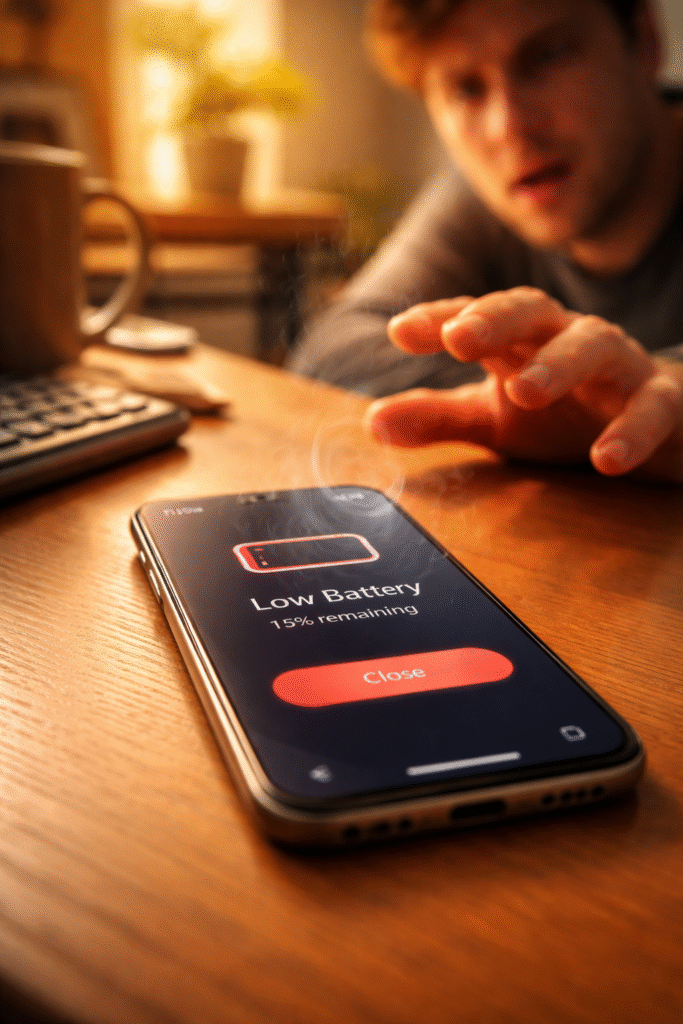

Recalibrate your phone battery guide

Your phone says 40%… then drops to 15%.
Or worse—your phone shuts off at 20%.

This issue is more common than most people realize, and in many cases, the battery isn’t actually failing. The problem is often battery miscalibration, where your phone’s software no longer accurately understands how much charge the battery holds.

According to Apple’s official documentation on iPhone battery health and performance, battery percentage is an estimate based on software models—not a direct measurement.

The good news? In many cases, recalibrating your battery can restore accurate percentage readings without replacing the battery.


Section 1: Why Phone Battery Percentages Become Inaccurate

Your phone doesn’t measure battery percentage directly. Instead, it estimates remaining power based on voltage, charging behavior, temperature, and usage patterns.

Google explains this process in their Android power management documentation.

Over time, this estimation can drift due to:

  • Frequent partial charging (never reaching 100%)
  • Constant short charging sessions
  • Letting the phone die unexpectedly
  • Major iOS or Android updates
  • Natural lithium-ion battery aging

When the software estimate no longer matches the battery’s real behavior, you’ll see sudden percentage drops, inaccurate readings, and unexpected shutdowns.


Section 2: What Battery Recalibration Actually Fixes (And What It Doesn’t)

Battery recalibration resets your phone’s internal reference points for full and empty charge levels.

It does help with:

  • Percentage jumps
  • Battery stuck at one number
  • Phone dying before 0%

It does NOT:

  • Repair a worn-out battery
  • Increase battery capacity
  • Fix charging ports or internal power components

Apple confirms in their guide on understanding battery health that recalibration only affects reporting accuracy—not physical battery condition.


Section 3: How to Recalibrate Your iPhone or Android Battery (Step-by-Step)

This recalibration method works for both iPhone and Android devices and mirrors professional diagnostic procedures.

Step-by-Step Process

  1. Use your phone normally until it shuts off on its own
  2. Leave the phone powered off for 30–60 minutes
  3. Plug in a reliable charger and charge uninterrupted to 100%
  4. Keep the phone plugged in for an additional 30–60 minutes after reaching 100%
  5. Unplug and use your phone normally

Avoid using the phone while charging to allow voltage levels to stabilize.

For deeper technical insight, Battery University explains lithium-ion behavior in their article on prolonging lithium-based batteries.


Section 4: Common Recalibration Mistakes That Make Things Worse

At repair benches, many calibration attempts fail because of these mistakes:

  • Repeating full drain cycles too often
  • Using apps to force battery drain
  • Charging in short bursts immediately after recalibration
  • Expecting recalibration to fix a degraded battery

Battery University specifically warns against frequent deep discharges in their guide on how to properly charge lithium-ion batteries.

Recalibration should be occasional, not routine.


Section 5: How Often Should You Recalibrate Your Battery?

Recalibration is recommended only when problems appear:

  • Every 3–4 months if percentage jumps occur
  • After major iOS or Android updates
  • When phones shut off above 10–20%

If your battery behaves normally, recalibration isn’t necessary.


Section 6: When Recalibration Is No Longer Enough

Recalibration won’t fix:

  • Phones dying at 20–30%
  • Batteries draining extremely fast
  • Battery health below ~80%
  • Swelling or overheating
  • Devices that only work while plugged in

At this point, professional diagnostics are the smarter move.

If you suspect hardware issues, Fix Wireless offers professional phone diagnostics and battery replacement services. You can explore their repair options on their phone repair services page.


Section 7: Professional Battery Repair Options

If recalibration doesn’t help, these services may be needed:

Battery Replacement

A degraded battery can cause inaccurate percentages and sudden shutdowns. Learn more about smartphone battery replacement at Fix Wireless smartphone repair services.

Full Device Diagnostics

Charging port issues, power IC failures, or internal corrosion can also cause battery problems. A full inspection is available through Fix Wireless repair services.

Visit a Local Repair Shop

For in-person service, you can visit one of the local Fix Wireless locations listed on their official website.


Section 8: Final Thoughts

Battery percentage jumps are frustrating—but they’re often a software issue, not immediate battery failure.

Recalibrating your phone battery can restore accurate readings when done correctly. And when it doesn’t work, it provides a clear signal that professional repair or battery replacement is the next step.

Knowing the difference saves time, money, and unnecessary stress.


FAQs

Does recalibrating damage my battery?
No, if done occasionally. Doing it too often can increase wear.

Should I let my phone hit 0% regularly?
No—only when recalibration is needed.

Can apps recalibrate my battery automatically?
No. Apps cannot reset system-level battery calibration.

Does fast charging affect battery accuracy?
Not directly, but excess heat accelerates battery aging.


Disclaimer

This article is for informational purposes only. Battery performance varies by device age and usage. If issues persist, consult a qualified phone repair professional such as Fix Wireless for accurate diagnostics and service.

How to Safely Clean Your Phone’s Earpiece and Speakers Without Damaging the Mesh

Written by:
Ronnie Gonenc

Safe phone speaker cleaning tips

Muffled calls. Quiet videos. Music that suddenly sounds like it’s coming from the bottom of a drawer.

This is one of the most common complaints we hear—and in most cases, the phone isn’t broken at all. After years of hands-on diagnostics and repairs, we’ve found that clogged speaker and earpiece mesh is one of the most misunderstood phone issues. Many people assume they need a new speaker or even a new phone, when the real problem is dirt packed into places you can barely see.

That said, cleaning your phone the wrong way can turn a minor issue into a major repair. This guide explains how to clean your phone speaker safely, what not to do, and when cleaning stops being the right solution.


Section 1: Why Speaker and Earpiece Mesh Fails Over Time

Your phone’s speaker and earpiece mesh are designed to balance two things: airflow and protection. The mesh keeps dust and debris out while still allowing sound to pass through clearly. Over time, that balance breaks down.

Here’s why buildup happens so easily:

  • Phones live in pockets, purses, gym bags, and cars
  • Skin oils and sweat trap dust particles
  • Makeup and fabric lint compress into the mesh
  • Humidity causes debris to stick instead of fall out

Unlike cracks or water damage, clogged mesh doesn’t look dramatic—but it directly affects sound quality. According to electronics maintenance data, blocked speaker grills are one of the top reasons users seek phone repair for “audio failure,” even when the speaker itself still works perfectly.


Section 2: Cleaning Methods That Damage Speakers (And Why They Fail)

Before covering what works, it’s important to understand what causes the damage we see most often at the repair bench.

Sharp Objects

Needles, pins, paperclips, SIM tools—these tear the mesh instantly. Once punctured, dust enters freely, and sound quality usually gets worse over time.

Compressed Air

Blowing air directly into the speaker forces debris deeper into the phone. We regularly see phones that came in for “quiet audio” and left needing full speaker replacement because debris was pushed into the speaker cone.

Liquids and Alcohol

Even small drops can wick through the mesh and affect internal components. Water resistance does not protect against pressure or residue buildup inside speaker chambers.

Aggressive Scrubbing

Hard brushes and repeated pressure can deform the mesh, changing how sound travels through it.

Most of these mistakes come from good intentions—but they’re responsible for a large percentage of avoidable repairs.


Section 3: Technician-Approved Ways to Clean Phone Speakers Safely

These methods are used during professional diagnostics because they minimize risk.

Soft-Bristle Brush (Primary Method)

A clean, dry, soft toothbrush works best.

  • Brush side-to-side, not downward
  • Use light pressure only
  • Hold the phone speaker-side down so debris falls out

This alone resolves many muffled speaker issues on both iPhone and Android devices.

Electronics-Safe Adhesive Putty

Used correctly, this can lift debris out of mesh pores.

  • Gently dab—never press
  • Avoid dragging across the surface
  • Use small amounts only

This method is especially effective for makeup or lint buildup.

Low-Suction Vacuum (Optional)

Held slightly away from the speaker opening, not touching it.

  • No attachments pressed to the grill
  • Short bursts only

This helps remove loosened debris after brushing.


Section 4: Step-by-Step Cleaning Process (Detailed)

  1. Power off your phone completely
  2. Remove the case and any accessories
  3. Inspect the mesh under bright light
  4. Hold the phone with the speaker facing downward
  5. Gently brush across the mesh for 15–20 seconds
  6. Lightly dab adhesive putty if needed
  7. Test audio before repeating

If sound improves, stop. Repeating the process too many times increases the risk of damage.

If there’s no change at all, the issue may be internal—common with water exposure, corrosion, or aging speakers. This is when a professional diagnostic from a Samsung repair or multi-brand technician is recommended.


Section 5: When Cleaning Is No Longer Enough

Cleaning won’t fix:

  • Water-damaged speaker components
  • Corrosion inside the speaker chamber
  • Torn or deformed mesh
  • Blown or distorted speaker cones

In these cases, continued DIY attempts often make repairs more expensive. A proper inspection can determine whether cleaning, repair, or replacement is the most cost-effective option.


Section 6: Conclusion and Final Thoughts

Cleaning your phone’s earpiece and speakers is one of the most overlooked forms of maintenance—and one of the easiest ways to restore sound clarity when done correctly. The key is patience and restraint.

Most serious speaker damage we see isn’t from age or defects. It’s from well-meaning cleaning attempts that go too far. Knowing when to stop is just as important as knowing how to start.

If safe cleaning doesn’t solve the issue, professional help will save you time, money, and frustration in the long run.


FAQs

How often should I clean my phone speakers?
Every 2–3 months, or whenever sound quality noticeably drops.

Can I use a toothpick wrapped in cloth?
Not recommended. It still applies pressure and can push debris inward.

Are water-resistant phones safer to clean?
Water resistance does not protect speaker mesh from damage or residue.

Why does sound sometimes get worse after cleaning?
Debris may have been forced deeper, or the mesh may be damaged.


Disclaimer

This article is for informational purposes only. Improper cleaning methods can damage internal components. If sound issues persist, consult a qualified phone repair professional for accurate diagnosis and service.

Why Magnetic Accessories Might Be Ghost-Clicking Your Screen: The Truth About MagSafe Interference

Written by:
Ronnie Gonenc

Ghost touches on smartphone caused by wallet

If your phone has ever started tapping, scrolling, or opening apps all on its own, you’re not imagining things—and you’re definitely not alone. Over the past year, we’ve seen a sharp rise in customers walking into our repair shop convinced their screen is “possessed.”

In many of these cases, the culprit isn’t a bad screen or software glitch. It’s magnetic accessories. As MagSafe wallets, mounts, chargers, and battery packs become everyday add-ons, we’re seeing more real-world cases of magnetic interference triggering ghost touch issues. This article breaks down what’s actually happening, why it matters, and what you can do about it—based on hands-on repair experience, not speculation.


Section 1: What Is MagSafe Screen Interference?

MagSafe screen interference happens when strong or poorly aligned magnets disrupt how your phone’s touchscreen registers input. Modern smartphones rely on capacitive touch technology, which detects tiny electrical changes caused by your fingers. External magnetic fields—especially when placed directly behind the display—can distort those signals.

Apple and accessory manufacturers design MagSafe to be safe within specifications, but real-world usage isn’t always ideal. Thick cases, third-party accessories, metal plates, or misaligned magnetic mounts can create uneven pressure or electromagnetic interference. According to industry testing referenced by mobile hardware engineers, inconsistent magnetic fields can affect touch accuracy, especially near screen edges.

This is why many ghost-touch cases resolve instantly when accessories are removed—no repair needed.


Section 2: How Magnetic Accessories Trigger Ghost Touch Issues

Wallets and Card Holders

Magnetic wallets are one of the most common offenders. When cards, metal shielding, and magnets stack together, they create localized pressure points. We’ve seen phones sent in for screen repair that worked perfectly the moment the wallet was removed.

Car Mounts and Desk Stands

Magnetic mounts apply constant force to one area of the phone. Over time, this can subtly warp the display assembly or interfere with digitizer sensitivity—especially on larger phones.

Wireless Chargers with Strong Alignment Rings

Some third-party chargers exceed recommended magnetic strength or lack proper shielding. This can lead users to believe they need an iPhone repair when the issue is actually external.

Cheap or Uncertified Accessories

Low-quality magnets are often poorly balanced and unregulated. We frequently identify these during diagnostics for Android and Samsung repair visits involving phantom touches.


Section 3: Practical Steps to Fix or Prevent Ghost Clicking

  • Remove all magnetic accessories immediately and test the phone bare for 24 hours
  • Restart the device to rule out temporary software conflicts
  • Check for screen protectors lifting or bubbling, which can amplify pressure issues
  • Avoid stacking MagSafe accessories (wallet + battery pack + case)
  • Use manufacturer-certified accessories whenever possible

If ghost touches continue without accessories attached, it’s time for a professional inspection. A trained technician can determine whether the issue is digitizer damage, pressure distortion, or internal component failure. Scheduling a diagnostic with a trusted cell phone repair service prevents unnecessary screen replacements.


Section 4: Conclusion and Final Thoughts

MagSafe and magnetic accessories are incredibly convenient—but they’re not always harmless. Ghost clicking is often the phone’s way of telling you something external is interfering with how it senses touch.

Before assuming the worst or spending money on a new device, strip the phone down to basics and test it properly. In many cases, the fix is as simple as changing accessories. And when it’s not, having a repair expert evaluate the problem early can save time, money, and frustration.

Understanding how your accessories interact with your device is part of owning modern tech—and a little awareness goes a long way.


FAQs

Can MagSafe actually damage my phone screen?
MagSafe itself is safe, but poorly designed or overly strong magnetic accessories can cause pressure-related or touch issues.

Why does ghost touch stop when I remove my wallet or mount?
Removing the magnetic field restores normal capacitive touch behavior.

Do Android phones have the same issue?
Yes. Any capacitive touchscreen can be affected by strong magnets, not just iPhones.

Is this a software problem or hardware problem?
Most cases are external interference. Persistent issues may indicate digitizer or display damage.


Disclaimer

This content is for informational purposes only. Touchscreen behavior can vary by device, accessory quality, and usage conditions. For persistent issues, consult a qualified repair professional for proper diagnosis and service.

The 2026 Repair Audit: Is It Better to Fix Your Current Phone or Upgrade to a Mid-Range Model?

Written by:
Ronnie Gonenc

Old vs new: smartphone comparison

It’s 2026, and phones aren’t cheap anymore—but repairs aren’t always either. Every week, customers walk into our shop asking the same honest question: “Should I fix this phone, or is it time to move on?”

As someone who’s spent years repairing everything from cracked iPhone screens to water-damaged Androids, I’ve seen both sides of this decision play out in real life. Some repairs genuinely buy you years. Others just delay the inevitable. This repair audit is about cutting through the noise and helping you make a smart, financially sound choice—without sales pressure or tech jargon.


Section 1: Understanding the 2026 Smartphone Landscape

Mid-range smartphones in 2026 are better than ever. Devices priced between $400–$600 now offer OLED displays, 5G, solid cameras, and multi-day battery life. According to consumer data from the mobile industry, average smartphone prices have risen nearly 15% over the past three years, while repair costs have stayed relatively stable.

At the same time, modern phones are more repairable than many people realize. Common issues like battery degradation, charging port failure, or cracked glass can often be resolved affordably at a professional phone repair shop—without replacing the entire device.

The real question isn’t whether phones are “worth fixing” anymore. It’s whether your phone is.


Section 2: When Repairing Your Phone Makes More Sense

The Damage Is Isolated

If your phone still performs well but has one clear issue—like a shattered screen or weak battery—repair is often the smarter move. For example, a professional iPhone screen repair typically costs far less than buying even a budget replacement device.

You’re Happy With Performance

If apps run smoothly, storage isn’t maxed out, and updates are still supported, replacing a battery or camera module can restore your phone to near-new usability.

You Want to Avoid Data Hassles

New phones mean data transfers, app logins, and security reconfigurations. Many customers choose repair simply to avoid that headache—especially when the fix is same-day.

Environmental Impact Matters

Extending the life of your phone reduces electronic waste. The U.S. Environmental Protection Agency highlights that device reuse significantly lowers carbon emissions compared to manufacturing new electronics.


Section 3: When Upgrading to a Mid-Range Phone Is the Better Call

Multiple Failures at Once

If your phone needs a screen, battery, and charging port—all at the same time—the repair bill can creep close to replacement territory. At that point, upgrading starts to make sense.

No More Software Support

Phones that no longer receive security updates pose real risks. If your device has aged out of manufacturer support, upgrading protects your data and privacy.

Daily Reliability Issues

Dropped calls, overheating, random shutdowns—these are signs of deeper hardware wear. In those cases, even expert repair can only do so much.

If you’re unsure where your device stands, a diagnostic from a trusted Samsung repair specialist or multi-brand shop can clarify whether repair is practical or just temporary.


Section 4: Conclusion and Final Thoughts

So, should you fix or upgrade your phone in 2026? The honest answer depends on value—not hype. If a repair restores reliability for a fraction of replacement cost, it’s usually the smarter decision. If problems are stacking up or security is compromised, a mid-range upgrade offers peace of mind.

The best move is an informed one. A quick evaluation from a professional repair technician can save you hundreds and help you avoid regret—whether you walk out with a repaired phone or decide it’s time to upgrade.

If you want to understand your options better, start by exploring professional cell phone repair services or speaking directly with a technician who sees these decisions every day.


FAQs

Is it cheaper to fix or upgrade a phone in 2026?
In most cases, fixing a single issue is cheaper. Multiple major repairs may justify upgrading.

How long does a phone typically last after repair?
A quality repair can extend a phone’s life by 1–3 years, depending on usage and model.

Are mid-range phones good enough now?
Yes. Many mid-range models now rival older flagship phones in speed and features.

Should I repair water-damaged phones?
It depends on corrosion and internal damage. A professional inspection is essential.


Disclaimer

This article is for informational purposes only. Repair and upgrade decisions vary based on device condition, usage, and security needs. Always consult a qualified repair professional before making a final decision.

The Invisible Short Circuit: How ‘Pocket Humidity’ and Steam Damage Your Phone Without It Ever Touching Water

Written by: Ronnie Gonenc

Damaged smartphone repair close-up

Most people think phone water damage only happens when a device takes a swim. That’s not what we see at the repair bench. Phones come in every week with corrosion, shorted components, and failing screens—even though they were “never dropped in water.”

After years of hands-on diagnostics and board-level repair, one culprit shows up again and again: pocket humidity. Moisture trapped in pockets, bathrooms, gyms, and kitchens slowly works its way inside your phone, causing damage long before any warning appears. This article breaks down how that happens, why steam is especially dangerous, and what you can realistically do about it.


Section 1: Topic Overview

What “Pocket Humidity” Really Means

Pocket humidity isn’t a buzzword—it’s a real environmental condition. Phones are often stored in warm, enclosed spaces like pants pockets, purses, or gym bags. When heat from your body combines with ambient moisture, it creates condensation.

Modern smartphones are not airtight. Even models with water-resistance ratings rely on seals that degrade over time. According to Apple’s own support documentation, water resistance decreases with normal wear, making phones increasingly vulnerable to humidity and vapor exposure.

Steam is even worse. Unlike liquid water, vapor penetrates tiny gaps around speakers, microphones, SIM trays, and charging ports. Once inside, it condenses onto internal components.


Section 2: Key Points or Information

How Steam Causes Internal Phone Damage

Steam damage is deceptive. The phone may work fine for weeks or months before problems appear. Internally, however, moisture triggers oxidation on connectors and microchips. Over time, that corrosion leads to:

  • Random shutdowns
  • Touchscreen failures
  • Charging issues
  • Camera fogging
  • Logic board shorts

At our repair counter, phones exposed to frequent bathroom steam often show corrosion patterns identical to liquid submersion—even though the owner never dropped the device.

Real-World Repair Observations

We regularly open phones where the Liquid Contact Indicator (LCI) hasn’t fully triggered, yet corrosion is clearly present on the board. This is common with pocket humidity exposure because moisture levels stay just below the threshold needed to trip visible indicators.

Devices used by contractors, fitness instructors, and kitchen staff are especially vulnerable. Constant temperature changes accelerate internal condensation cycles.


Section 3: Practical Advice or Recommendations

How to Reduce Pocket Humidity Damage

While no phone is immune, a few habits dramatically reduce risk:

  • Avoid bathrooms and showers: Don’t bring your phone into steamy environments, even briefly.
  • Let your phone breathe: Remove it from pockets after workouts or long periods of heat exposure.
  • Use protective cases wisely: Some waterproof cases trap humidity inside once moisture gets in.
  • Dry immediately: If your phone feels warm and damp, power it down and let it air-dry in a cool place.

If you notice charging issues, screen glitches, or fog under the camera lens, don’t wait. Early diagnostics can prevent board-level failure. A professional inspection from a trusted phone repair service—like those available through CT Fix Wireless—can catch corrosion before it spreads.


Section 4: Conclusion and Final Thoughts

Pocket humidity is one of the most overlooked causes of smartphone failure. Steam and trapped moisture quietly degrade internal components until the damage becomes unavoidable—and expensive.

Understanding how environmental moisture works helps you make smarter decisions about phone storage, daily habits, and early repairs. Awareness alone can add years to a device’s lifespan and save you from sudden, unexplained breakdowns.


FAQs

Can steam really damage a phone even if it’s water-resistant?
Yes. Water resistance is designed for splashes, not prolonged vapor exposure. Steam penetrates seals more easily than liquid water.

Why didn’t my phone’s water indicator turn red?
Humidity exposure often stays below the indicator’s activation threshold while still causing corrosion over time.

Is pocket humidity worse in winter or summer?
Both. Summer heat increases moisture, while winter temperature shifts cause condensation when moving between cold and warm environments.

Should I use silica gel or rice?
They can help with minor moisture, but they won’t reverse corrosion. If symptoms appear, professional evaluation is strongly recommended.