Written by: Ronnie Gonenc
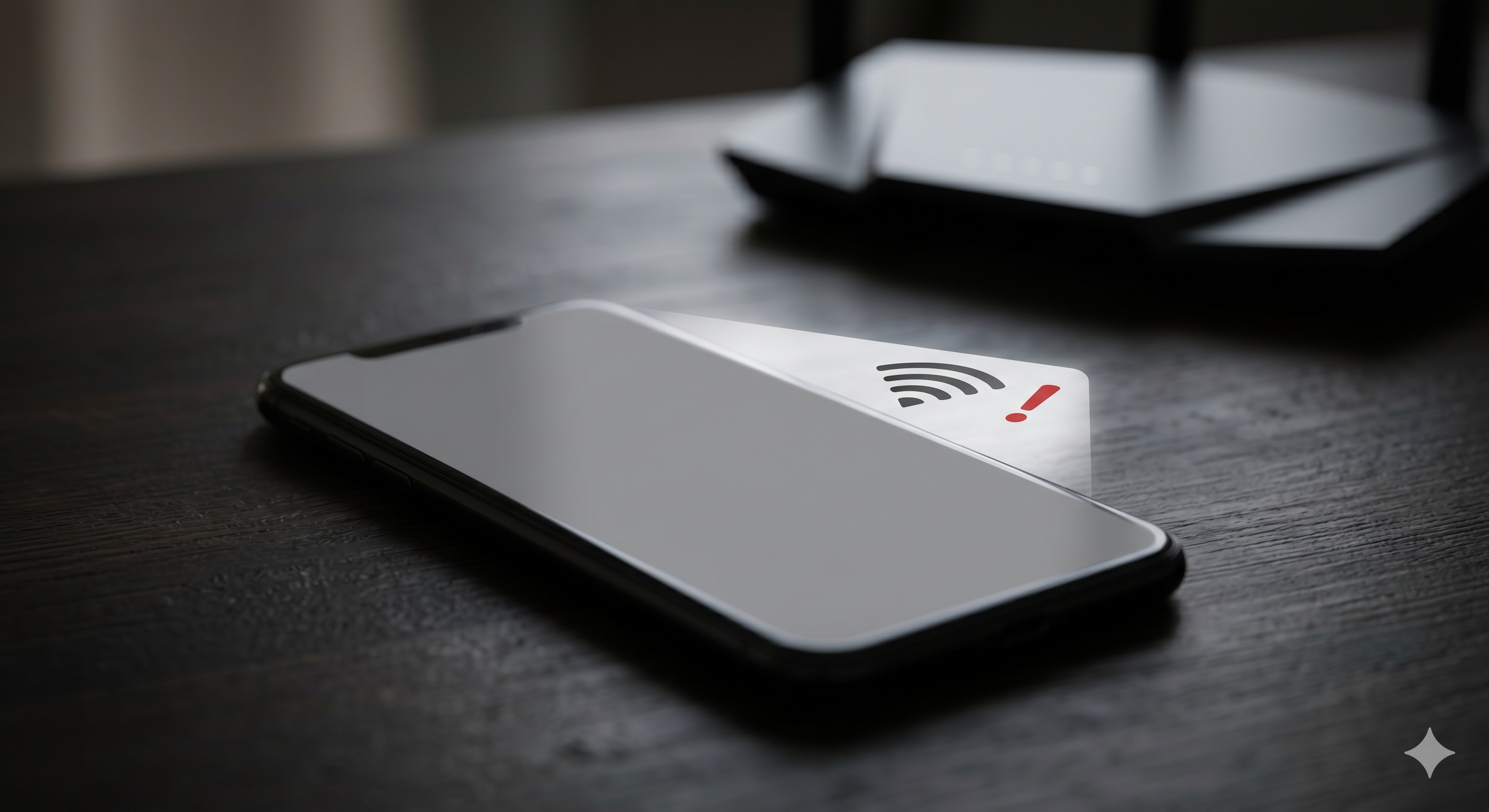
Is your phone Wi-Fi keeps disconnecting every few minutes, or does it refuse to join your home network entirely? You are not alone. We see this issue every week at our New Haven and Hamden shops. People walk in frustrated because their phone connects fine to coffee shop Wi-Fi but drops constantly at home, or vice versa.
This guide will show you how to find the real cause, try the simple fixes first, and know when the problem is the phone itself. Everything here comes from real bench work, not theory. Let us start with why this happens.
Section 1: Why Phone Wi-Fi Keeps Disconnecting in 2026
Your phone’s Wi-Fi connection depends on three things working together. The Wi-Fi chip and antenna inside your phone, the router pushing the signal, and the network credentials your phone has stored. When any of those three fail, you see a dropped or refused connection.
The most common cause is a software conflict between your saved network settings and a router firmware update. According to the FCC’s reference on Wi-Fi technology, modern Wi-Fi 6 and Wi-Fi 7 routers handshake with phones using newer protocols that older Android and iOS versions sometimes struggle with. A small mismatch causes constant disconnects.
The second cause is the Wi-Fi chip itself. The chip sits very close to the modem, the power management unit, and other heat-sensitive components on the logic board. Repeated thermal cycles from gaming or charging cause solder joints around the chip to develop micro-fractures. Once that happens, your phone may connect fine when cold but drop the moment it warms up.
The third cause is interference. 2.4 GHz networks are crowded in apartments and offices. Your microwave, your neighbor’s router, and even some baby monitors can all push your phone off the network.
The fourth cause is failed credentials. A stored password gets corrupted after an OS update and the phone keeps trying with the wrong key.
Section 2: How to Fix Wi-Fi Disconnection at Home (Step by Step)
Run through these checks in order. Most people solve the problem before reaching the hardware steps.
Step 1: Test on a Different Network
Try connecting to a friend’s Wi-Fi or a public hotspot. If the problem follows your phone everywhere, the issue is your phone. If the problem only happens on one network, the issue is the router or the saved profile.
Step 2: Forget the Network and Reconnect
Go to Settings, tap your Wi-Fi network, and choose “Forget This Network.” Then reconnect by typing the password fresh. This clears corrupted credentials, which is one of the most common causes of constant disconnects.
Step 3: Restart Both the Phone and the Router
Power off your phone for 30 seconds, then restart. Unplug your router for 60 seconds, then plug it back in. This clears the handshake on both ends and forces a fresh negotiation.
Step 4: Check for Software Updates
Open Settings and check for an iOS or Android update. Wi-Fi handshake bugs are some of the most patched issues in modern phone updates. Also check your router’s admin page for firmware updates.
Step 5: Switch the Wi-Fi Band
If your router broadcasts both 2.4 GHz and 5 GHz, try forcing your phone to one or the other. The 5 GHz band has less interference but shorter range. The 2.4 GHz band reaches further but is more crowded.
Step 6: Reset Network Settings
This wipes all saved Wi-Fi networks, Bluetooth pairings, and cellular settings. On iPhone go to Settings, General, Transfer or Reset, Reset, then Reset Network Settings. On Android the path varies but is usually under System and Reset.
Step 7: Test in Safe Mode (Android Only)
Boot into safe mode to rule out a misbehaving VPN or security app. If Wi-Fi is stable in safe mode, an installed app is the cause.
Section 3: How to Get Phone Wi-Fi Hardware Repaired Safely
Sometimes the steps above do not solve the problem. If your phone disconnects from every network, gets warm during use, and the issue worsens over time, the Wi-Fi chip or antenna is likely failing. Here is how to handle it the right way.
Get a proper diagnostic first. Wi-Fi failure on the bench can come from the chip itself, the antenna cable, the antenna pad, or even a damaged board trace. Each one needs a different fix. A good shop runs signal tests before opening the phone. This is similar to the multi-component diagnostic approach we use for phones that get hot and lose battery fast.
Check for prior water exposure. Wi-Fi chips and antennas are particularly vulnerable to moisture corrosion. We always check moisture indicators before quoting a Wi-Fi repair. A wet board needs ultrasonic cleaning before any chip-level work.
Avoid DIY antenna kits. Wi-Fi antenna replacement on modern phones requires removing the screen, the battery, and reaching deep into the device. We see at least one botched DIY job every couple of weeks. Bent connectors, torn coaxial cables, and accidentally severed antenna pads are all common.
Watch for related symptoms. A failing Wi-Fi chip often takes Bluetooth down with it since the two share circuitry on most phones. If your Bluetooth has also become unreliable, that confirms a hardware issue. We covered a similar pattern in our piece on phones with vibration and haptic engine failures.
For most people, a professional Wi-Fi diagnostic takes under 30 minutes. You can get an instant quote before deciding. Our iPhone repair team and smartphone specialists handle Wi-Fi repairs regularly and we will always tell you straight whether a fix is worth the cost.
Section 4: Conclusion and Final Thoughts
If your phone Wi-Fi keeps disconnecting, the cause is almost always a software glitch, a router conflict, network interference, or a Wi-Fi chip starting to fail. The good news is that the first three causes have clear DIY fixes. Forget and rejoin networks, restart everything, update your software, and test on multiple Wi-Fi sources to narrow down where the problem really lives.
The most important thing is to test on more than one network before assuming the phone is broken. We see customers come in convinced their phone needs a Wi-Fi chip replacement, only to find out the issue was a misconfigured router setting. Always rule out the easy stuff first.
If you are in the New Haven or Hamden area and the problem follows your phone everywhere, bring it in. We will run a proper diagnostic, show you what is actually happening, and give you honest options. No pressure, no upsell.
FAQs
Q: Why does my phone connect to Wi-Fi but show no internet?
That usually means the connection succeeded but the router is not handing out a valid IP address, or your DNS settings are misconfigured. Try forgetting the network and rejoining, or restart the router.
Q: Can a screen replacement break my Wi-Fi?
Yes. Some Wi-Fi antenna cables run under or near the display assembly. A poorly done screen replacement can pinch or sever those cables. Always use a shop that tests Wi-Fi after every repair.
Q: How much does a phone Wi-Fi chip repair cost in 2026?
It varies a lot. A simple antenna cable replacement is one of the cheaper repairs. A full Wi-Fi chip replacement at the board level is significantly more because it requires micro-soldering. We always quote upfront after a diagnostic.
Q: Will a factory reset fix Wi-Fi problems?
Sometimes. A factory reset wipes all software conflicts and starts fresh. If the issue is hardware, the reset will not help. If it is software, the reset usually fixes it but at the cost of all your apps and settings.
Q: My phone connects to Wi-Fi only when held a certain way. What does that mean?
That is a strong sign of an antenna cable issue. The cable is likely loose or has a partial break, and your hand position is changing the contact. This needs professional repair.
Disclaimer
This article is for informational purposes only and reflects observations from our New Haven and Hamden, CT repair shops. Wi-Fi behavior varies by device, network, and environment. For specific issues, consult the original manufacturer or a trusted local repair professional.