Written by: Ronnie Gonenc
Introduction
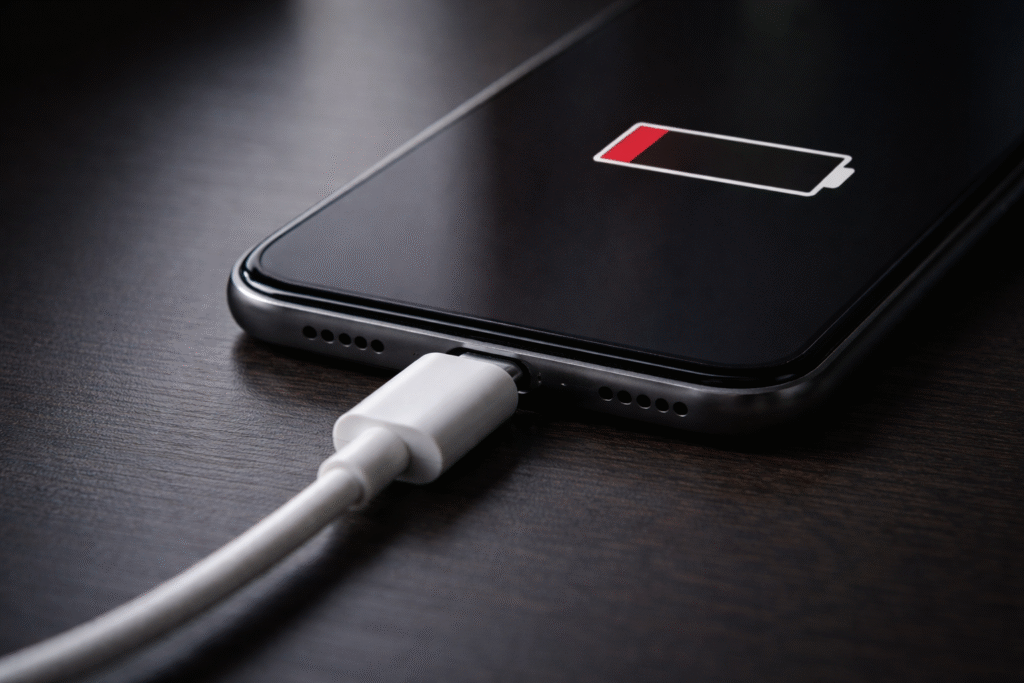
There’s a special kind of dread that comes with plugging in your phone, walking away, and coming back to find the battery hasn’t moved. Your phone won’t charge even when plugged in—and you have no idea why. Is the cable shot? Is the port damaged? Or is something more serious happening inside the device?
At Fix Wireless, we see this exact scenario multiple times a day at both our New Haven and Hamden locations. After diagnosing and repairing thousands of phones with charging failures—iPhones, Samsungs, Pixels, Motorolas, and everything in between—we can tell you that the answer is rarely what people expect. Sometimes it’s a ten-second fix. Other times, it’s a failing chip buried deep on the logic board.
This guide gives you a clear, step-by-step framework to figure out what’s actually wrong with your phone’s charging, what you can safely fix on your own, and when it’s time to bring the device to a professional. No fluff, no guessing—just real diagnostic knowledge from a team that does this work every day.
Section 1: How Phone Charging Actually Works — And Where It Breaks Down
Before you can diagnose a charging failure, it helps to understand the chain of components involved. Every time you plug in your phone, electricity has to travel through four distinct stages: the wall adapter, the cable, the physical charging port, and the power management circuitry on the phone’s logic board. A break at any single point kills the entire process.
The wall adapter converts household AC power into the DC voltage your phone requires. The cable carries that power from the adapter to the device. The charging port—whether USB-C or Lightning—receives the cable’s connector and transfers electricity through a set of tiny metal pins. And the power management IC (PMIC) on the motherboard regulates that incoming current and directs it safely to the battery.
Industry repair data consistently shows that charging complaints make up approximately one in five service tickets at independent repair shops. The breakdown of root causes is revealing: around 30–35% turn out to be cable or adapter problems, another 25–30% involve debris or physical damage to the port, and the remaining cases involve board-level IC failures or battery degradation.
The practical takeaway? More than half of all charging failures come from things outside the phone itself. That’s good news, because those are the easiest and cheapest problems to solve. The challenge is figuring out which category your situation falls into—and that’s exactly what the rest of this guide covers.
Section 2: Start Here — Ruling Out the Cable and Adapter
The single most common reason a phone won’t charge is a bad cable or adapter. Not a broken phone. Not a damaged port. Just a cable that’s quietly died on you. It’s also the easiest thing to test, which is why any competent repair technician will check this before opening your device.
Why Cables Fail More Than You’d Think
Charging cables endure constant mechanical stress. Every time you plug in at an angle, yank the cable out in a hurry, or bend the connector end while using your phone in bed, you’re weakening the internal wiring. The outer jacket might look fine while the copper conductors inside are frayed or broken. Cheap, uncertified cables are especially prone to this because they use thinner gauge wire and lower-quality connectors.
How to Test Properly
- Swap the cable first. Use a different cable with your current adapter. If the phone charges, your cable was the problem. Replace it with a certified option—MFi for iPhones, USB-IF certified for USB-C devices.
- Then swap the adapter. Use your original cable with a different wall adapter. Adapters can fail internally without any visible sign. If a different adapter works, you’ve isolated the issue.
- Test both on another device. Plug your original cable and adapter into a different phone or tablet. If they charge that device normally, the problem is with your phone—not your accessories.
- Skip the computer USB port. Computer USB ports deliver lower amperage than wall adapters. Some phones with depleted batteries won’t respond to the lower power output, which can create a false impression that the phone is broken.
If swapping cables and adapters doesn’t solve it, the issue is inside the phone. Keep reading.
Section 3: The Five-Minute Fix — Cleaning Debris from Your Charging Port
If your cable and adapter check out fine but the phone still won’t charge, the next most likely culprit is debris packed inside the charging port. This is the most satisfying fix in phone repair because it takes almost no time, costs nothing, and the results are immediate.
How Lint and Dust Cause Charging Failure
Every time your phone goes into a pocket, purse, or bag, microscopic fibers and dust particles enter the port opening. Over weeks and months, this material compacts at the bottom of the port cavity. Eventually, when you insert the charging cable, the connector can’t seat fully—the lint prevents the metal pins from making proper electrical contact. The cable might feel like it clicks in, but the connection is incomplete.
Safe Cleaning Method
- Power off your phone completely before touching the port.
- Use a wooden or plastic toothpick. Never use a metal tool—no paperclips, no SIM ejector pins, no needles. Metal can short-circuit the connector pins or scratch the internal contacts.
- Insert the toothpick gently and scrape along the bottom wall of the port. Work side to side to loosen compacted material.
- Blow out loosened debris with a few short bursts of compressed air, held at a slight angle to the port opening.
- Reinsert the charging cable. If it clicks in more firmly than before and charging begins, you’ve solved it.
At our iPhone repair bench, we regularly pull out surprisingly large clumps of compacted lint from ports that looked clean at first glance. A flashlight and close inspection can reveal what the naked eye misses.
Section 4: Software Issues That Mimic Hardware Charging Problems
Here’s a scenario that surprises many customers: the phone is actually receiving power, but a software glitch hides the charging indicator or drains the battery so fast it offsets the incoming charge. Before assuming hardware failure, rule out these software causes.
Force Restart
A frozen or glitched operating system process can prevent the charging animation from appearing, even when electricity is flowing into the battery. Force restarting clears these stuck processes.
- iPhone (iPhone 8 and later): Quick-press Volume Up, quick-press Volume Down, then press and hold the Side button until the Apple logo appears.
- Samsung Galaxy: Press and hold Power + Volume Down simultaneously for 10–15 seconds until the device restarts.
- Other Android phones: Most follow the Samsung method, but some require holding the Power button alone for 15–20 seconds.
If your phone has been stuck in a restart loop or frozen on the logo screen, the charging issue may be a symptom of a larger software failure rather than a port problem.
Check for OS Updates
Both Apple and Google have released updates specifically addressing charging detection bugs in recent software versions. Running outdated firmware can trigger false “not charging” states. Update your operating system and retest.
Safe Mode (Android Only)
Third-party apps—particularly battery “optimizers” and fast-charging apps—can interfere with the system’s native charging behavior. Booting into Safe Mode disables all third-party apps. If the phone charges normally in Safe Mode, a recently installed app is the culprit. Uninstall apps one by one, starting with the most recent, until normal charging returns.
Section 5: Moisture Warnings and Water-Related Charging Refusal
If your phone displays a liquid detection or moisture warning when you plug in the cable, it’s doing exactly what it’s designed to do—protecting itself from a short circuit. This is a safety mechanism, not a malfunction.
What to Do
- Unplug the cable immediately. Charging through moisture can cause corrosion or electrical damage to the port pins.
- Do not blow into the port or insert anything to dry it. Your breath contains moisture, and foreign objects risk pin damage.
- Hold the phone with the port facing downward and gently shake it to help water escape.
- Place the phone in a dry, well-ventilated area and wait 30 minutes to an hour. Room temperature with natural airflow works best.
- Skip the rice. It’s a persistent myth. Rice dust can enter the port and compound the problem. A dry countertop near an open window is more effective.
If the moisture warning clears after drying and the phone charges normally, no repair is needed. If the warning persists when the port is visibly dry, the moisture detection sensor may have sustained damage—that’s a repair you should bring to a professional smartphone repair shop.
Section 6: When It’s the Charging Port — Physical Damage That Requires Professional Repair
You’ve tested multiple cables, cleaned the port, restarted the phone, and waited out any moisture warnings. Nothing worked. At this point, the problem is almost certainly physical damage to the charging port itself or the electronics directly behind it.
Bent, Broken, or Worn Connector Pins
The pins inside a USB-C or Lightning port are extremely small and delicate. Regular plugging and unplugging wears them down over time. Inserting the cable at an angle, using force, or catching the cable on something while it’s plugged in can bend or snap these pins outright.
Telltale signs of pin damage include charging that only works when the cable is held or wiggled at a specific angle, charging that starts and stops unpredictably, and a cable that no longer clicks or seats firmly into the port.
Charging port replacement is one of the most common repairs we perform at Fix Wireless. For most iPhone models and popular Android devices, it’s a same-day repair—typically done in under an hour. The full port assembly gets replaced with high-quality parts, and every repair comes with our standard warranty.
Loose Port from Internal Disconnection
The charging port connects to the phone’s logic board through a delicate flex cable. A significant drop or repeated impact can partially unseat this connection. Externally, the port might look normal, but inside, the electrical pathway is compromised.
Symptoms overlap with pin damage: intermittent charging, a wobbly feeling when the cable is inserted, or the phone only recognizing the cable in certain positions. The difference is that the port’s pins may be physically intact—the flex cable behind them is the issue.
This repair requires opening the phone, inspecting the internal connection, and either re-seating or replacing the dock connector assembly. If you suspect this is your issue, get a free repair quote from us to see what the fix involves for your specific model.
Port Corrosion from Past Liquid Exposure
Water resistance ratings like IP67 and IP68 are tested in controlled laboratory conditions—clean, still freshwater at specific depths and durations. Real life is different. Exposure to sweat, saltwater, coffee, soda, cleaning products, and even high-humidity environments over time can corrode the port’s metal contacts without ever triggering a moisture warning.
Green or white residue visible around the port opening is an obvious sign. But corrosion often hides on the underside of the connector or along the flex cable solder joints, invisible unless the phone is opened. Corroded ports require professional ultrasonic cleaning or complete replacement. Left untreated, corrosion spreads along the flex cable toward the logic board—turning a port repair into a much more expensive board-level problem.
Section 7: When It’s Not the Port at All — Logic Board and Battery Failures
Sometimes the charging port is in perfect condition, but the phone still won’t charge. When that happens, the failure is upstream—on the logic board or inside the battery itself. These are the more complex and costly scenarios, and they’re the ones where accurate diagnosis saves you from wasting money on the wrong repair.
Power Management IC (PMIC) Failure
The PMIC is a small chip soldered to the logic board that controls how incoming electricity is regulated and distributed to the battery. If the PMIC fails—from a power surge caused by a bad charger, a drop that cracks a solder joint, or simply age and heat cycles—the phone may show zero response when plugged in. In other cases, the charging icon appears, but the battery percentage never actually increases.
PMIC repair is a microsoldering procedure performed under a microscope. It involves removing the failed chip and replacing it with a working component. This is board-level repair work—not every shop is equipped or trained for it. At Fix Wireless, we offer logic board diagnostics and can tell you honestly whether a PMIC repair is cost-effective for your device or whether replacing the phone makes more practical sense.
Tristar (U2) or Hydra (U6) IC Failure — iPhone Only
iPhones have a dedicated chip—called Tristar on older models and Hydra on newer ones—that manages the communication handshake between the Lightning cable and the device. When this chip fails, the phone literally cannot detect that a cable has been inserted. You get no charging, no iTunes/Finder recognition, and no response of any kind from the wired connection. Wireless charging, if supported, may still work normally.
Non-certified Lightning cables and low-quality third-party chargers are the leading cause of Tristar and Hydra IC failure. This is why we always recommend MFi-certified accessories for any iPhone. Repairing this chip is a microsoldering job similar to PMIC replacement.
Battery at End of Life
Lithium-ion batteries are consumable components with a finite lifespan. After roughly 500 to 800 complete charge cycles—which translates to about two to three years for most users—the battery’s ability to hold and accept charge degrades significantly. A severely degraded battery can refuse to charge altogether, mimicking a port failure.
How to distinguish battery failure from port failure:
- The phone shuts down unexpectedly at 15–30% battery remaining.
- The battery health percentage (check iPhone Settings > Battery > Battery Health, or Samsung Settings > Battery and Device Care > Diagnostics) shows 79% or below.
- The phone feels abnormally hot when attempting to charge.
- There’s visible swelling—the screen may lift slightly from the frame, or the back panel may bulge.
Battery replacement is a routine repair. If you’re noticing these symptoms, don’t wait—a swollen battery is a safety concern. Bring it in for assessment promptly.
Section 8: A Step-by-Step Diagnostic Flowchart You Can Follow Right Now
Use this checklist to systematically narrow down the cause before spending any money:
- Step 1: Try a different certified cable. Does the phone charge? → Cable was the issue.
- Step 2: Try a different wall adapter with the new cable. Does the phone charge? → Adapter was the issue.
- Step 3: Inspect the port with a flashlight. See lint, dust, or debris? → Clean it with a wooden toothpick and compressed air.
- Step 4: Force restart the phone. Does the charging indicator now appear? → Software glitch was the issue.
- Step 5: Try wireless charging (if supported). Does wireless work but wired doesn’t? → Problem is localized to the port or its IC chip.
- Step 6: Connect to a computer via USB. Does the computer detect the phone? If no detection AND no charging → Likely an IC-level failure (Tristar, Hydra, or PMIC).
- Step 7: Check battery health in settings. Below 80%? → Battery replacement is likely needed.
- Step 8: Does the cable feel loose or wobbly in the port? Does charging work only at certain angles? → Physical port damage. Time for professional repair.
If you get through all eight steps without a clear answer, bring the phone in for a professional diagnostic. At Fix Wireless, our assessment is thorough—we’ll tell you exactly what’s wrong before any work begins. Check our Common Repair Questions or Device Repair FAQs for more guidance on what to expect.
Section 9: What a Professional Charging Port Repair Looks Like
If your diagnosis points to hardware, here’s what a quality repair experience should involve:
Honest diagnostics before any commitment. A reputable shop examines your phone and explains the root cause clearly. You should know what’s wrong and what it costs before a single screw is turned. At Fix Wireless, we don’t charge for the initial diagnostic assessment.
OEM-equivalent replacement parts. The quality of replacement charging ports varies dramatically. We use components that match original manufacturer specifications for pin alignment, conductivity, and durability. Cheap knockoff ports fail faster and can cause secondary damage to the logic board.
Fast turnaround. Standard charging port replacements for iPhones and Samsung Galaxy devices are completed within an hour at our New Haven and Hamden locations. Board-level work takes longer, and we’ll set expectations up front.
Warranty on every repair. All Fix Wireless repairs come with a standard warranty. If something isn’t right after the fix, come back and we’ll make it right at no additional cost.
Ready to find out what’s going on with your phone? Get a free instant repair quote online, or stop by either of our Connecticut locations.
Section 10: How to Prevent Charging Port Problems Before They Start
A few simple habits go a long way toward keeping your charging port functional for the full life of your phone:
- Invest in certified cables. MFi-certified for iPhone, USB-IF certified for USB-C. Certified cables have proper voltage regulation, correct pin sizing, and thicker gauge wire. They cost more but protect the port and the logic board’s power IC.
- Clean your port once a month. A quick pass with a wooden toothpick takes ten seconds and prevents the kind of lint buildup that causes false charging failures.
- Insert and remove the cable straight. Don’t plug in at an angle or pull the cable sideways. Lateral force is the primary mechanical cause of bent pins inside the port.
- Never charge through a wet port. If you see a moisture warning, wait it out. Charging through moisture causes corrosion that may not show symptoms for weeks but will eventually kill the port.
- Use wireless charging when practical. If your phone supports Qi wireless charging, using it as your primary charging method eliminates all mechanical wear on the port. Reserve the wired port for data transfer and travel.
- Avoid charging from unreliable power sources. Low-quality car chargers, public USB outlets, and off-brand portable battery packs can deliver inconsistent voltage that stresses the PMIC over time.
And if your phone is beyond repair or the cost doesn’t make sense, remember that Fix Wireless also offers a buy, sell, and trade program. We’ll buy your device in any condition, and you can browse our selection of inspected, refurbished phones to find a replacement that fits your budget.
Final Thoughts
When your phone won’t charge even when plugged in, the answer is almost always somewhere in the chain between your wall outlet and your phone’s battery. Start with the simplest explanations—a bad cable, a dirty port, a software glitch—and work your way deeper only if those don’t pan out. That systematic approach saves you time, money, and unnecessary stress.
If you’ve worked through the checklist and the problem is clearly hardware, that’s where Fix Wireless comes in. We’ve been diagnosing and repairing these exact issues for years across every major phone brand. We’ll give you a straight answer, a fair price, and a repair backed by warranty.
Stop stressing over your dead phone. Get your free repair quote now or contact our team to book your appointment today.