Written by: Ronnie Gonenc
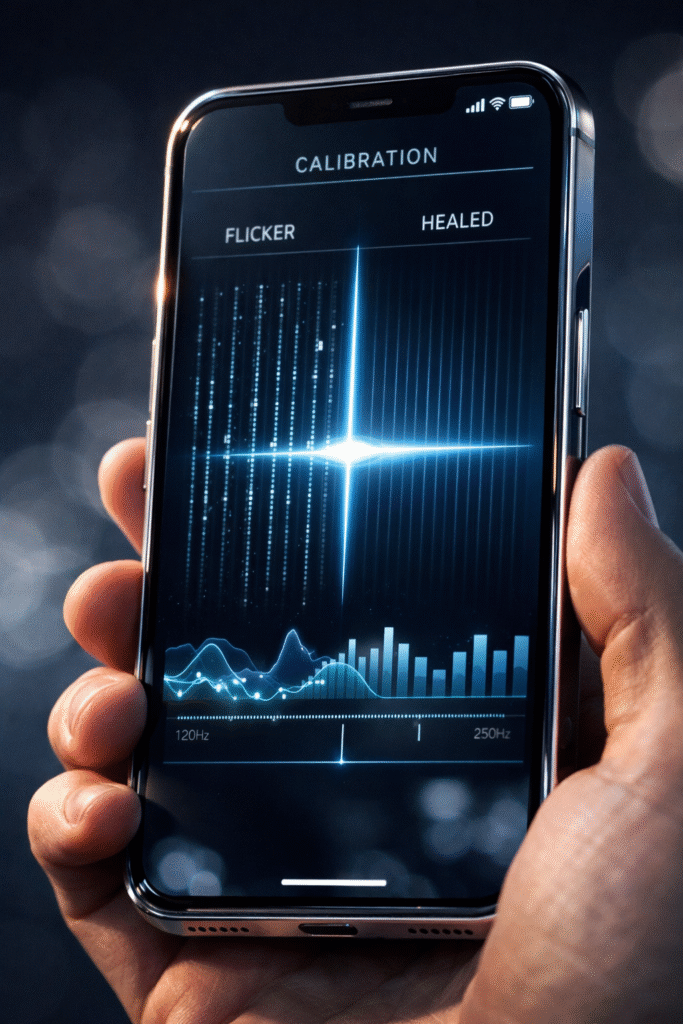
High-refresh-rate screens have changed how we interact with our devices, making every scroll feel fluid. However, when that fluidity breaks down, it is incredibly noticeable. If you are seeing vertical line flickering or experiencing a frustrating delay when you tap an icon, your screen’s synchronization is likely off. As a specialist in high-end mobile tech, I know that hardware isn’t always the culprit; often, the software controlling the refresh rate needs a nudge.
In this guide, I will explain how to recalibrate 120Hz Pro-Motion display settings to eliminate lag and visual artifacts. We will focus on non-invasive recalibration techniques that refresh the display driver without risking your personal data. Because screen issues can sometimes signal deeper hardware stress, we will also identify when it is time to seek a professional technician.
Section 1: Why 120Hz Displays Develop Touch Lag
The “Pro-Motion” technology found in modern smartphones is dynamic. This means the screen constantly shifts between 10Hz and 120Hz to save battery life. Touch lag usually occurs when the device fails to “ramp up” the refresh rate quickly enough in response to your finger. This mismatch creates a heavy, unresponsive feeling.
Vertical line flickering is often a separate issue related to the voltage sent to the pixels. If the display controller loses its calibration, the refresh cycles can overlap, causing those distracting lines. Based on industry standards for OLED panels, these glitches are frequently linked to “ghost touches” or static buildup behind the glass. Understanding this helps you realize that a software refresh can often re-align these cycles.
Section 2: Step-by-Step Recalibration Methods
Follow these steps to refresh your screen’s logic. These methods are designed to be safe and effective for all 120Hz-capable devices.
1. The Refresh Rate “Hard Toggle”
The simplest way to force a recalibration is to manually break the dynamic cycle.
- Go to Settings > Display > Motion Smoothness (or Pro-Motion).
- Switch the setting from “Adaptive/High” to “Standard” (60Hz).
- Restart your device completely.
- Return to settings and switch back to “Adaptive/High.” This forces the display driver to reload its configuration files from scratch.
2. Clearing the System Cache Partition
Sometimes, residual files from a system update interfere with touch sensitivity. To fix this, you may need to enter your device’s recovery menu to “Wipe Cache Partition.” If you are unsure how to access this menu for your specific model, feel free to contact us for guidance. This process does not delete your photos, but it clears out “junk” data that can cause display lag.
3. Digitizer Calibration via Developer Options
For advanced users, enabling “Show Taps” in Developer Options can help you see if the lag is consistent. If you notice the visual feedback is behind your finger, the digitizer needs a reset. You can often trigger this by performing a “Force Restart” (Volume Up, Volume Down, then hold the Power Button) while the device is plugged into a certified charger.
Section 3: When to Consider Professional Repair
If you have tried to recalibrate 120Hz Pro-Motion display settings and still see permanent vertical lines, you may be facing a “flexgate” issue. This happens when the delicate ribbon cables inside the phone become strained or damaged. At this stage, software adjustments cannot bridge a physical break in the connection.
In these instances, continuing to use a flickering screen can lead to a total “black out” of the panel. We recommend visiting our smartphone repairs page to see how we handle delicate OLED replacements. If the cost of repair is too high for an older model, you might prefer to buy or sell through our verified platform instead.
Section 4: Conclusion and Final Thoughts
A 120Hz display is a premium feature, and you shouldn’t have to settle for a laggy experience. By taking the time to recalibrate 120Hz Pro-Motion display settings, you can often restore that “out of the box” smoothness without spending a dime. Remember to keep your software updated, as manufacturers frequently release patches for display driver stability.
If you want to learn more about the technology we use to test these screens, you can read about us and our commitment to using OEM-grade parts. Don’t let a flickering screen ruin your productivity—most of the time, the fix is just a few taps away.
FAQs
Does vertical line flickering mean I need a new screen?
Not always. While it can be a hardware fault, it is often caused by a software glitch in the display controller. Always try a hard reset first.
Will a screen protector cause touch lag?
Yes, especially if it isn’t “High-Sensitivity” rated. If you experience lag, try turning on “Touch Sensitivity” in your display settings before removing the protector.
How much does it cost to check my screen?
You can use our instant quote widget to get a transparent price for diagnostics and repairs in seconds.
Disclaimer: This article provides informational troubleshooting steps. Screen flickering can sometimes indicate battery swelling or internal hardware failure. If your device feels excessively hot or the screen is lifting, stop use immediately and seek professional help.