Hidden Dangers of Ignoring Tiny Phone Glitches | CT Fix Wireless

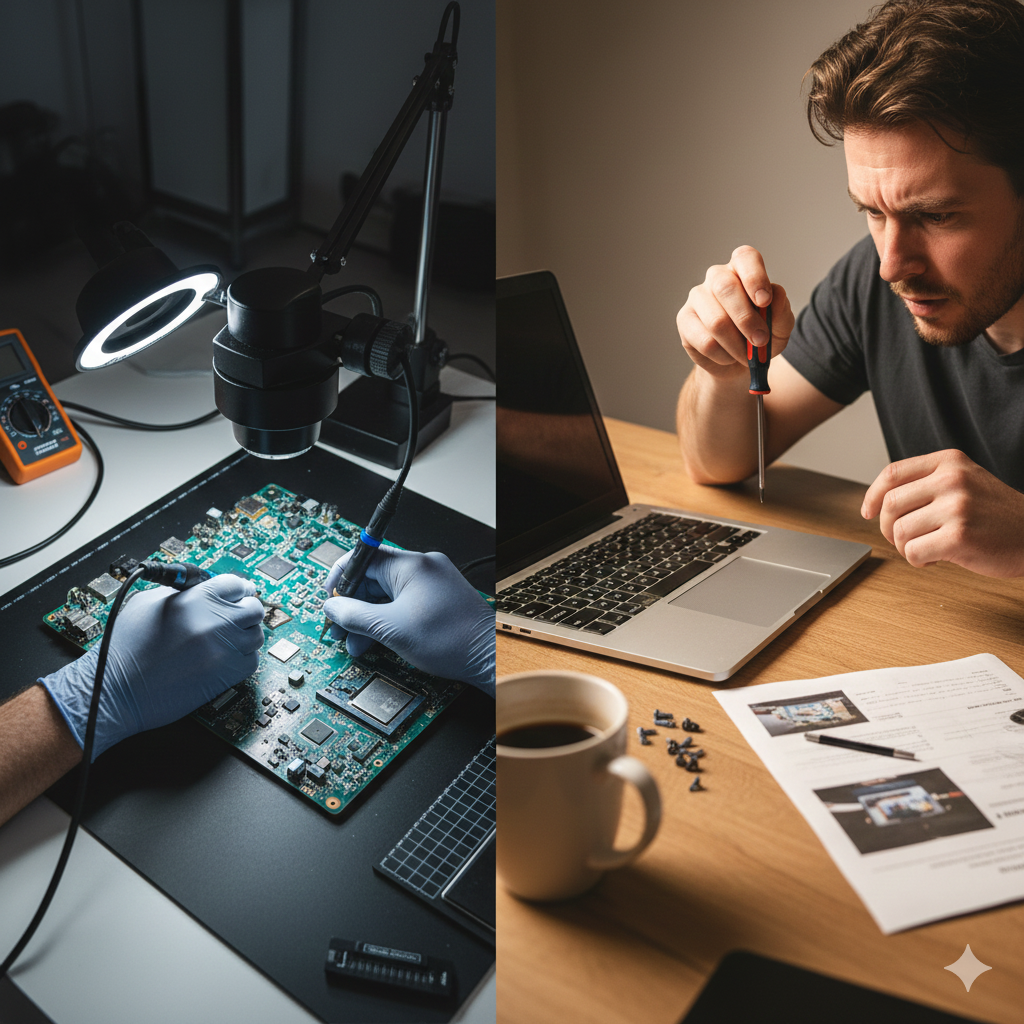
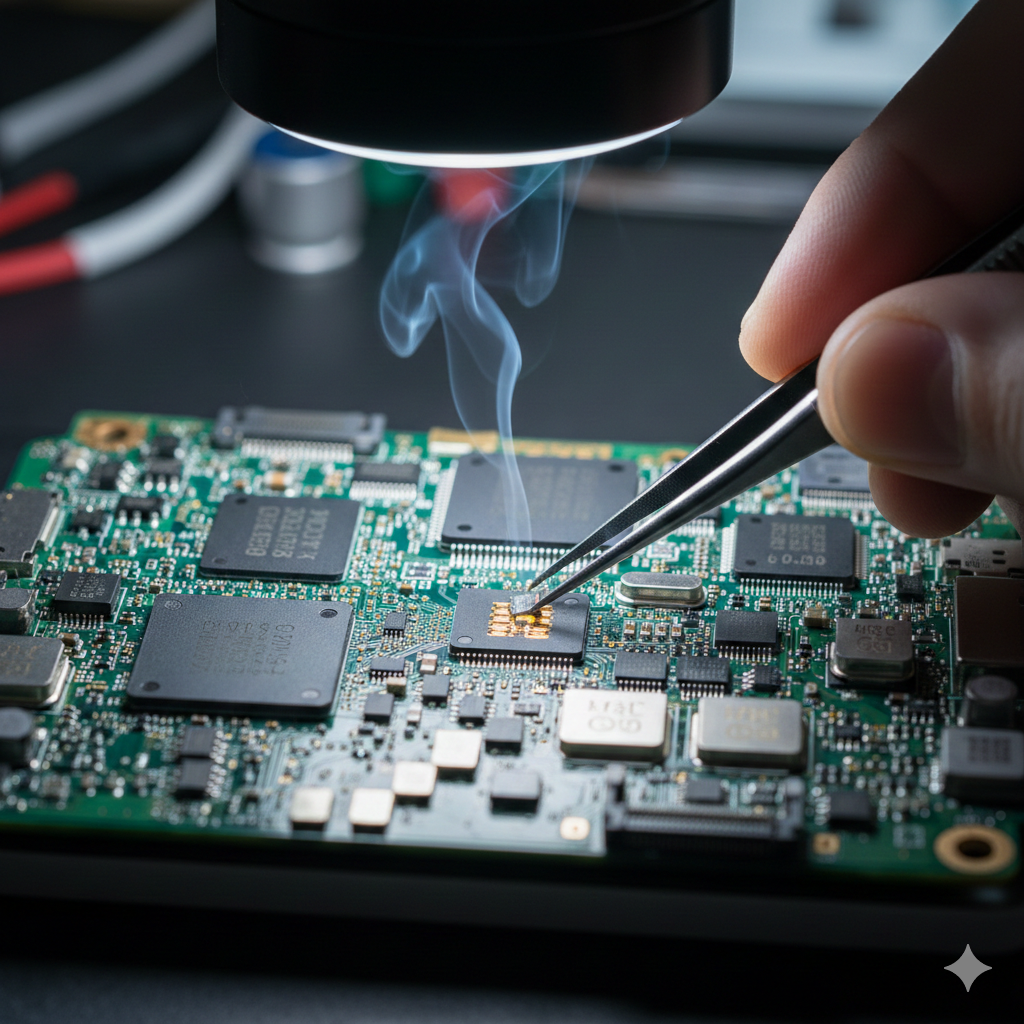
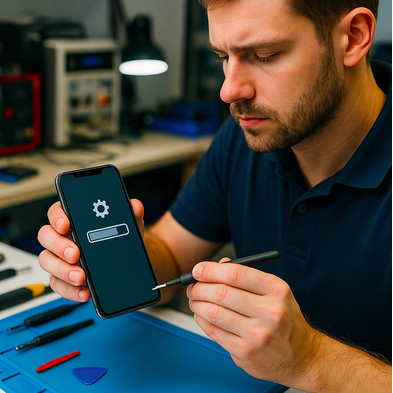
technician repairing phone with small glitch at CT Fix Wireless

Your phone freezes for a second. The screen flickers once. Maybe your charger connects only after twisting the cable a little. You shrug it off—until one day, the device won’t turn on at all.

At CT Fix Wireless, we see it every day: tiny issues that, if caught early, could’ve been fixed in minutes but now require board-level repair. This article explains how small glitches spiral into expensive damage—and how timely service can prevent it.


Section 1: Why “Tiny” Phone Glitches Shouldn’t Be Ignored

Minor issues—like slow charging, flickering displays, or random restarts—signal underlying hardware or software faults. Your device is essentially trying to warn you.

Early Signs You Might Overlook

  • Screen flickering or ghost touches
  • Random reboots or shutdowns
  • Charger not connecting properly
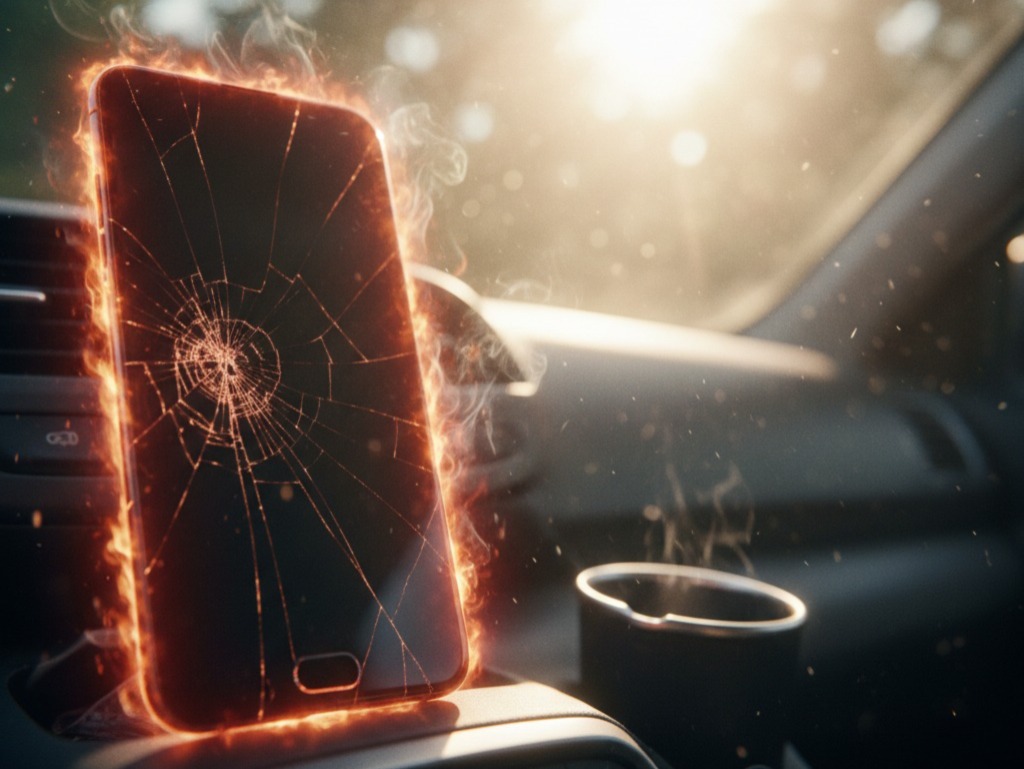
  • Slight overheating during use
  • Unresponsive buttons or lagging touch

Each of these might seem harmless, but behind them could be battery stress, damaged ICs, worn connectors, or moisture corrosion.


Section 2: The Chain Reaction — How Small Glitches Escalate

Let’s break down how neglecting a small problem leads to big repairs:

  1. Flickering Screen → Burnt Display or IC Failure
    That brief flicker can mean voltage instability in the screen’s power circuit. Over time, it damages your display driver or motherboard.
  2. Slow Charging → Charging Port or Battery Damage
    Loose ports or faulty cables cause arcing (tiny electric sparks). This heat weakens the port, melts connectors, and eventually burns the charging IC.
  3. Overheating → Logic Board Short Circuits
    Heat stress weakens solder joints and power chips. Continuous exposure can destroy the PMIC (Power Management IC).
  4. Random Shutdowns → Data Loss & Boot Failure
    When power delivery becomes unstable, files corrupt and storage chips degrade, leading to startup failure.
  5. Touch Lag → Digitizer Failure
    Minor unresponsiveness often points to moisture, glass separation, or IC miscommunication—all of which worsen without repair.

Section 3: Real-World Example from CT Fix Wireless

A customer recently brought in an iPhone XR that restarted randomly once a week. They ignored it for two months until it refused to power on. Upon inspection, our technicians found corrosion spreading beneath the power IC. What could’ve been a $70 cleaning became a board-level IC replacement.

The takeaway? Small glitches compound over time, and the damage extends beyond what’s visible on the surface.


Section 4: Diagnosing the Root Causes of Common Glitches

Here’s what might be going wrong behind the scenes:

SymptomLikely CauseRecommended Fix
Flickering screenDisplay cable or IC damageDisplay replacement or reflow
Lagging performanceSoftware conflict or overheatingSystem cleanup or battery replacement
Battery drains fastPower IC or battery degradationBattery replacement
Charger fits looselyPort wear or debrisCharging port cleaning/replacement
Touch unresponsiveDigitizer malfunctionScreen replacement

Our Instant Quote Widget helps you identify what kind of repair your device might need instantly.


Section 5: The Cost of Delay — Why Early Repair Saves Money

Ignoring small issues doesn’t just increase damage—it also multiplies costs.

  • Immediate Fix: Cleaning or minor part replacement ($).
  • Delayed Fix: Full component replacement or board rework ($$$).

For example:

  • A simple charging port cleaning might cost little. But if corrosion reaches the motherboard, you’ll need an IC re-soldering service.
  • A slightly cracked screen might only affect aesthetics—but over time, it can lead to touch failure and LCD burnout.

By booking an early diagnosis at CT Fix Wireless, you avoid paying for what could’ve been prevented.


Section 6: Preventing Glitches Before They Grow

1. Keep Your Software Updated

System updates patch bugs that cause freezes and crashes.

2. Avoid Cheap Accessories

Low-quality chargers and cables deliver unstable voltage, stressing your ICs.

3. Protect Against Heat and Moisture

Avoid placing your phone under direct sunlight or near humid environments.

4. Regular Device Checkups

Visit CT Fix Wireless for routine inspections. Early detection is the best protection.

5. Replace Worn Parts Promptly

If your screen, port, or battery starts acting up, schedule repair at our iPhone Repairs page for model-specific solutions.


Section 7: Why CT Fix Wireless Is the Trusted Choice

  • Expert Technicians: Skilled in micro-soldering and advanced diagnostics.
  • OEM-Grade Parts: Ensuring every repair matches manufacturer quality.
  • Transparent Pricing: Get clear estimates through the Instant Quote Widget.
  • Comprehensive Services: From minor glitches to motherboard replacements.
  • Customer-Focused Approach: We explain every repair before starting.

If you’re unsure whether your issue needs repair, use our Contact Page or visit the About Us section to learn more about our process.


Section 8: The Long-Term Benefit of Fixing Glitches Early

Timely maintenance extends the lifespan of your phone by 30–50%. It preserves resale value and prevents unexpected breakdowns when you need your device most.

At CT Fix Wireless, our goal isn’t just to repair—it’s to help you maintain your device’s long-term performance and safety.


Conclusion

Those small freezes, flickers, or lags aren’t random—they’re warnings. Ignoring them risks expensive, avoidable damage later. The next time your phone behaves strangely, act early.

Visit CT Fix Wireless or use the Instant Quote Widget for a quick checkup. A five-minute diagnosis today could save you hundreds tomorrow.


FAQs

Q1. Why does my phone lag sometimes?
Lagging can stem from background app overload or early-stage hardware wear. A system cleanup or diagnostic can help identify the cause.

Q2. My charging cable wiggles but still works—should I replace it?
Yes, a loose cable increases resistance and can burn your charging port over time.

Q3. What happens if I ignore a flickering screen?
It can damage your display driver IC, leading to total display failure.

Q4. Can small glitches affect my battery life?
Absolutely. Power regulation errors cause battery stress and reduce lifespan.

Q5. How can CT Fix Wireless help?
We provide precise diagnosis and same-day repair to prevent small problems from escalating.

Disclaimer

This article is for educational purposes only. Always consult a certified repair professional before attempting to fix phone hardware issues on your own.

How to Fix Phone Charging But Battery Not Increasing | CT Fix Wireless

phone charging but battery not increasing repair CT Fix Wireless

You plug in your charger, see the lightning icon, but your battery percentage just won’t budge. Frustrating, right? This issue—where your phone says it’s charging but doesn’t actually gain power—is more common than you’d think.

At CT Fix Wireless, our technicians handle dozens of these “false charging” cases weekly. Whether it’s a failing battery, corroded charging port, bad charging IC, or software miscommunication, we’ll break down how to diagnose and fix this issue in detail.


Section 1: Understanding the Problem — When ‘Charging’ Isn’t Charging

When your phone displays the charging symbol but the percentage remains stagnant (or even drops), it means the charging current is too weak—or not reaching the battery properly.

What’s Really Happening

Your charger delivers power to the charging port → power passes through the charging IC (Integrated Circuit) → IC regulates voltage → power reaches the battery.
If any step in this flow is disrupted, the phone “thinks” it’s charging while the battery doesn’t fill.


Section 2: Common Causes of False Charging

  1. Faulty or Low-Quality Charging Cable
    Cables wear out over time. A damaged wire may pass minimal current—enough to trigger the charging icon but not to increase battery percentage.
  2. Dirty or Blocked Charging Port
    Dust, lint, or corrosion can partially block power flow. This can create intermittent connections that fool your phone into thinking it’s charging.
  3. Weak Power Adapter
    Some third-party chargers output less current than required, especially for fast-charging phones.
  4. Damaged Battery Cell
    Over time, lithium-ion cells degrade and can no longer store charge effectively—even if the input current is fine.
  5. Charging IC or Power Management IC Failure
    The PMIC controls voltage flow from the port to the battery. A damaged IC will cause the device to show “charging” but not transfer energy efficiently.
  6. Software Glitches
    Outdated firmware or corrupted power management data can cause the percentage to “freeze.”

Section 3: Step-by-Step Troubleshooting at Home

Before rushing to a repair shop, try these safe checks:

1. Inspect the Charging Cable

Swap your cable with an original one. If charging starts normally, the old cable is at fault.

2. Clean the Charging Port

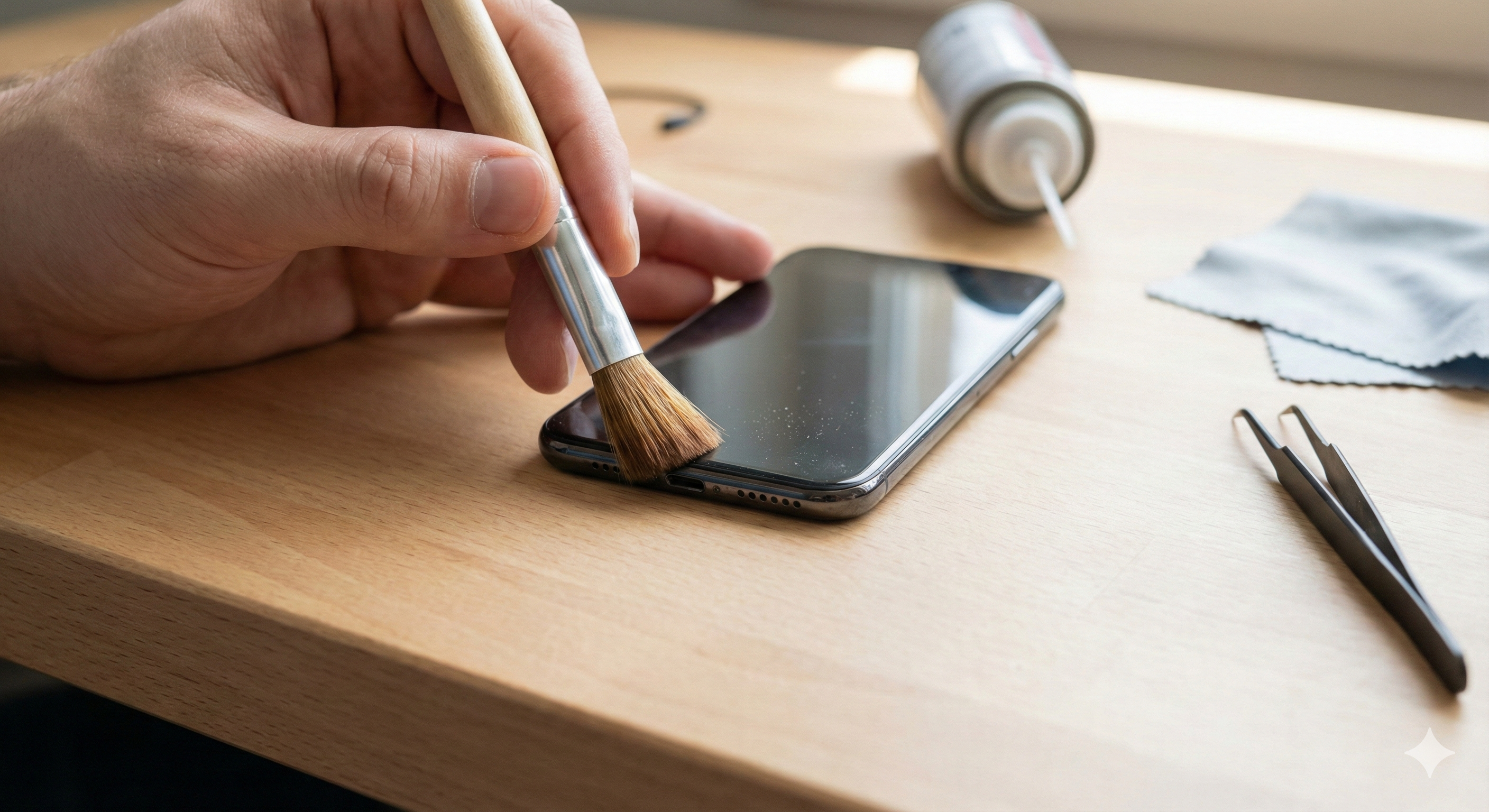
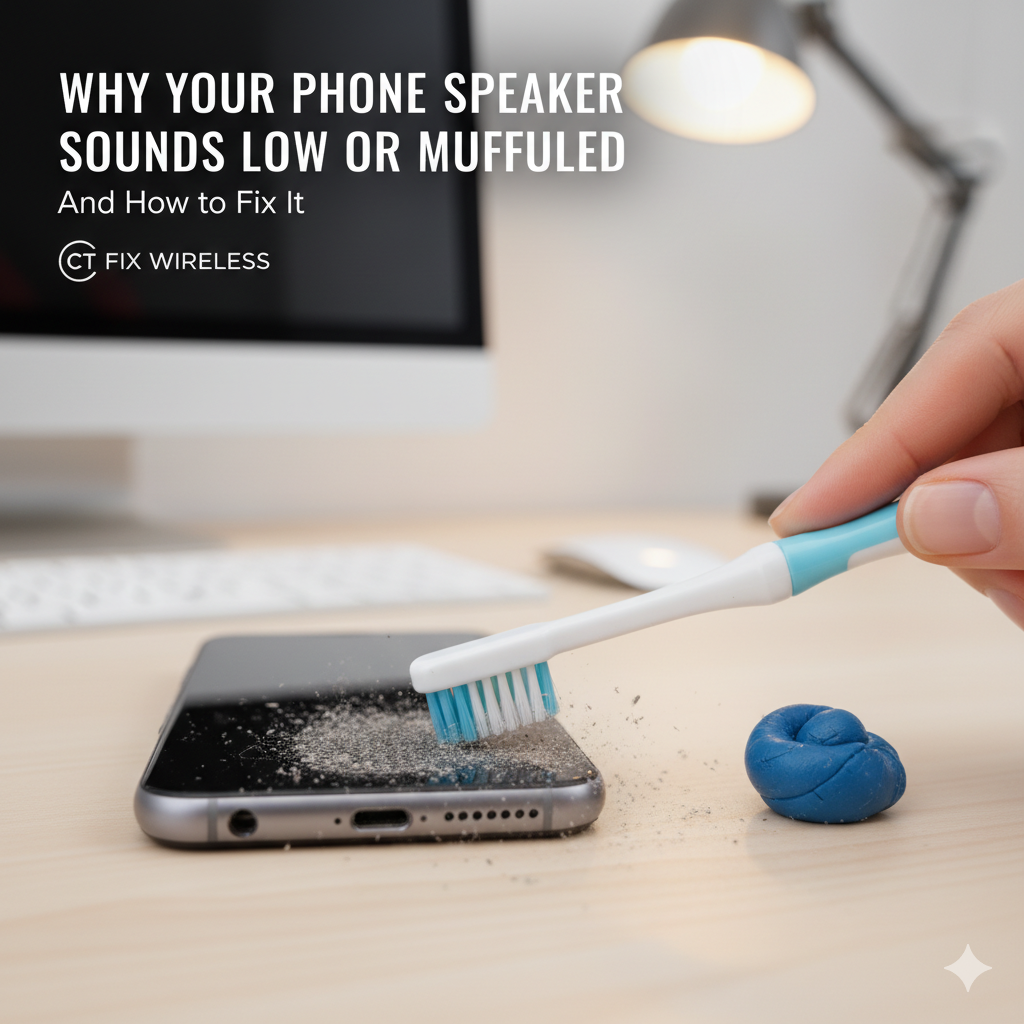
Use a soft brush or toothpick to gently remove debris. Never use metal tools—static can damage internal pins.

3. Try Another Charger

Always use a charger that meets your phone’s official wattage. A mismatched adapter can create under-voltage issues.

4. Test with Another Outlet or Power Bank

Sometimes, the problem lies with unstable current flow from your socket.

5. Restart the Device

A simple reboot resets the battery monitoring system.

6. Calibrate Your Battery

Discharge your phone completely until it turns off, then charge it uninterrupted to 100%. This can correct incorrect battery readings.


Section 4: Deep Technical Causes (When DIY Fixes Fail)

If your battery still won’t increase after trying the above, the issue is likely internal.

Charging IC (PMIC) Failure

The Power Management IC regulates current flow. When it malfunctions due to water damage, overheating, or solder fatigue, it causes “ghost charging.”

Repair involves board-level microsoldering—a service best handled by professionals at CT Fix Wireless.

Battery Connector Damage

If the battery connector is loose, the battery won’t receive enough current even if the IC works fine.

Corrosion Under Charging Port

Even invisible corrosion can reduce voltage flow. Our technicians perform ultrasonic cleaning to restore proper connectivity.

Short Circuit in Battery

Some lithium-ion batteries short internally, leading to false readings. In this case, replacing the battery is the only safe fix.


Section 5: How Professionals Fix This at CT Fix Wireless

At CT Fix Wireless, every charging issue undergoes a multi-point diagnostic process:

  1. Initial Voltage Test – Measures charging input from the port.
  2. Battery Health Scan – Determines whether the cell can hold charge.
  3. Charging IC Board-Level Check – Verifies IC functionality and solder condition.
  4. Port and Connector Cleaning – Removes oxidation or buildup.
  5. Full Power Cycle Test – Ensures real charging flow before returning the device.

Depending on the result, we perform:

  • Battery Replacement (for degraded cells)
  • Charging Port Replacement (for damaged connectors)
  • IC Rework (for logic board issues)

You can easily request your repair cost via the Instant Quote Widget and get an accurate model-based estimate.


Section 6: Preventing Charging Problems in the Future

  1. Use Original Chargers Only
    Cheap chargers can cause voltage spikes that damage ICs.
    Visit Buy and Sell to find certified accessories.
  2. Avoid Charging Overnight
    Continuous trickle charging stresses the IC and battery.
  3. Keep Charging Ports Dry
    Humidity and condensation cause corrosion over time.
  4. Regular Maintenance Checks
    Schedule a diagnostic visit at CT Fix Wireless to ensure your device’s battery health stays optimal.

Section 7: Real Case Example from CT Fix Wireless

A customer brought in a Samsung Galaxy A52 showing the charging symbol but stuck at 34%. Our team discovered a corroded charging IC caused by humidity exposure. After board-level rework and reflowing solder joints, the phone began charging normally again.

This demonstrates how “battery not increasing” is often not a battery issue—but an electrical management one.


Section 8: Why Choose CT Fix Wireless for Power Issues

  • Certified Technicians – Trained in microsoldering and board-level repair.
  • OEM-Quality Parts – Every battery and IC meets manufacturer standards.
  • Quick Turnaround – Most repairs completed same-day.
  • Transparent Pricing – Get an Instant Quote before visiting.
  • Customer-First Service – See full details on our About Us page.

Conclusion

A phone showing “charging” but not gaining battery power often signals deeper hardware or power IC issues. Quick home tests can help, but lasting fixes usually require professional expertise.

For reliable diagnosis, visit CT Fix Wireless today or book your repair via the Instant Quote Widget to get your device charging like new again.


FAQs

Q1. Why does my phone show charging but the percentage doesn’t move?
It could be a faulty cable, weak adapter, battery damage, or internal IC malfunction.

Q2. Can I fix this issue at home?
You can try cleaning the port, changing the cable, and restarting. For IC or board issues, visit CT Fix Wireless.

Q3. How do I know if my battery needs replacement?
If your phone shuts down early or takes too long to charge, check it through our diagnostics service.

Q4. Is this problem dangerous for my phone?
Yes, prolonged undercharging can overheat circuits or shorten battery lifespan.

Q5. How can I prevent this from happening again?
Use certified chargers, keep ports clean, and avoid moisture exposure.

Disclaimer

This article is for educational purposes only. Attempting power IC or charging circuit repairs at home can cause further damage. Always seek professional repair assistance from certified technicians.

How to Fix a Phone That Loses Touch Response | CT Fix Wireless

phone screen unresponsive repair at CT Fix Wireless

Few things are more frustrating than when your phone suddenly stops responding to touch. You tap, swipe, or pinch—and nothing happens. Whether it’s a frozen digitizer, a loose Screen IC connection, or moisture sneaking under the glass, touch failure can make your device nearly unusable.

At CT Fix Wireless, our repair specialists handle dozens of touch-related cases every week. This guide breaks down the exact causes behind random touch loss and how to fix it safely.


Section 1: Understanding Touch Response Failures

What Is the Digitizer?

The digitizer is a thin, transparent layer that converts your finger taps into digital signals. It sits between the glass and the display. When it malfunctions, your phone can show an image perfectly but ignore your touch inputs.

What Is the Screen IC (Integrated Circuit)?

The Screen IC is a tiny chip on the logic board responsible for interpreting signals from the digitizer. If it becomes loose or overheated, the device may register touches incorrectly—or not at all.

How These Components Work Together

Both parts must function together. The digitizer detects your movement, while the Screen IC interprets it. Damage or a bad connection anywhere along this chain results in lost touch response.


Section 2: Common Causes of Random Touch Failure

  1. Physical Damage
    Drops, cracks, or pressure can sever digitizer connections. Even small hairline cracks may lead to unresponsive zones.
  2. Moisture or Liquid Ingress
    Tiny amounts of moisture under the glass or on the motherboard can short the digitizer circuit, causing intermittent touch problems.
  3. Faulty Screen IC
    Over time, heat cycles weaken the solder joints under the IC. The result: ghost touches, freezing, or total loss of responsiveness.
  4. Software Bugs or System Lag
    Some touch issues come from overloaded firmware. Corrupted cache files or incompatible updates can mimic hardware faults.
  5. Low-Quality Replacement Parts
    Cheap third-party screens often lack precision manufacturing, causing poor sensitivity or inconsistent performance.

Section 3: Diagnosing the Root Cause

Step 1 — Observe the Pattern

Does the touch stop working only after charging, gaming, or exposure to heat? Noting the pattern helps determine if it’s thermal, hardware, or software-related.

Step 2 — Run a Screen Test

Most phones include hidden diagnostics (e.g., Android → Dial #0# → Touch Test). This reveals dead zones or partial digitizer failure.

Step 3 — Restart and Check Safe Mode

Booting in safe mode disables third-party apps. If the touch works fine there, a background app or UI overlay is the culprit.

Step 4 — Check for System Updates

Pending updates often contain touchscreen driver fixes. Keep your device firmware current.

Step 5 — Look for Signs of Physical Damage

Tiny cracks, lifted screens, or swelling batteries all affect the digitizer. Examine edges carefully before assuming a logic-board problem.


Section 4: Practical Fixes You Can Try

1. Clean the Screen Surface

Use a microfiber cloth slightly dampened with 70% isopropyl alcohol to remove oils and debris. Dirt can block capacitance, leading to false touches.

2. Remove Screen Protector or Case

Some protectors interfere with sensitivity. If removing it restores response, switch to a thinner, compatible one.

3. Perform a Soft Reset

Holding the power and volume-down buttons for 10 seconds clears temporary memory and resets touch drivers.

4. Calibrate Touch Settings

In “Accessibility → Touch Sensitivity,” recalibrate to restore accuracy.

5. Factory Reset (Last Resort)

If software corruption persists, back up data and perform a reset. Persistent failure afterward means a hardware fault.


Section 5: When the Problem Is Hardware

If none of the above works, the digitizer or Screen IC may need repair. Here’s what each entails:

Digitizer Replacement

A professional technician removes the cracked glass and installs a new OEM-grade panel using heat separation tools and adhesive frames.

Book a repair directly through CT Fix Wireless Instant Quote Widget for an accurate price estimate.

Screen IC Rework or Replacement

This complex procedure involves microsoldering—a process only certified technicians should perform. The IC chip is carefully removed, cleaned, re-balled, and resoldered under a microscope.

If you suspect this issue, schedule service via iPhone Repairs Page or our Other Device Repairs section for Androids and tablets.


Section 6: Preventing Future Touch Problems

  1. Use OEM Parts Only
    Avoid third-party screens. OEM parts maintain correct digitizer sensitivity.
  2. Avoid Excessive Heat
    Keep devices away from direct sunlight and gaming heat buildup.
  3. Invest in a Quality Case
    Shock-absorbent edges protect against impact.
  4. Dry Devices Immediately
    If the phone gets wet, power it off and bring it for Professional Inspection.
  5. Get Regular Maintenance
    Routine checkups at CT Fix Wireless ensure all components remain in optimal condition.

Section 7: Real-World Case Example

A client brought in an iPhone 12 Pro Max that randomly froze mid-scroll. Diagnostics revealed a partially detached Screen IC. After re-balling and resoldering, touch accuracy returned to normal—proving that even “random” failures often trace to a precise hardware cause.

Such precision repairs require training, equipment, and experience. DIY attempts can easily damage nearby circuits, costing more in the long run.


Section 8: Why Choose CT Fix Wireless

At CT Fix Wireless, we combine advanced diagnostics, quality OEM parts, and same-day service. Whether it’s a faint ghost-touch or complete digitizer failure, our team can identify the issue quickly and repair it efficiently.

Explore our Buy and Sell Devices program if you decide upgrading is a better option. You can trade in your old device for credit toward a new one.

Learn more About Us or contact the nearest location through the Contact Page for personalized help.


Conclusion

A phone that randomly loses touch response isn’t just inconvenient—it signals an underlying issue with either the digitizer or Screen IC. Early diagnosis prevents permanent damage. Start with simple cleaning and calibration, but if the problem persists, seek professional repair from CT Fix Wireless.

Timely service not only restores smooth operation but also extends your device’s lifespan and performance.


FAQs

Q1. Why does my phone screen stop responding randomly?
This usually happens due to a faulty digitizer, loose Screen IC, or moisture intrusion. Software glitches can also cause temporary unresponsiveness.

Q2. Is it safe to keep using my phone if the touch stops occasionally?
Intermittent touch loss often worsens over time. Continuous use may further damage the connectors—getting it checked early is safer.

Q3. Can software updates fix touch response issues?
Yes, if the cause is firmware-related. Always install official updates before assuming hardware failure.

Q4. How much does digitizer or Screen IC repair cost?
Prices vary by model. Use the Instant Quote Widget to get an accurate, model-specific estimate.

Q5. Does CT Fix Wireless offer same-day touchscreen repair?
Yes, most digitizer replacements are completed within the same day, depending on part availability.

Disclaimer

This article is for informational purposes only. Repairing logic-board components or Screen ICs should be performed by qualified technicians. Always back up your data and consult professional repair experts before attempting any DIY hardware fixes.

6 of 2022’s Top All-in-One PCs

All-in-one PCs are now getting wide that’s fitting for high-professional use or a basic desktop for kid’s classes and homework. It takes up less room than traditional towers that can feel cramping; offers more screen space that’s larger than the largest laptops. 

These systems pack their components, ports, and monitors into a single unit that allows you to easily place them in your workplace. But because it’s compacted in a single unit, you can’t crack it open to fix or swap the components freely. So here are the top all-in-one desktops to help you in choosing.

  1. HP Pavilion 24 All-in-One

This has a 3GHz speed six-core AMD Ryzen 5 4600H processor with 16GB RAM, 256GB SSD boot drive, and 1TB hard drive as a secondary drive. This operates with Windows 10 Home with AMD Radeon graphics displayed on a 23.8 inches screen. 

The IPS touch screen offers full HD 1920×1080 native resolution. This also has a high-resolution 5-megapixel webcam with a pop-up privacy design and a quad-array digital microphone that’s already great for videoconferencing and online chat. HP Pavilion 24 all-in-one desktop already gives a potent performance for as low as $799.99 in direct-to-customer configuration.

It has a plain rectangular base and slim stand support with tilt but no height adjustment. This 14.8-pound computer doesn’t swivel but it’s not difficult to move. 

The desktop has a headphone jack and one USB Type-A port on the right edge of the display; the power button is at the bottom left; three more USB-A ports and one Type-C port at the rear; along with an SD slot; a Gigabit Ethernet jack; HDMI-out port to connect a second display; HDMI-in to connect a cable box or game console to the screen. 

The USB ports follow the USB 3.1Gbps spec. This Pavilion 24 has Bluetooth and 802.11ac Wi-Fi to handle wireless communications and a laptop-style 120-watt power brick plugs into the rear. The Pavilion comes with a color-coordinated white keyboard and a mouse that takes two of the rear USB ports.

  1. Asus M241 

Asus M241 has a 2.6GHz speed AMD Ryzen 3 3250U CPU with 8GB RAM, and 256GB SSD boot drive. This operates with Windows 10 Home with AMD Radeon Vega 3 graphics displaying on a 23.8 inches screen. 

The non-touchscreen offers full HD 1920×1080 native resolution.

This features a metal, L-shaped stand that looks familiar to the iMac’s base. M241’s speaker bar is 0.9 inches thick; the base and speaker bar are muted gold in color. The display is bordered by 0.2-inch thick bezels that give a sleek look. All but two of its ports are placed in a row in the center of the back panel.

  1. Apple iMac 24-Inch

This has an Apple M1 processor with 16GB RAM, and a 512GB SSD boot drive. This operates with MacOS Big Sur with Apple M1 graphics. This non-touchscreen type desktop has a 23.5 inches screen size of 0.44 inches thick with 4480×2520 native resolution. 

This all-in-one PC is available in seven tones. The Magic Mouse, the Magic Keyboard, and Magic Trackpad (optional) have color-matched aluminum sides and surfaces. The iMac’s power cord and the USB-C-to-Lighting cable used to charge the wireless peripherals are made of woven and color-matched material. The stand offers tilt but not height adjustment. The power adapter is upgradeable with a gigabit Ethernet port built-in.

  1. HP Envy 34 All-in-One 

This has an Intel Core i7-11700 processor with 2.5GHz speed. This has a storage amount of 32GB RAM, and a 1TB SSD boot drive. This operates with Windows 11 Pro with Nvidia GeForce RTX 3060 Laptop GPU graphics. This 34 inches non-touchscreen desktop has a 5120×2160 native resolution with an aspect ratio of 21:9. HP’s latest update of the Envy 34 which starts at $1,999.99 to $2,709.99 is one of the best AIOs.

It got a 5k display, a movable camera, and a snappy performance. It has a different USB webcam design. It’s magnetically detachable that allows moving at any edge of the system and also has above average camera quality of 16MP sensor. 

The connectivity option is more than the most. The system has more ports than many AIO offers. Most are located at the back of the monitor that includes four USB 3.0 ports, two USB Type-C ports with Thunderbolt 4 support, an HDMI connection, and an Ethernet jack. There are additional ports on the right-hand side of the stand that hold two more USB 3.0 ports, a USB-C connection, and an SD card slot. Envy 34 also comes with a basic Bluetooth mouse and keyboard.

  1. Apple iMac 27-Inch

Apple iMac 27-inch ($1,799) has a 3.6GHz speed 10-core Intel Core i9-10910 brain. This has a storage amount of 32GB RAM, and a 1TB SSD boot drive. This 27 inches wide non-touchscreen desktop has a 5120×2880 native resolution with a vastly better 1080p camera. This operates with Apple macOS Catalina with AMD Radeon Pro 5700 XT graphics. 

This iMac weighs 19.7 pounds and measures 20.3 inches in height, 25.6 inches in width, and 8 inches in dimension. This system includes four USB 3.0 Type-A ports, two oval-shaped USB Type-C ports with Thunderbolt 3 support, an Ethernet jack, a full-size SD card slot, a headphone jack, and a port for power adapter. The Ethernet port is now upgradeable to 10Gbps.

  1. HP Chromebase All-in-One 22

HP Chromebase has an Intel Pentium Gold 6405U processor with a 2.4GHz speed. This has a storage amount of 4GB RAM, and a 64GB eMCC Flash Memory boot drive. This operates with Google Chrome OS with Intel UHD Graphics. 

This 21.5 inches touch screen type has 1920×1080 native resolution and a modest 250-nit maximum brightness rating with a 5-megapixel webcam. This all-in-one desktop is different from others with a display that can rotate in landscape and portrait modes. This has a 6.7 inches in diameter cone-shaped base that doubles as a speaker. 

There are no height adjustments. The ports are located at the back of the base having the power button on the top, and a quartet of USB ports (Type-A and Type-C and USB-C ports) variety. This $479.99 desktop already includes a wireless keyboard and mouse.

5 Best Productivity Apps for iPhone Users

Making use of productivity apps makes it easier to set goals, assign tasks, track progress, and create reports. And this influences us to meet more productivity whether it’s for work, organizing a family vacation, or planning for an event. But productivity apps have different types, and you might not be using the best one for you. So here are some productivity apps for iPhone users.

  1. Apple Notes

This is the best note-taking app for iPhone users. Remember everything and tackle any project with your list, notes, tasks, and schedule all in one app. When you put your notes here, it automatically syncs to all your devices. This helps you work anywhere because it keeps important info handy.  You can also add text, images, audio, scans, PDFs, maps, and documents that make your note more useful. Make your tasks easier to do with your notes with checklists and tap check-off items as you go. 

This app has powerful and flexible searching capabilities that help you to get what you need in a matter of seconds. You can also scan documents to make them handier and save web pages and mark them with arrows, highlights, and texts to make them more useful. Apple Note can secure notes containing sensitive or personal data with a password, keep your notes in folders and subfolders then sort them as you prefer, and create Custom Smart Folders based on one or more tags. You can share and collaborate on entire shared folders, mention friends to alert them to important updates and direct them to a shared note and view the edit times and dates for the note with highlighted text color-coded to match the collaborators who were involved in the creation of the note. Quick Notes can be created on compatible iPad and Mac systems and viewed and edited on iPhone.

  1. Outlook

It has impressive utility and power features, making it the ideal alternative to the more popular Gmail. Outlook helps you protect and keep your inbox clutter-free working around the clock. You can add popular services like Dropbox, Trello, Grammarly, and more, making it an ideal way to keep your workflow in one place.

It also has a To-Do feature that was formerly called Wunderlist. It also has an Immersive Reading Mode that filters images and quotes out of your email to present it as a clear document and complete with text-to-voice capabilities. Collaboration is easy with Word, PowerPoint, and Excel. With Skype, you can chat in real-time, right from your inbox. It has a built-in Calendar to keep you on track with your tasks. Outlook allows Two-factor authentication and email encryption for security. Outlook is easy to use since it’s designed to be more accessible to everyone with intuitive voice-control navigation, and support for multiple assistive devices. 

  1. 2Do

2Do was designed to meet your speed needs. You can quickly enter your thoughts and ideas before forgetting. You can enter multiple tasks in seconds with Quick Add on iOS. Quick Entry on Mac, on the other hand, is a comprehensive task editor that can be accessed anywhere, anytime, even when 2Do is not running. It’s simplistic appearance but it houses an incredible productivity-aware engine that can be as fierce as your workflow. It offers the perfect mix of a rich feature set and ease of use. From a full set of sorting filters, focus, tags, location, and date range, it will surprise you in every way with the amount of thoughtfulness and attention to detail that went into developing it. 2Do gives you complete control over all your workflows giving you the freedom to organize your lists, categorize, and sort them. Your notes can sync into iCloud, Dropbox, and Toodledo.

  1. Apple Calendar

Apple Calendar is a user-friendly app installed on all MacBooks, iPhones, iPads, and Apple Watches in several versions of macOS and iOS. Your account syncs across desktop and iPhone so you can manage your schedule wherever you are. It’s knowledgeable to use and has all the features you’d expect from a web-based calendar, including the ability to create multiple calendars and customize the view of each calendar so you can see your schedule by day, week, and month.

  1. Streaks

This is a great habit-tracking app for iPhone. This has two excellent features that set it apart from the other habit-tracker apps. It integrates very well with Apple’s ecosystem including Mac and Apple Watch and can be seamlessly integrated with Apple’s Health app, and its robust charts and graphics give you a more detailed interpretation of habit-tracking. You can choose or create up to twelve tasks. Streaks can automatically track certain goals with the iOS Health app. You can set how many times in a day per week, in a month, or every day. This app lets you quickly see which tasks are remaining for the day, and what’s in progress, and marked as complete. You can view your task statistics to keep you motivated.

Top 3 Gaming Laptops of 2022

Are you looking for a gaming laptop that will win you more games and help you stay productive? Check out this article for the year’s top three gaming laptops.

Razer Blade 15

Razer Blade 15 got even better with a new top-level Razer Blade 15 Advance Model. This beastly performing gaming laptop is now compact with the latest 12th Gen Intel Core i9 processor (14-core) and NVIDIA with graphics up to GeForce RTX 30 Series laptop GPUs, previously with 6-Core Intel Core i7 with graphics of GeForce RTX 3070 laptop GPU, giving you the most impressive gaming laptop graphics ever. 

Razer Blade 15 has an amazing display with Full HD 360Hz, QHD 240Hz (G-SYNC), or the new 4K with UHD 144Hz display. The already high-end former model that performs with Windows 10 Home is free to upgrade to operate with Windows 11 Home.

You can enjoy an unbeatable performance loaded in the thinnest 15” RTX gaming laptop chassis ever. It has spectacular specs loaded with a large amount of storage space of 1TB PCle and an extra M.2 PCle slot, memory of 16GB to 36GB RAM (DDR5 4800MHz), a vapor chamber cooling system, and a per-key RGB keyboard. This top-notch gaming laptop that is thinner from 0.78” / 19.9 mm to 0.67” / 16.99 mm also has an SD card reader port.

The latest Razer welcomes some other improvements. The keycaps are larger. Though it’s not that noticeable, it makes it easier to touch so that you can type quickly. 

The power button has been replaced by a less meticulous full-size key in the top right corner of the keyboard. It looks cleaner and more sensible. The new speakers also got sleeker. Razer’s touchpad remains one of the best in any Windows laptop with its smooth panning delivery, responsive presses, and high-quality feel. Last year’s model upgraded the webcam to 1080p, so you’ll get a better video call experience. 

This Razer Blade 15 Advanced model is still the most excessive among gaming laptops with a base configuration price of $2,499.99, but its CPU and GPU bring an incredible on-edge gaming experience with a high-quality portable design. It is also available on Amazon, Best Buy, B&H, and Newegg.

Asus ROG Zephyrus G14 GA402 2022

Asus has released its new ROG Zephyrus G14 GA402 with various models yet nearly similar to each other. These are consisting of RJ-L8106W, RJ-L8147W, RJ-L8146W, RJ-L8145W, RK-L8135W, RK-L8134W, RK-L8133W, and RK-L8132W.

ROG Zephyrus G14 GA402 operates with Windows 11 Home runs with AMD Ryzen 9 6900HS Mobile Processor (8-core/16-thread, 16MB cache, 4.9GHz max boost). All of the models have 8GB GDDR6 but the RJ models’ graphics have AMD Radeon RX 6700S ROG boost up to 100W(SmartShift), while the RK models have AMD Radeon RX 6800 ROG boost up to 105W(SmartShift). It has a $1,649 configuration for RX 6700 and $2,499 for RX 6800. 

All of its displays are the same as the ROG Nebula display, QHD+ 16:10 (2560 x 1600, WQXGA), an anti-glare display, a refresh rate of 120Hz, a response time of 3ms, and supports Dolby Vision HDR.

Its memory is available in either 8GB DDR5 or 16GB DDR5 on the board, 8GB DDR5 or 16GB DDR5 SO-DIMM, with a maximum capacity of either 24GB or 32GB, and can support dual-channel memory. This gaming laptop has a large storage space of 1TB PCle 4.0 NVMe M.2 SSD, all I/O ports that are needed are available, backlit chiclet keyboard 1-Zone RGB touchpad, and 720 HD IR camera for Windows Hello. 

Its audio has some wonderful specs like a 4-speaker system with Smart Amplifier, a built-in 3-microphone array, and AI noise-canceling technology. You can have a great experience in its network and communication with Wi-Fi 6E(802.11ax) (Dual-band) plus Bluetooth 5.2 (may vary with OS upgrades). Its battery has 76WHrs, 4S1P, and 4-cell Li-ion. Can have AniMe Matrix that’s adding a customizable, dynamic LED grid to the laptop’s lid. It weighs from 1.65 Kg (3.64 lbs) to 1.75 Kg (3.79 lbs) with different dimensions too.

Razer Blade 14 AMD Ryzen 5900HX

This Razer Blade 14 costs as much as $2,599.99. Pretty expensive, right? But it can also perform expensively. This device processor is AMD Ryzen 9 5900HX with 8 Cores / 16 Threads, a 3.3GHz base, and a 4.6GHz maximum boost. 

Updating its Windows is free if available. It has a display of 14-inch QHD 165Hz, 2560 x 1440, a graphics of NVIDIA GeForce RTX 3080 (8GB VRAM). Amazing graphic features like NVIDIA® GeForce RTX™ 3080 Laptop GPU, 8GB GDDR6 VRAM, NVIDIA CUDA® Cores – 6144, Maximum Graphics Power up to 100W, Boost Clock up to 1365MHz, NVIDIA GPU Boost™ 2.0, NVIDIA Optimus™ Technology, NVIDIA Whisper Mode 2.0, NVIDIA Resizable BAR, 2nd Gen Ray Tracing Cores, 3rd Gen Tensor Cores, and VR ready.

It has a storage of 1TB SSD, a memory of 16GB DDR4-3200MHz (fixed on the board), Wi-Fi 6E (802.11ax) and 5.2 Bluetooth connectivity, and a per-key RGB keyboard, Microsoft Precision Glass touchpad.  It also has amazing audio of built-in stereo speakers and a 3.5mm headphones/microphone combo port.

It’s finished with CNC Aluminum, anodized black, and a backlit green Razer logo with the dimensions of 16.8mm x 220mm x 319.7mm that weighs 1.78 Kg (3.92lbs). It is amazing to have powerful hardware with such slimness like a pro. 1.78 Kg may be heavy, but for an NVIDIA RTX 3080? This is just impressive.

Top 4 iPhone accessories for 2022

Having an iPhone may already be quintessential for some people, but others still want to have a next-level extra. There are accessories that can make the iPhone push more performance, more secure, and more useful like leveling up photos and videos or charging up the device.

  1. Prime Cables Lightning to HDMI Digital AV Adapter

The Lightning Digital AV Adapter supports mirroring of whatever is displayed on the device screen. This includes apps, presentations, websites, slideshows, and more. This adapter can be used with iPhone, iPad, or iPod with a Lightning connector. This AV adapter can connect to HDMI-equipped TV, display, projector, or other compatible monitors in up to 1080p HD. This can enhance the versatility of entertainment systems or presentations. This HDMI adapter is fast and easy to use. This Lightning to HDMI adapter can connect to most HDMI displays that broaden the use of the devices. The displaying photos, videos or other presentations from the iPhone can already be shared with family, friends, students, and others. This Apple Lightning Digital AV Adapter made browsing on larger screens easier and better. 

  1. Apple AirTag

AirTags are used to help track important stuff such as keys, bags, wallets, purses, devices, and others. This lessens the possibility of losing things. This keeps things on the owner’s radar. This uses the Find My app which can also track Apple devices. This cute keychain-looking Apple AirTag can play sounds on the built-in speaker via the new Items tab in the Find My app. It has Bluetooth proximity finding, Apple designed U1 chip for Ultra-Wideband and Precision Finding that uses an accelerometer sensor and NFC tap for Lost Mode. This can lead straight to the lost item; it displays the distance to the AirTag and the direction to head in. The Precision Finding is compatible with iPhone 11/Pro/ProMax, iPhone 12/mini/Pro/Pro Max, and iPhone 13/mini/Pro/Pro Max.

The tag efficiently sends out a secure Bluetooth signal to nearby devices in the Find My Network. The location of the AirTag signal is sent to the iCloud; then to the Find My app and can be viewed on a map. The process is encrypted and anonymous to protect privacy. When Lost Mode is turned on and detected by other devices in the network, this automatically sends a notification. The contact info of the owner can be gotten by the NFC tap. AirTag is still designed to discourage unwanted tracking. Only the owner can see where his AirTag is. The location data and history are never stored on the tag itself. The devices that relay the location of the owner’s AirTag also stay anonymous.

Its battery life is designed with a user-replaceable CR2032 coin cell battery that can last more than a year, and iPhone gives a notification when it’s time to be replaced. The 31.9 mm x 8 mm tag that weighs lightly as 11g is also Rated IP67 resistant to splash, water, and dust. That is a maximum depth of 1 meter up to 30 meters under IEC standard 60529 that should have an operating ambient temperature of -20 ℃ to 60 ℃.

  1. Otterbox Amplify Glass Glare Guard

The Amplify Glare Guard is a Corning Aluminosilicate glass screen protector that is available for iPhones 11/Pro Max, iPhone 13/Pro/mini/Pro Max, and iPhone XR. The anti-glare screen protector defends screens against drops, scratches, and scrapes up to 5x greater resistance than leading glass alternatives while giving improved display readability from low to extreme lighting. The 0.04 lbs glass protector also boasts a lowered screen-brightness setting that enables extended daily battery life. This comes with an installation frame, cleaning wipe, drying cloth, and dust removal sticker.

  1. Master & Dynamic MC100 Wireless Charge Pad

The Master & Dynamic MC100 Wireless charge pad is built to complement the MW08 Sport True Wireless Earphones that can be used with the iPhone. It is a beautifully engineered wireless charger having a low-profile look that is available in colors silver aluminum with grey coated canvas and gunmetal aluminum with black coated canvas. This charging disk measures 100mm by 100mm and is 9.9mm thick and weighs 90.7g. This gives 10 Watts of maximum output with an input of 5v/1.2~1.5A, 9V/1.2~1.5A.

The charging pad does not include an AC wall adapter. It has a LED indicator on the front of the charger which looks like a round drink coaster. It illuminates when a device is charging without being too bright. The bottom side of the Master & Dynamic MC100 Wireless Charge Pad is made from machined aluminum and has four anti-skid rubber feet to keep the MC100 from sliding around. Master & Dynamic claims that this charging pad can charge the MW08 Sport to 50% in just 30 minutes and a full charge from empty will take up to 100 minutes.

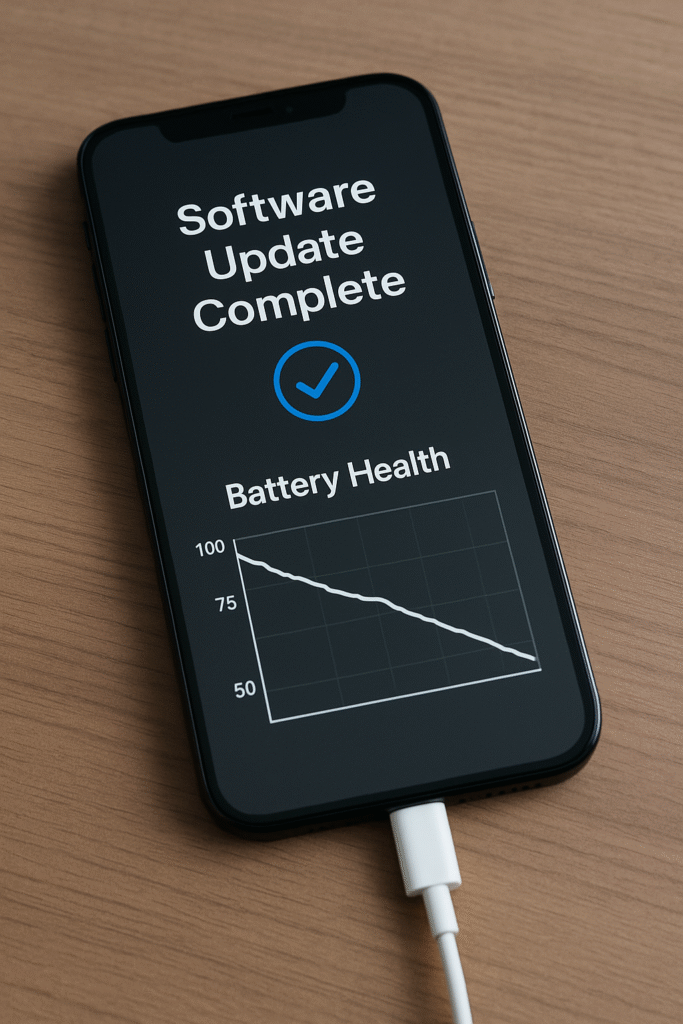
iPhone Battery Health: How to Check and Improve It

Just like all batteries, iPhone batteries tend to deteriorate in performance over time. An iPhone that can last you 12 hours out of the box can only last you two or three hours after a year or two. You wonder, why does my iPhone’s battery health deteriorate so fast?

Well, the answer is because that’s meant to happen. However, there are ways you can slow down this inevitable deterioration of your iPhone battery.

How to Check Your iPhone’s Battery Health

First, you might want to check your iPhone’s battery health percentage. Here’s how:

  1. Launch “Settings.”
  2. Scroll down and find “Battery.”
  3. Tap “Battery Health.”

The “Maximum Capacity” is the maximum charge percentage your iPhone battery can reach relative to its health. When your battery is new, the number should be at 100%. You’ll notice that over time, the percentage goes down.

But if it goes down at an alarming rate, for example, at least 1 percent per week, you should take measures to prolong your battery’s lifespan. But if you’re a heavy user, you should expect this rate. Consistently using demanding apps, keeping your iPhone plugged in, and using it while charging deteriorates it.

That means the more time you fully discharge and charge your iPhone battery, the faster its “Battery Health” percentage goes down. Faster deterioration means you need to get an iPhone battery replacement service one or two years after getting a new iPhone.

How to Improve Your iPhone’s Battery Health

If you want to slow down the fall, here are some practices you can apply to your daily smartphone routine:

  1. Don’t get the battery percentage down to 0%.

0% battery is the time your iPhone shuts itself down in the middle of an activity because it’s out of juice. To save your iPhone’s battery from fast deterioration, avoid fully discharging it. Charge your battery when the percentage drops below 20%, the time when you get low battery warnings on your screen.

If you’re nowhere near a charging station, turn on “Low Power Mode” in “Settings” > “Battery.”

  1. Don’t fully charge your battery all the time.

It’s understandable to want to have a fully charged phone, but consistently charging your iPhone’s battery from 0% to 100% severely hurts its health. When you can, charge your iPhone up to 50% or a little more.

If you’re going out and won’t have the chance to charge again, take advantage of the iPhone’s “Low Power Mode.”

  1. Avoid storing or using your phone in high temperatures.

If your iPhone starts to feel hot on your hands, it’s time to put it down and give it a rest. But when you do, make sure to store it in a dry, cool place to help it cool itself down and save its battery and other components from damage.

According to Apple, the iPhone works best in 0 to 35 degrees celsius environments. For storage, the iPhone can be comfortable at -20 to 45 degrees celsius.

Note: When storing an iPhone long-term, make sure you turn it off with the battery percentage at 50%.

  1. Remove thick cases when charging your iPhone.

If you’re a fan of thick iPhone cases because of the protection they offer, make sure to check how breathable they are. They might be too thick to the point that your iPhone can’t breathe and let heat out when it needs to, which happens during charging.

Check if the case is breathable. If not, remove it before plugging your iPhone in.

Parting Words

Truthfully, you can’t save your iPhone’s battery from deterioration. They’re made to be used and are susceptible to wear, that’s why they’re easily replaceable through professional iPhone battery replacement services.

However, it’s still a good idea to try to reduce the speed of its deterioration. But when the time comes for your iPhone to get a fresh battery, remember to rely on the experts to help you out.

iPhone 13 vs. Samsung Galaxy S22: Which One Should You Get?

With so many choices in the market, it’ll take a lot of time just to come down to a 1 versus 1 of the devices you’re going to choose from. However, iPhones usually take the other side of the fight for casual smartphone users. If you’re one of the people picking between the iPhone 13 and Samsung Galaxy S22 5G, this guide will help you decide.

We’ll break this guide down into four categories:

  • Body
  • Display
  • Platform
  • Camera
  • Price

You can skip through the categories you care most about to help yourself decide faster! But if you’re like us who like getting down to the nitty-gritty of gadgets we plan to spend our money on, read through our buying guide.

Body

iPhone 13: The iPhone 13 weighs 174 grams and is measured at 5.78 x 2.81 x 0.30 in. The front and back of its aluminum frame are powered by Gorilla Glass, which can be found on most smartphones today. The iPhone 13 is also IP68-rated dust- and water-resistant, and you can swim up to 6 meters deep for 30 mins with your iPhone 13 if you’re into that!

Samsung Galaxy S22 5G: On the other side of the ring, the Samsung Galaxy S22 5G weighs 167 grams and is measured at 5.75 x 2.78 x 0.30 in. Similar to the iPhone 13, it has an aluminum frame with Gorilla Glass Victus+ front and back. Based on Samsung’s ads, the Galaxy S22 5G has an armor aluminum frame with tougher drop and scratch resistance. Moreover, this model is IP68 rated dust- and water-resistant.

Display

iPhone 13: The iPhone 13 has a 6.1-inch Super Retina XDR OLED panel with HDR10, and Dolby Vision support. Its display panel has a peak brightness of 1200 nits. As for display resolution, you get 1170 x 2532 image clarity, protected by a scratch-resistant ceramic glass with an oleophobic coating, wide color gamut, and Apple’s True Tone.

Samsung Galaxy S22 5G: Not straying far, the Samsung Galaxy S22 also has a 6.1-inch size display, but with Dynamic AMOLED 2X, 120Hz refresh rate, HDR10+, and a peak brightness of 1300 nits. However, display clarity is where iPhone 13 wins over the Samsung Galaxy S22 5G, since the Galaxy S22 5G only has a 1080 x 2340 panel. Wondering what protects the Galaxy S22 5G’s display? It’s Corning Gorilla Glass Victus+ and the panel has an Always-on Display feature. Perfect for those who don’t like tapping their phones to check the time!

Platform

iPhone 13: The iPhone 13 runs iOS 15 out of the box, and is upgradable to the latest version of the iOS 15. It runs on Apple’s A15 Bionic chip which has six CPU cores with a 4-core Apple GPU. Storage-wise, the iPhone 13 is upgradeable up to 512 GB.

Samsung Galaxy S22 5G: The Samsung Galaxy S22 5G is shipped out running Android 12 and is powered by Qualcomm SM8450 Snapdragon 8 Gen 1. Its CPU has eight cores and its graphics processor is Adreno 730, a brand you often see on Samsung smartphones. When it comes to storage, the Samsung Galaxy S22 5G is only up to 256 GB.

Camera

iPhone 13: Apple’s iPhone 13 has a dual-lens rear camera setup with the first lens being wide with 13 MP. The second lens is also 12 MP, but is ultrawide. Both lenses have their own LED dual-tone flashes and HDR photo and panorama. The highest video capture quality you can get from the iPhone 13 is 4K@60fps with Dolby Vision HDR support.

The front camera of the iPhone 13 has a single-lens setup, with 12 MP wide lens that is SL 3D supported. It has HDR and can take up to 4K@60fps videos.

Samsung Galaxy S22 5G: Samsung’s contender for this buying guide has a triple-lens rear camera setup. The main is a wide lens that has 50 MP, the second is a telephoto lens that has 10 MP with 3x optical zoom, and the third lens is ultrawide and has 12 MP with Super Steady video. The rear camera setup has a LED flash, auto-HDR, and panorama. Samsung Galaxy S22 5G’s rear camera can take up to 8K@24fps videos with HDR10+ support.

Its front camera is a 10 MP wide lens with Dual Pixel PDAF, auto-HDR, and can take up to 4K@60fps videos.

Price

iPhone 13: Starts at $799 for the 128 GB model. It comes in Starlight, Midnight, Blue, Pink, Red, and Green.

Samsung Galaxy S22 5G: Starts at $699.99 for the 128 GB with 8 GB RAM model. The Samsung Galaxy S22 5G comes in Phantom Black, White, Pink Gold, Green, Graphite, Sky Blue, Violet, and Cream.

What made you decide?

Was it the camera? The body? Or the price? We know there are many factors in play, but for most people, the price is one of the biggest deciding factors. But if you’re a tech whiz who likes comparing every feature of the gadgets you’re planning to purchase, we hope this buying guide helped you pick the right smartphone for you!

If you need expert assistance when it comes to picking your new smartphone, please don’t hesitate to reach out to us and we’ll be happy to answer all your tech questions! Our friendly staff are available and will lead you to the smartphone that will serve your tech needs.

The Best Streaming Services for 2022

The phrase “going to the movies” has a new meaning thanks to online streaming services that a majority of us depended on when we’re not 100% sure about going out to see a movie in theaters.

Since we can watch movies (even the newest ones) without going out of the house because of streaming services, it’s hard to imagine a weekend without them. So if you’re surfing the web looking for a new streaming service or another one to add to your list, you’re in the right place.

We jotted down the best streaming services for 2022 that we recommend:

  1. Netflix

Netflix is known to have an impressive library of original movies, TV series, documentaries, and other types of consumable video content on its subscription-based platform. It’s probably the hottest streaming service right now because of its library alone and how accessible it is.

Outside of its original library, Netflix hosts classic movies and TV series people love to watch over and over, such as Friends, How I Met Your Mother, and other American series. It’s also home to an extensive list of hit series from South Korea and Japan.

When it comes to accessibility, you can count on Netflix to be available on any streaming device. You can use it on your smartphone, computer, Apple TV, smart TVs, and its library also supports streaming in 4K, HDR, and Dolby Atmos – for a price.

  1. Amazon Prime Video

Amazon Prime can be bundled with a Prime Video subscription or as a standalone subscription Like Netflix, Amazon Prime Video has its own library of original movies and series. You can subscribe to Amazon Prime and have Prime Video bundled with it, or only pay for a Prime Video subscription to access its library of video content.

There are tons of international films, 4K HDR support, and rental feature. Since Prime Video has a set of exclusive titles, you have to pay extra to watch them on your streaming device. In addition, there are also channels you can watch using your Prime Video subscription, such as Paramount Plus and AMC Plus, among others.

  1. HBO Max

HBO Max offers users an extensive library of iconic films and latest movie releases. You can subscribe to HBO Max ad-free or ad-supported, depending on your viewing preference.

Its library is constantly updated with the latest films from Warner Bros., new releases 45 days after their theatrical release, and a collection of content from classics such as Sesame Street, Adult Swim, etc.

However, despite its impressive library, it can’t stream in 4K HDR quality like Netflix and Amazon Prime Video. You’re limited to watching your favorites in 1080p, which isn’t all too bad if your display isn’t big or you stream on your smartphone.

  1. Disney Plus

Streaming service Disney Plus is home to Marvel and Star Wars films. So if you’re a fan of both franchises, a Disney Plus subscription is highly recommended to ensure you get all the movies you need for binge-watching.

You can get Disney Plus as a standalone subscription or with ESPN+ and streaming service Hulu.

Aside from Marvel and Star Wars films in one place, you also get access to Disney’s classic movies! However, this may mean the content leans more towards general audiences. It’s excellent for family movie times, but not if you’re into mature titles.

As for stream quality, Disney Plus can stream 4K HDR to support high-resolution displays for the best viewing experience.

Final thoughts

When looking for streaming services, you should consider what titles you want to watch and check if specific providers have them in their libraries. Even though monthly subscriptions aren’t expensive, you can spend those dollars on better streaming services that actually have what you want to watch.