Written by: Ronnie Gonenc
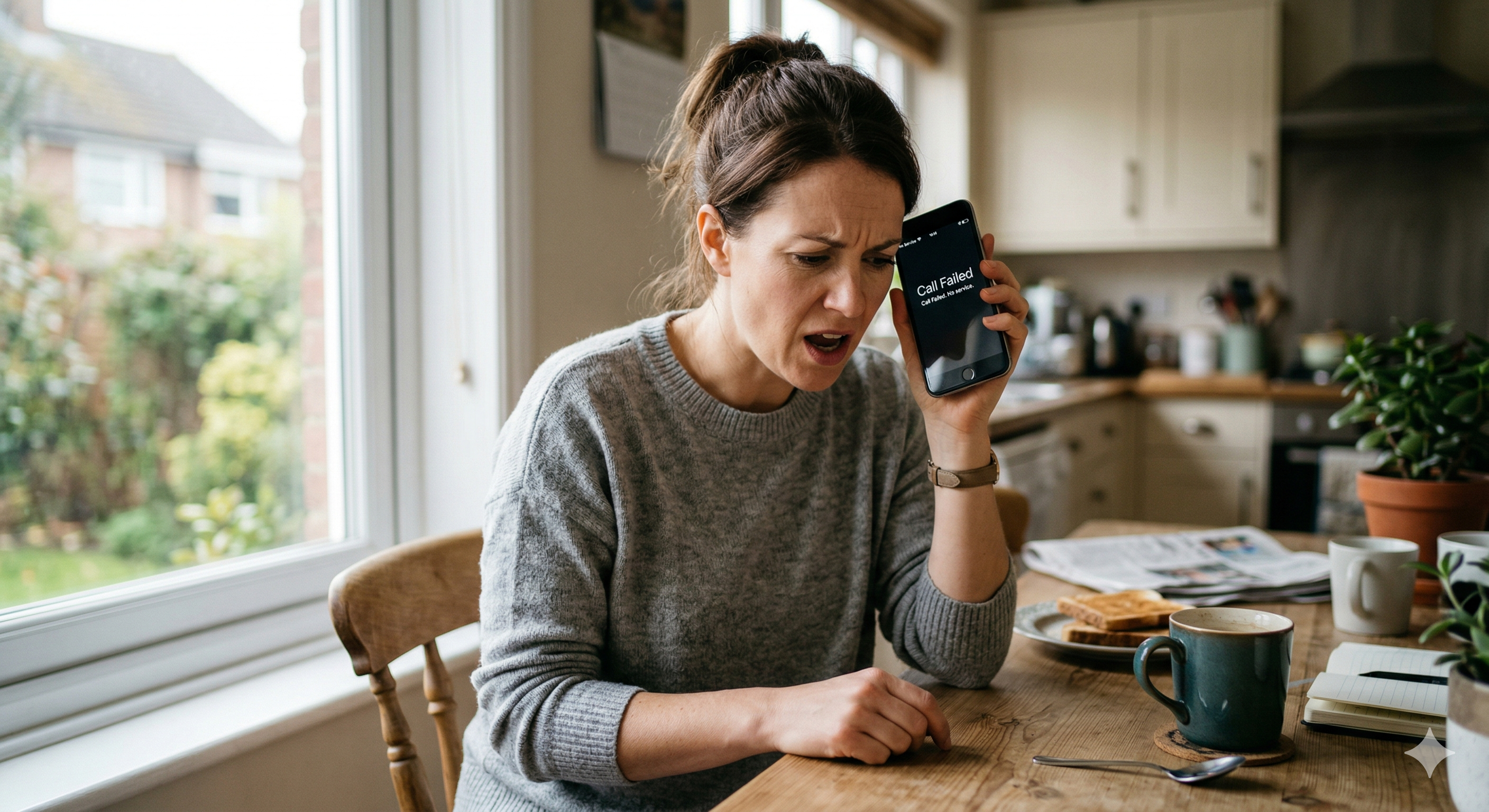
There’s nothing quite like the frustration of being mid-sentence on an important call and hearing… nothing. Dead silence. Or worse — the call just drops entirely, and you’re left staring at your home screen wondering what happened. If your phone keeps dropping calls or the sound cuts out during conversations, you know how quickly it goes from annoying to genuinely disruptive.
This isn’t some rare glitch that only affects old phones. We see it at Fix Wireless on a regular basis — across brand-new iPhones, Samsung Galaxy models, Pixels, and budget Androids alike. Sometimes the fix takes thirty seconds. Other times, there’s a hardware issue hiding behind what looks like a simple call quality problem. Either way, guessing won’t get you anywhere.
This guide walks through the actual causes behind dropped calls and call audio failures, gives you a clear troubleshooting path to follow at home, and helps you recognize when it’s time to bring the device in for professional diagnosis.
Section 1: Why Phones Drop Calls or Lose Audio — the Real Causes
It’s Rarely Just “Bad Signal”
Most people blame dropped calls on their carrier, and sometimes that’s fair. But when calls drop repeatedly from the same phone — especially in places where they used to work fine — the carrier usually isn’t the problem. The phone is.
Your device manages call audio through a chain of components working together: the cellular modem connects the call, the earpiece speaker delivers audio to your ear, the microphone picks up your voice, and the proximity sensor tells the screen when to turn off so your cheek doesn’t accidentally mute or hang up the call. If any single link in that chain fails, calls drop or audio disappears.
Software Causes
A surprising number of call problems trace back to software. Here’s what we commonly find:
- Outdated carrier settings. Your phone periodically receives small updates from your carrier that affect how it connects to cell towers. If these fall out of date — or get corrupted — call stability suffers noticeably.
- VoLTE or Wi-Fi Calling conflicts. Voice over LTE and Wi-Fi Calling are great features when they work. But on some devices, particularly after an OS update, they can create handoff failures where the call drops as the phone switches between networks.
- Rogue background apps. Battery optimizers, VPNs, and call-recording apps sometimes interfere with the phone app’s ability to maintain a stable connection. We’ve seen a single aggressive battery saver app cause persistent dropped calls on an otherwise perfectly healthy Samsung device.
- Corrupted system cache. Accumulated temporary files from months of use can interfere with core system functions, including how your phone handles cellular connections and audio routing.
Hardware Causes
When software troubleshooting doesn’t solve it, the culprit is almost always physical. The most common hardware failures we diagnose at our New Haven and Hamden locations include:
- Damaged earpiece speaker. If you can’t hear the other person but they can hear you, or if audio is crackly and distorted, the tiny earpiece speaker at the top of your phone may be blown or partially failing.
- Faulty microphone. The reverse scenario — they can’t hear you, or your voice sounds muffled and robotic. Phones actually have multiple microphones (usually two or three), and damage to even one of them can ruin call quality.
- Loose or corroded antenna connections. A drop or water exposure can dislodge the antenna flex cables that connect to the logic board. Our post on logic board repairs explains how even minor board-level issues can cascade into bigger problems.
- Proximity sensor malfunction. If the sensor that detects your face during a call isn’t working correctly, the screen stays active and your cheek accidentally taps mute, hold, or the end call button. It looks like a dropped call, but it’s really a sensor problem.
Section 2: Step-by-Step Troubleshooting You Can Do Right Now
Work through these in order. Each step rules out a specific category of problems so you don’t waste time repeating fixes that target the same thing.
Step 1: Test in Safe Mode
On Android, hold the power button and long-press “Power Off” until Safe Mode appears. Make a test call. If calls work perfectly in Safe Mode, a third-party app is interfering. Uninstall recently added apps one at a time — start with VPNs, call recorders, and battery optimization tools.
iPhone doesn’t have a traditional Safe Mode, but disable any active VPN profiles under Settings > VPN & Device Management and test again.
Step 2: Update Carrier Settings and System Software
On iPhone, go to Settings > General > About. If a carrier update is available, you’ll get a prompt. On Android, check Settings > About Phone > Software Update. Also look for carrier-specific updates under Settings > Connections > Mobile Networks.
Keeping carrier settings current is something many people overlook, but it directly affects how your phone negotiates connections with nearby cell towers.
Step 3: Toggle VoLTE and Wi-Fi Calling
Turn off both features temporarily. On iPhone: Settings > Cellular > Cellular Data Options > Voice & Data — switch from LTE to 3G temporarily. Also toggle off Wi-Fi Calling under Settings > Phone > Wi-Fi Calling. On Android, these settings are usually under Settings > Connections > Mobile Networks.
Make several test calls with both features disabled. If calls stop dropping, re-enable them one at a time to identify which feature is causing the conflict.
Step 4: Reset Network Settings
This is the nuclear option for software-based call issues. It wipes all saved Wi-Fi networks, Bluetooth pairings, VPN configurations, and cellular settings — then rebuilds them fresh. On iPhone: Settings > General > Transfer or Reset iPhone > Reset > Reset Network Settings. On Android: Settings > System > Reset Options > Reset Wi-Fi, Mobile & Bluetooth.
You’ll need to re-enter Wi-Fi passwords afterward, but this single step resolves a large percentage of persistent call-dropping issues that are software-related.
Step 5: Test the Speakers and Microphone
Make a call on speakerphone. If the audio sounds clear on speaker but not through the earpiece, the earpiece speaker is likely failing. Record a voice memo and play it back — if your voice sounds muffled, distant, or cuts in and out, one of the microphones may be damaged.
Also try a pair of wired headphones or Bluetooth earbuds. If calls work perfectly with an external audio device but not through the phone’s built-in speakers and mics, that confirms a hardware issue with the phone’s internal audio components.
Step 6: Check the Proximity Sensor
During a call, move the phone away from your face and watch the screen. Does it light up immediately? Now bring it back to your ear — does the screen go black? If the screen stays on while the phone is against your face, or stays black when you pull it away, the proximity sensor is malfunctioning. A screen protector or case that covers the sensor area at the top of the phone is the first thing to rule out. Remove it and test again.
If you’ve had a recent screen repair done elsewhere and the sensor started acting up afterward, the replacement display may not have been calibrated properly — or the sensor flex cable may have been damaged during the repair.
Section 3: When It’s a Hardware Problem — What to Expect From a Professional Repair
Recognizing the Signs You Can’t Fix at Home
If you’ve worked through every software step above and calls still drop or audio still fails, the problem lives inside the phone. Here are the clear indicators that point to hardware:
- Audio issues that only affect calls (not music, not videos, not speakerphone — just the earpiece during calls)
- Calls dropping in locations where other phones on the same carrier work fine
- Intermittent static, buzzing, or echoing that worsens over time
- The proximity sensor behaving erratically despite no screen protector or case
These patterns don’t resolve with software resets. They require opening the device and diagnosing at the component level.
What a Quality Repair Looks Like
A proper diagnostic starts with isolating the faulty component — not guessing and replacing parts until something works. At Fix Wireless, our technicians test the earpiece, microphone array, antenna connections, and proximity sensor individually before recommending any repair. We handle everything from iPhones and Samsung Galaxy devices to other Android brands.
Earpiece and microphone replacements are among the most straightforward phone repairs — typically done same-day, often within an hour. Antenna reconnections are similarly quick if nothing is physically damaged. Proximity sensor issues tied to a previous screen repair may require a recalibration or a higher-quality replacement display.
The FCC’s consumer guide on wireless device troubleshooting also recommends consulting a professional if basic steps don’t resolve persistent call issues, particularly when signal quality varies by device rather than location.
Don’t Ignore Charging Port Connections
This one catches people off guard. On many phone models, the charging port assembly also houses the primary microphone. If you’ve been having charging problems alongside muffled audio or the other person not hearing you, the two issues may share a single cause — a failing charging port flex cable. Replacing it fixes both problems at once.
You can get a fast price estimate through our instant quote tool or check our common repair questions and device repair FAQs for details on what to expect.
Section 4: Conclusion and Final Thoughts
A phone that keeps dropping calls or loses sound during conversations is trying to tell you something. Maybe it’s a software conflict that a quick settings reset can solve. Maybe it’s a slowly failing earpiece speaker or a microphone that took a hit during a fall you barely remember. Whatever the cause, there’s a clear path to figuring it out — and most fixes are far less expensive than people assume.
Start with the software steps: Safe Mode, carrier updates, toggling VoLTE, and resetting network settings. Test the speakers and microphone with voice memos and speakerphone calls. Check that proximity sensor. These steps eliminate the most common culprits without costing you a cent.
But if the problem survives all of that, don’t keep cycling through the same resets hoping for a different result. Persistent call issues that resist software troubleshooting are hardware issues — and they tend to get worse, not better. A loose antenna connection today becomes a dead cellular modem next month. A crackling earpiece becomes total earpiece failure.
If you’re in the New Haven or Hamden area, stop by either of our Fix Wireless locations for a proper diagnostic. We’ll pinpoint exactly what’s going on and give you honest options — whether that’s a quick same-day fix or a recommendation to consider your repair-versus-replace options.
FAQs
Why does my phone drop calls only at home but work fine everywhere else?
This usually points to a weak cell signal at your specific location rather than a phone hardware issue. Try enabling Wi-Fi Calling if your carrier supports it — it routes calls through your internet connection instead of the cell tower. If calls still drop on Wi-Fi Calling, then the phone itself likely has a problem.
Can a cracked screen cause call audio problems?
Not the crack itself, but the impact that caused it can. A hard drop can loosen internal connections to the earpiece speaker, microphone, or antenna. If your call issues started around the same time as screen damage, the two are likely related. Our smartphone repair team can inspect both during a single diagnostic.
Why can people hear me on speakerphone but not on a normal call?
Because speakerphone and normal calls use different microphones. Your phone has a primary mic near the charging port (used for regular calls) and secondary mics near the top or back (used for speakerphone and noise cancellation). If only the primary mic has failed, speakerphone will still work while regular calls sound muffled or silent to the other person.
Does a SIM card cause dropped calls?
It can. A damaged, corroded, or improperly seated SIM card can cause intermittent connectivity issues including dropped calls. Try removing the SIM, cleaning the contacts gently with a dry cloth, reinserting it firmly, and testing. If you have access to a second SIM card, swapping it in is one of the fastest ways to rule out the SIM as the issue.
My phone only drops calls after a few minutes — why?
This pattern often indicates overheating. When the cellular modem or processor gets too hot, the phone throttles its radios to cool down, which weakens the cellular connection and can end the call. If your phone feels warm during calls or you notice it getting hot during general use, the battery or thermal management system may need attention. That kind of overheating warrants a professional inspection before it causes further damage.