How to Fix Your Phone’s Wi-Fi or Bluetooth Not Connecting to Devices

Written By: Ronnie Gonenc
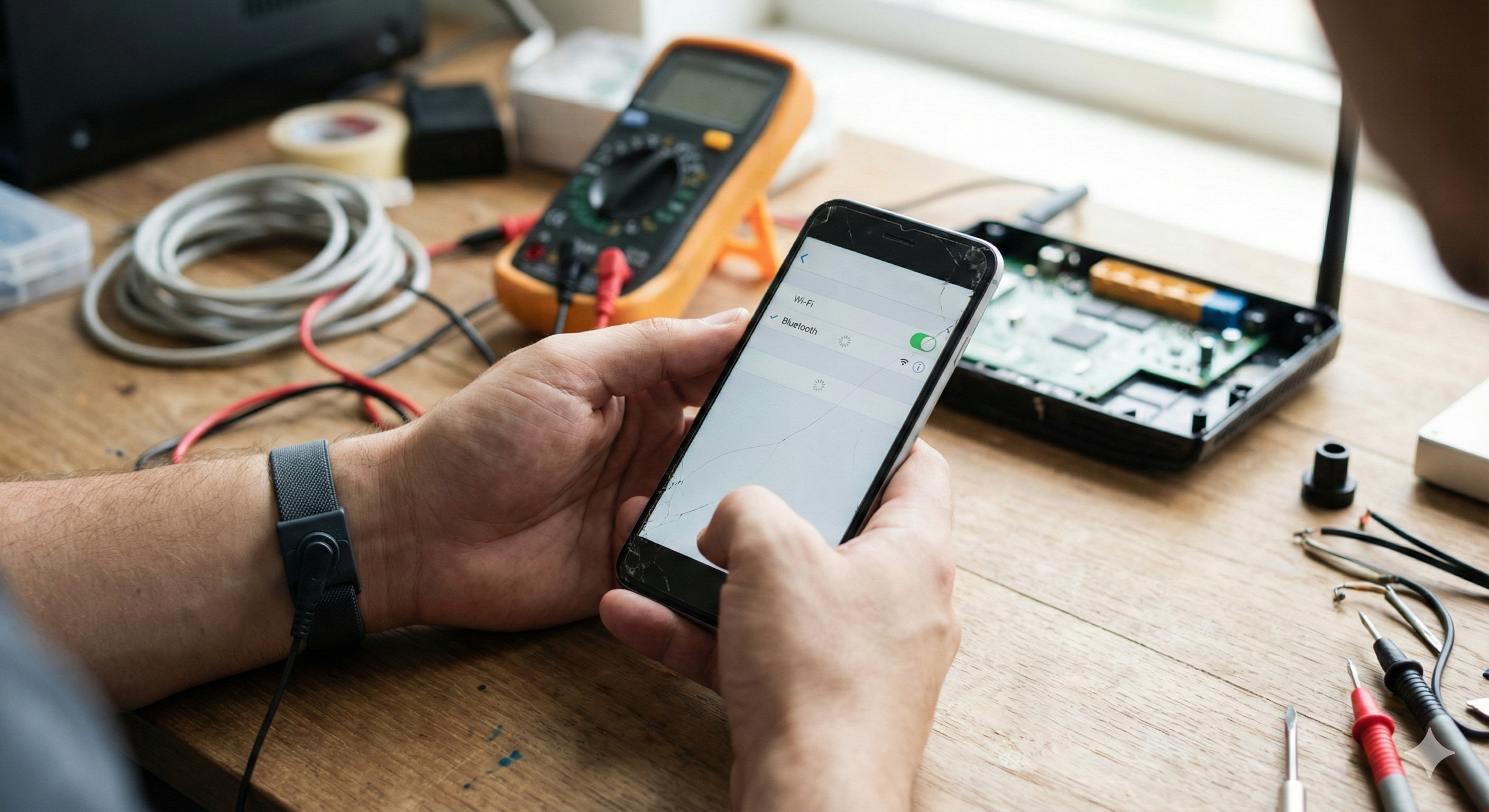
A technician's hands holding a smartphone with a cracked screen displaying Wi-Fi and Bluetooth connection settings on a busy repair workbench with tools and a multimeter.

There is nothing quite as frustrating as seeing the “Connected, No Internet” message or watching your Bluetooth headphones refuse to pair right before a workout. We live in a wireless world, and when that invisible tether snaps, your smartphone feels a lot less “smart” and a lot more like a paperweight.

At CT Fix Wireless, we see connection issues all the time. Customers often come in convinced their phone is broken beyond repair because it won’t connect to their car or home network. The truth? 80% of the time, this is a software conflict or a “digital knot” that needs untangling. The other 20%? That’s usually hardware damage to the antenna, often caused by a drop you might have forgotten about.

In this guide, I’m going to walk you through the troubleshooting hierarchy we use in our shop. We will start with the simple resets and move all the way down to the hardware diagnostics. Let’s get you reconnected.


Section 1: The “Digital Handshake” (Why Connections Fail)

Before we start pressing buttons, it helps to understand why this happens. Both Wi-Fi and Bluetooth rely on radio waves to “shake hands” with a router or another device.

Sometimes, that handshake gets interrupted. This can happen because:

  1. Software Glitches: A driver crashed in the background.
  2. Corrupted Profiles: The saved data for “Home Wi-Fi” or “Toyota Camry” is corrupted.
  3. Interference: Physical walls or other electronic devices are jamming the signal.

The goal of troubleshooting is to force your phone to forget the bad handshake and start a fresh one.


Section 2: The Easy Fixes (Try These First)

Don’t roll your eyes—these simple steps fix about half of the devices that come across our counter.

1. The Airplane Mode Toggle

This is the quickest way to refresh your phone’s radios without a full restart.

  • How to do it: Swipe down to access your control center. Tap the Airplane icon to turn it On. Wait 30 seconds. Tap it again to turn it Off. This forces the Wi-Fi and Bluetooth chips to power down and restart their search for signals.

2. The “Forget” Method

If your Bluetooth connects but the audio cuts out, or your Wi-Fi connects but doesn’t load pages, the saved profile might be buggy. You need to delete it and reconnect like it’s the first time.

  • For Wi-Fi: Go to Settings > Wi-Fi. Tap the “i” or the gear icon next to your network. Select “Forget This Network.” Then, tap the network again and re-enter your password.
  • For Bluetooth: Go to Settings > Bluetooth. Find the device giving you trouble. Tap the info icon and select “Unpair” or “Forget This Device.” Put your accessory back into pairing mode and try again.

3. Restart the Other Device

It’s not always your phone’s fault. If your Wi-Fi isn’t working, pull the power plug on your router for 60 seconds and plug it back in. If your headphones won’t pair, factory reset the headphones (usually by holding the power button for 10+ seconds).


Section 3: Deep Dive into Bluetooth Issues

Bluetooth is notoriously finicky. If the basics didn’t work, here are the pro tips.

Clear the Bluetooth Cache (Android Only)

On Android, Bluetooth is an app like any other system process. Its temporary data (cache) can get corrupted.

  1. Go to Settings > Apps.
  2. Tap the sort icon or menu and select “Show System Apps.”
  3. Find Bluetooth in the list.
  4. Tap Storage and then Clear Cache. (Do not clear “Data” unless you want to lose all your paired devices).

Check for Interference

Did you know USB 3.0 cables and microwave ovens operate on a frequency very close to Bluetooth (2.4GHz)? If you are standing next to a running microwave or have a poorly shielded hard drive plugged into your laptop, it can kill your Bluetooth connection. Move away from other electronics and test again.


Section 4: Deep Dive into Wi-Fi Issues

If your Wi-Fi is greyed out or constantly drops, try these specific settings.

Disable “Private Wi-Fi Address” (Temporarily)

Newer iPhones and Androids use a feature that randomizes your MAC address (your device’s ID card) for privacy. Some older home routers hate this feature and will block the connection.

  • iPhone: Settings > Wi-Fi > Tap the “i” icon > Toggle off Private Wi-Fi Address.
  • Android: Settings > Wi-Fi > Network Details > Privacy > Switch to Use Device MAC.

Reset Network Settings (The Magic Fix)

This is the most effective software fix available. Note: This will wipe all your saved Wi-Fi passwords and Bluetooth pairings. It will not touch your photos, contacts, or apps.

  • iOS: Settings > General > Transfer or Reset iPhone > Reset > Reset Network Settings.
  • Android: Settings > System > Reset Options > Reset Wi-Fi, mobile & Bluetooth.

After the phone reboots, you will have to re-enter your Wi-Fi password. If the issue was software-related, this usually fixes it.


Section 5: Hardware Failure (When to Call a Pro)

If you have done a Network Settings Reset and the issue persists, or if the Wi-Fi/Bluetooth toggle is “greyed out” (you can’t even tap it), you are likely dealing with hardware damage.

The Antenna

Your phone has delicate antenna lines running through the frame. A hard drop can crack these lines or pop the connector off the motherboard. If you have weak signal even when standing next to the router, it’s usually an antenna issue.

The Wi-Fi/Bluetooth Chip

On motherboard-level repairs, the actual chip responsible for wireless connections can overheat or desolder. This is common in phones that have been exposed to moisture. If your phone took a swim recently, corrosion might be eating away at the Bluetooth circuits.

This is where we come in. Diagnosing a motherboard issue requires opening the phone and using a multimeter. You can get an idea of what a repair might cost by using our Instant Quote Widget.

If you aren’t sure if you want to repair it, visit our About Us page to learn how we handle diagnostics. We believe in being honest—if the repair costs more than the phone is worth, we will tell you.


Section 6: Is It Time to Upgrade?

Sometimes, older phones just can’t keep up with modern router protocols (like Wi-Fi 6) or new Bluetooth 5.0 accessories. If you are holding onto an iPhone 6 or a Galaxy S7, the hardware simply might be too old to maintain a stable connection with modern tech.

In that case, repairing it might not be the best investment. You might be better off trading it in. Check out our Buy and Sell section to see what your device is worth and browse our inventory of newer, certified pre-owned phones.


Conclusion

Connection issues usually fall into one of two buckets: a confused software system or a broken hardware component. By following the “Forget, Reset, Restore” method, you can fix the majority of these problems at home in under ten minutes.

However, if your Wi-Fi button is greyed out or your signal is persistently weak despite a reset, don’t suffer through data overage charges. It’s likely a hardware fix that we can handle quickly.

Need help identifying the problem? Reach out to us directly via our Contact Us page. We are here to get you back online.


FAQs

Q1: Why is my Wi-Fi button greyed out and I can’t turn it on? A1: This is almost always a hardware failure. It usually points to the Wi-Fi IC (chip) on the motherboard being damaged or disconnected, often due to a drop or overheating. A standard software reset rarely fixes this; it requires professional repair.

Q2: Will resetting network settings delete my photos? A2: No. Resetting network settings only deletes wireless information: saved Wi-Fi networks/passwords, Bluetooth pairings, and VPN settings. Your photos, apps, contacts, and messages are 100% safe.

Q3: Why does my Bluetooth audio skip or stutter? A3: This is often caused by interference. If your phone is in your back pocket, your body can actually block the signal (water blocks radio waves). It can also happen if you have too many apps open in the background using up your phone’s processing power.


Disclaimer

This guide is for informational purposes. While software resets are safe, opening your device to check antennas or hardware components can void your warranty and cause damage if not done correctly. CT Fix Wireless is not liable for damages resulting from DIY repair attempts. For hardware issues, professional service is recommended.
How to Fix a Phone Microphone Not Working During Calls or Recordings

Written By: Ronnie Gonenc

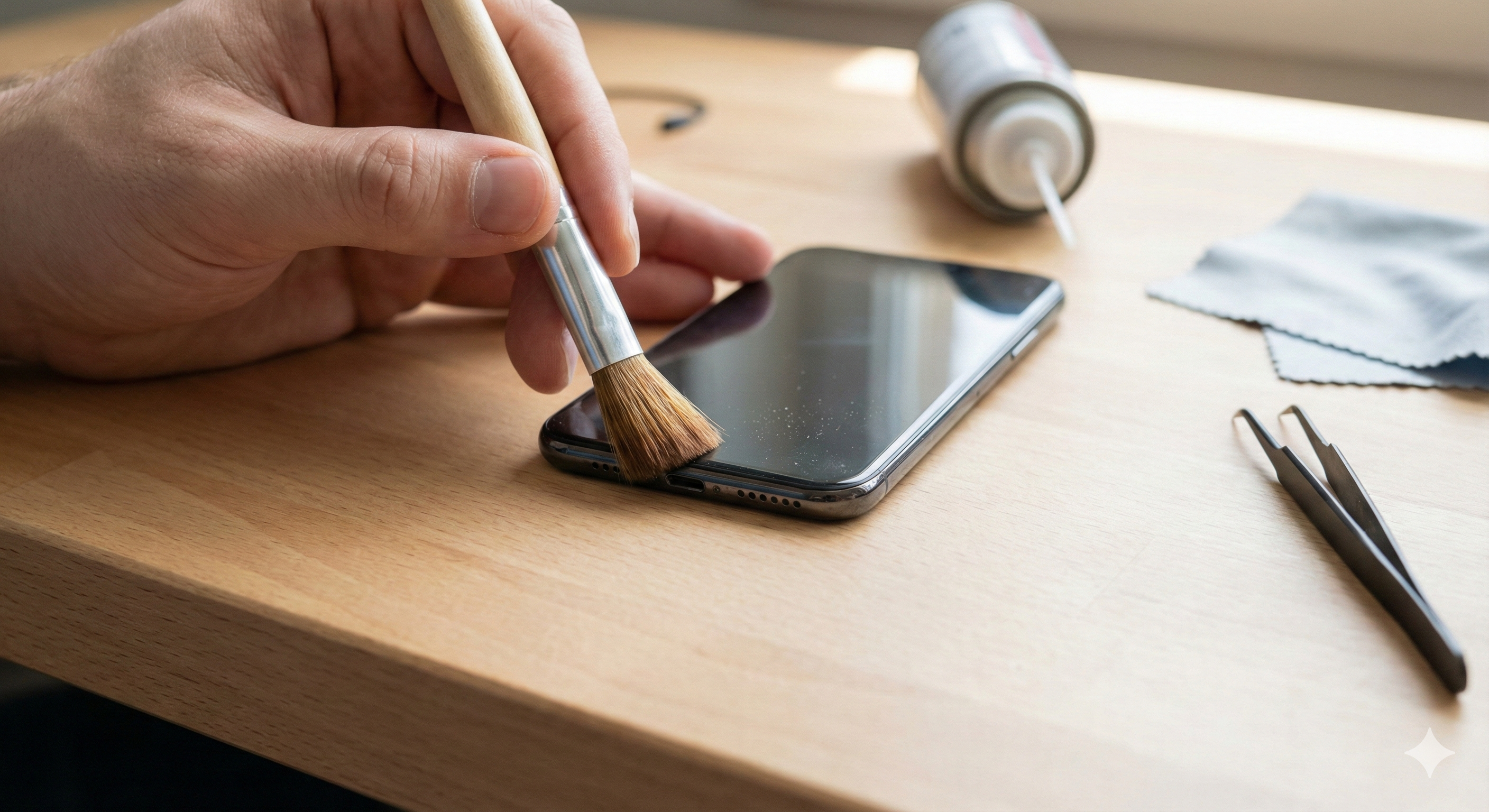
A close-up view of a hand using a small brush to gently clean dust from a smartphone's microphone port on a wooden workbench.

There are few things more annoying than picking up an important call, saying “Hello?”, and being met with dead silence—or worse, the person on the other end shouting, “I can’t hear you!” It turns your smartphone into a glorified pager instantly.

Whether you are trying to record a voice memo, send a WhatsApp audio note, or just talk to your mom, a malfunctioning microphone stops communication in its tracks. As mobile repair experts at CT Fix Wireless, we see this issue walk through our doors almost every single day. The good news? It isn’t always a catastrophic hardware failure. In fact, about half the time, the issue is caused by software glitches, permission settings, or just a little bit of pocket lint jammed in the wrong spot.

In this guide, I’m going to walk you through the exact troubleshooting steps our technicians use to diagnose and fix microphone issues. We will start with the easy, at-home fixes and move toward the more complex diagnostics. While this advice is safe for most users, please remember that smartphones are complex pieces of technology. If you are unsure about opening your device or performing a deep clean, it is always safer to seek professional help to avoid causing further damage.


Section 1: Diagnosing the Problem (Is it Hardware or Software?)

Before we start poking around with toothbrushes or resetting settings, we need to figure out exactly what is broken. Modern smartphones usually have multiple microphones. There is the primary one at the bottom for calls, a secondary one near the camera for video recording, and often a third for noise cancellation.

The Voice Memo Test

The quickest way to isolate the issue is to test the mics independently of your network connection.

  1. Open your Voice Recorder or Voice Memos app.
  2. Record a short clip of yourself speaking in a normal voice.
  3. Play it back.

If the audio sounds clear, your main microphone hardware is likely fine, and the issue might be related to your carrier signal or a specific app glitch. If the audio is static-filled, muffled, or completely silent, we are looking at a hardware obstruction or failure.

If you determine early on that this is a hardware issue you don’t want to mess with, you can visit us at CT Fix Wireless to have a look.

The “Specific App” Check

Does the mic work on regular phone calls but fail on Zoom or Instagram? If yes, your hardware is fine. This is a “permissions” issue (which we will cover in Section 3). If it fails everywhere—calls, video, Siri/Google Assistant—you are likely dealing with a physical blockage or a damaged component.


Section 2: Physical Blockages (The Most Common Culprit)

You would be amazed at how much debris a phone collects just by sitting in your pocket or purse. Lint, dust, makeup foundation, and even tiny crumbs can get impacted into the microphone grille. Since the microphone hole is tiny, even a small blockage can reduce sound input by 80% or more.

How to Clean Your Microphone Safely

Warning: Never use a metal pin or needle. You can easily puncture the delicate microphone diaphragm inside.

  1. Inspect with a Light: Use a flashlight to look closely at the microphone hole (usually at the bottom of the phone next to the charging port). If it looks packed with grey or black fuzz, that’s your enemy.
  2. The Toothbrush Method: Take a clean, dry, soft-bristled toothbrush. Gently brush across the microphone opening. Do not jam the bristles in; just brush back and forth to loosen the debris.
  3. Sticky Putty (Blu-Tack): This is a technician favorite. Take a small piece of mounting putty, press it gently over the speaker/mic hole, and pull it away quickly. It grabs the dust without pushing it further inside.
  4. Compressed Air (With Caution): If you use canned air, do not blow it directly into the hole at close range, as the pressure can destroy the mic. Spray from a distance or at an angle to dislodge dust.

If you have cleaned it thoroughly and still get no sound, the blockage might be internal (liquid damage or corrosion). At that point, you might want to stop by our shop. We can give you a better idea of the cost using our Instant Quote Widget.


Section 3: Software Glitches and Settings

If your phone is physically clean, we turn our attention to the software. Updates, rogue apps, and privacy settings can all mute your mic without you realizing it.

1. Check App Permissions

Both iOS and Android have clamped down on privacy, meaning apps have to ask to use the mic. If you accidentally hit “Deny” when you first opened WhatsApp or Skype, the mic won’t work for that specific app.

  • For iPhone: Go to Settings > Privacy & Security > Microphone. Ensure the toggle is green next to the app you are trying to use.
  • For Android: Go to Settings > Apps > (Select App) > Permissions > Microphone and select “Allow only while using the app.”

2. The “Headphone Mode” Glitch

Sometimes, your phone thinks headphones are plugged in when they aren’t. This shuts off the main mic because the phone is waiting for input from a headset mic.

  • Check the icon: Do you see a headphone icon in the status bar?
  • Clean the port: If you have a headphone jack or a charging port, carefully clean it out. Debris here can bridge connections and trick the software.
  • Toggle Bluetooth: Turn off Bluetooth completely. Your phone might be connected to a pair of earbuds sitting in the next room.

3. Noise Cancellation Conflicts

Some phones have a feature called “Noise Reduction” or “Clear Calling.” While intended to help, it can sometimes aggressively filter out your voice if the software glitches. Try searching for “Noise Cancellation” in your settings and toggling it off to see if call quality improves.


Section 4: Advanced Troubleshooting and Resets

If simple settings didn’t fix it, we have to go deeper. These steps rule out operating system corruption.

Safe Mode (Android Only)

Booting into Safe Mode disables all third-party apps.

  1. Press and hold the Power button.
  2. Tap and hold “Power Off” on the screen until “Reboot to Safe Mode” appears.
  3. Once in Safe Mode, make a test call. If the mic works perfectly in Safe Mode, a third-party app you installed (like a call recorder or a voice changer) is causing the conflict. Uninstall your recently downloaded apps one by one.

Reset All Settings (iPhone & Android)

This isn’t a factory reset—it won’t delete your photos or contacts. It just resets Wi-Fi passwords, layout preferences, and audio settings back to default.

  • iPhone: Settings > General > Transfer or Reset iPhone > Reset > Reset All Settings.
  • Android: Settings > General Management > Reset > Reset All Settings.

The Factory Reset (The Nuclear Option)

If absolutely nothing else works, a full Factory Reset is the final software step. Make sure you back up your data first. This wipes the phone clean. If the mic doesn’t work after a factory reset, you can be 99% sure it is a hardware failure.

If you are at the point where you are considering wiping your phone or buying a new one because the repair seems too complex, check out our options to Buy and Sell devices. Sometimes upgrading is more economical than repairing an older model.


Section 5: Hardware Damage & Professional Repair

When software fixes fail, we are looking at physical damage. This falls into three main categories:

1. Water Damage

Did you drop your phone in the sink or use it in a steamy bathroom? Water corruption often hits the microphone first because it’s an open port. Water damage can short-circuit the microphone component or leave behind mineral corrosion that blocks the signal.

2. The “Audio IC” Issue (Specific to Older iPhones)

We see this often in the repair industry, particularly with iPhone 7 and 8 models. A chip on the motherboard responsible for audio (the Audio IC) can loosen due to slight bending of the phone chassis over time. Symptoms include a greyed-out voice memo button and the phone taking a long time to boot up. This requires microsoldering to fix—a specialized repair we handle at CT Fix Wireless.

3. Physical Drop Damage

A hard drop can sever the ribbon cable connecting the microphone to the motherboard. In this case, the microphone module simply needs to be replaced.

If you suspect hardware damage, DIY fixes are risky. You could accidentally damage the charging port or the screen while trying to access the mic. We recommend you read more about our team and our philosophy on safe repairs on our About Us page. We believe in transparent, honest repairs.


Section 6: When Should You Call a Pro?

You should seek professional help if:

  • You have cleaned the port and done a factory reset, but the issue persists.
  • The phone has been exposed to liquid.
  • You are experiencing other audio issues simultaneously (like the speaker not working).

Repairing a microphone is usually a routine, affordable fix. It involves opening the device and replacing the daughterboard or the flex cable containing the mic. Compared to the cost of a new flagship phone, a repair is almost always the budget-friendly choice.

If you are ready to get that sound back, feel free to reach out via our Contact Us page. We can schedule a time to look at your device and get you communicating again.


Wrapping Up

A broken microphone turns a smartphone into a brick. While it is frustrating, remember that the solution is often simpler than you think. Start with a toothbrush and a check of your Bluetooth settings. If those don’t work, move on to software resets. And if you hit a wall, know that hardware repairs for microphones are standard procedures for experienced technicians.

Don’t let a silent phone ruin your day. troubleshoot it, clean it, or bring it in to let the experts handle it.


FAQs

Q1: Why does my microphone work on speakerphone but not on normal calls? A1: Most smartphones use two different microphones. The bottom mic is for normal calls, while the top or rear mic is used for speakerphone and video recording. If one works and the other doesn’t, it confirms that your bottom microphone has a hardware failure or blockage, while the audio software is functioning correctly.

Q2: Can a screen protector block my microphone? A2: Absolutely. We see this often with poor-quality or misaligned screen protectors. If the glass isn’t lined up perfectly, it can cover the tiny microphone hole near the earpiece or at the bottom of the screen. Check your alignment and consider removing the protector to test the audio.

Q3: How much does it cost to fix a phone microphone? A3: The cost varies by model and the extent of the damage. A simple cleaning might be free or very cheap, while a microphone replacement usually involves replacing a charging port flex cable. For an exact price for your specific device, we recommend using our Instant Quote widget.


Disclaimer

The information provided in this post is for educational purposes only. While cleaning your device and adjusting settings are generally safe, attempting physical repairs on your smartphone can void warranties and potentially cause further damage if not done correctly. CT Fix Wireless is not responsible for any damage incurred during DIY repair attempts. If you are unsure, please consult a professional technician.

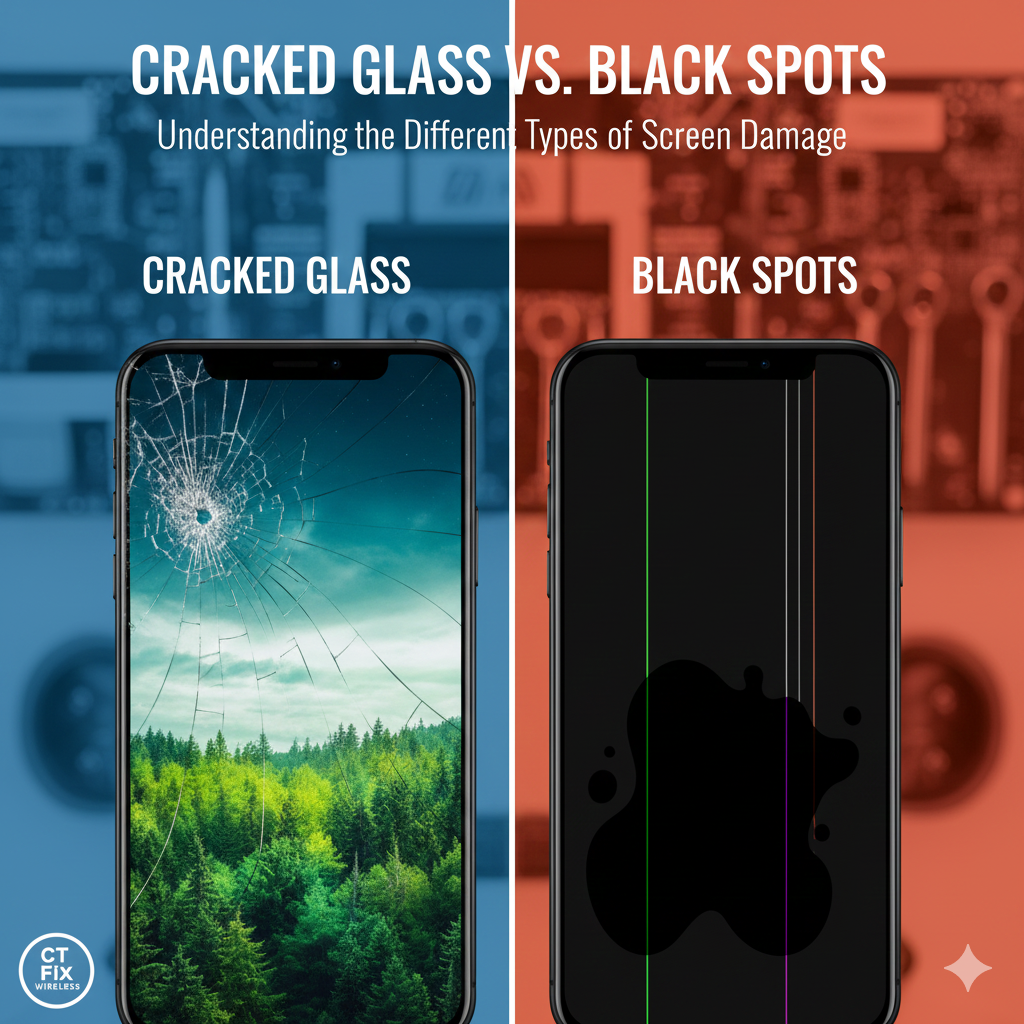
Cracked Glass vs. Black Spots: Understanding the Different Types of Screen Damage

Written By: Ronnie Gonenc

Cracked Glass vs. Black Spots: Understanding the Different Types of Screen Damage

We have all experienced that heart-stopping moment: your phone slips from your hand, tumbles in slow motion, and lands face-down on the pavement. You hesitate to pick it up, dreading what you might find.

When you finally turn it over, you usually see one of two things: a spiderweb of cracks across the surface, or worse—a dark, inky blob spreading across the display.

While both look terrible, they are fundamentally different types of damage. One is superficial “cosmetic” damage, while the other indicates a critical failure of your device’s internal display panel.

At CT Fix Wireless, we diagnose hundreds of broken screens every month. In this guide, we will help you identify which type of damage you have, why those mysterious “black spots” appear, and what your repair options are.


Section 1: Understanding Your Screen’s Anatomy

To understand the damage, you need to know that your phone screen isn’t just one piece of glass. It is actually a “sandwich” made of three distinct layers fused together:

  1. The Top Glass: This is the protective outer layer (Gorilla Glass or Ceramic Shield). Its only job is to protect the expensive components underneath.
  2. The Digitizer: This transparent layer acts as a sensor grid. It tracks your finger’s movement. If this breaks, your phone gets “Ghost Touch” (clicking things on its own) or becomes unresponsive.
  3. The LCD or OLED Panel: This is the bottom layer that actually lights up and shows you images. It is the most expensive and fragile part of the assembly.

Section 2: Scenario A — Just Cracked Glass (The “Good” News)

If you drop your phone and see cracks, but the image underneath looks perfect, you have likely only damaged the top layer.

Symptoms of Glass-Only Damage:

  • The cracks look like a spiderweb or single hairline fractures.
  • You can still see the entire picture clearly.
  • The touch screen still works perfectly (though we don’t recommend swiping over shards of glass!).
  • There are no colored lines or dark spots.

Is it urgent? While your phone is still usable, the structural integrity is gone. The next drop—even a small one—will almost certainly destroy the LCD underneath. Additionally, moisture from sweat or rain can now easily enter the cracks and fry the motherboard.


Section 3: Scenario B — Black Spots and “Screen Bleeding” (The Bad News)

If you see black dots, ink-like blotches, or vertical lines, you have damaged the actual LCD or OLED panel. This is not a surface crack; the “pixels” inside your screen are dying.

What are those black spots? On LCD screens (common in older iPhones and some Androids), the liquid crystal material is literally leaking out of its cells. This is often called “screen bleeding.” On OLED screens (newer iPhones, Samsungs), this damage appears as a deep purple or black void where the organic diodes have shattered.

The “Spreading Virus” Effect Unlike a crack in the glass, which stays the same, black spots almost always get bigger. Because the internal pressure of the screen has been compromised, the “ink” will slowly spread. A small dot in the corner today can turn into a completely blacked-out screen by next week.

Other Signs of LCD/OLED Damage:

  • Vertical Lines: Bright green, pink, or white lines running down the screen.
  • Flickering: The screen strobes or flashes brightness levels.
  • Blackout: The phone vibrates and rings, but the screen stays pitch black.

Section 4: The Repair Myth — “Can’t You Just Replace the Glass?”

A common question we get at our shop is, “Since only the glass is cracked, can you just peel it off and glue a new piece on for cheap?”

Ten years ago, this was possible. Today, it is very difficult. Modern screens are fused together with optical adhesive at the factory level. Separating the glass from the LCD requires freezing the phone to -180°C or using dangerous heating machines.

Why we recommend Full Assembly Replacement: Trying to replace only the glass often results in:

  1. Touch issues: The new glass doesn’t respond as quickly.
  2. Dust bubbles: Trapped between layers.
  3. Weakened structure: The screen becomes more likely to break again.

At CT Fix Wireless, we perform Full Assembly Replacements. We swap the entire “sandwich” (Glass + Digitizer + LCD). This ensures your phone looks, feels, and acts exactly like it did when it came out of the box.

You can get a price estimate for this service in seconds using our Instant Quote Widget.


Section 5: How to protect your phone from “The Black Spot”

Once you have repaired your screen, you want to make sure it never happens again.

  1. Tempered Glass is Mandatory: A $10 screen protector is cheaper than a $200 screen repair. It is designed to shatter instead of your actual screen, absorbing the shock.
  2. The “Lip” Test: When buying a case, look at the front. does the case have a raised “lip” that sits higher than the glass? This prevents the screen from hitting the ground directly if dropped flat.
  3. Avoid Compression: Believe it or not, many “black spots” aren’t caused by drops, but by pressure. Sitting on your phone while it’s in your back pocket can crush the LCD pixels without cracking the glass.

Section 6: Conclusion

Whether you have a simple crack or a spreading black blotch, the solution is the same: don’t wait until the phone becomes unusable. A compromised screen can lead to “Ghost Touching” (where the phone calls people on its own) or total data loss if the display dies before you can back it up.

Don’t let a broken screen ruin your day. We can fix most screens in under an hour. Check out our Buy and Sell page if you think it’s time to trade it in, or contact us below to book a repair.


External and Internal Links Checklist

Here are the resources and pages referenced in this guide to help you navigate your repair options.

Internal Links (CT Fix Wireless)

External Links (Authoritative Sources)


Disclaimer: While we provide information on screen damage, we strongly advise against using a phone with shattered glass due to the risk of injury from loose shards. Always seek professional repair for glass or LCD damage.

Phone Speaker Sounds Muffled? Easy Fixes for Low Volume | CT Fix Wireless

Written By: Ronnie Gonenc

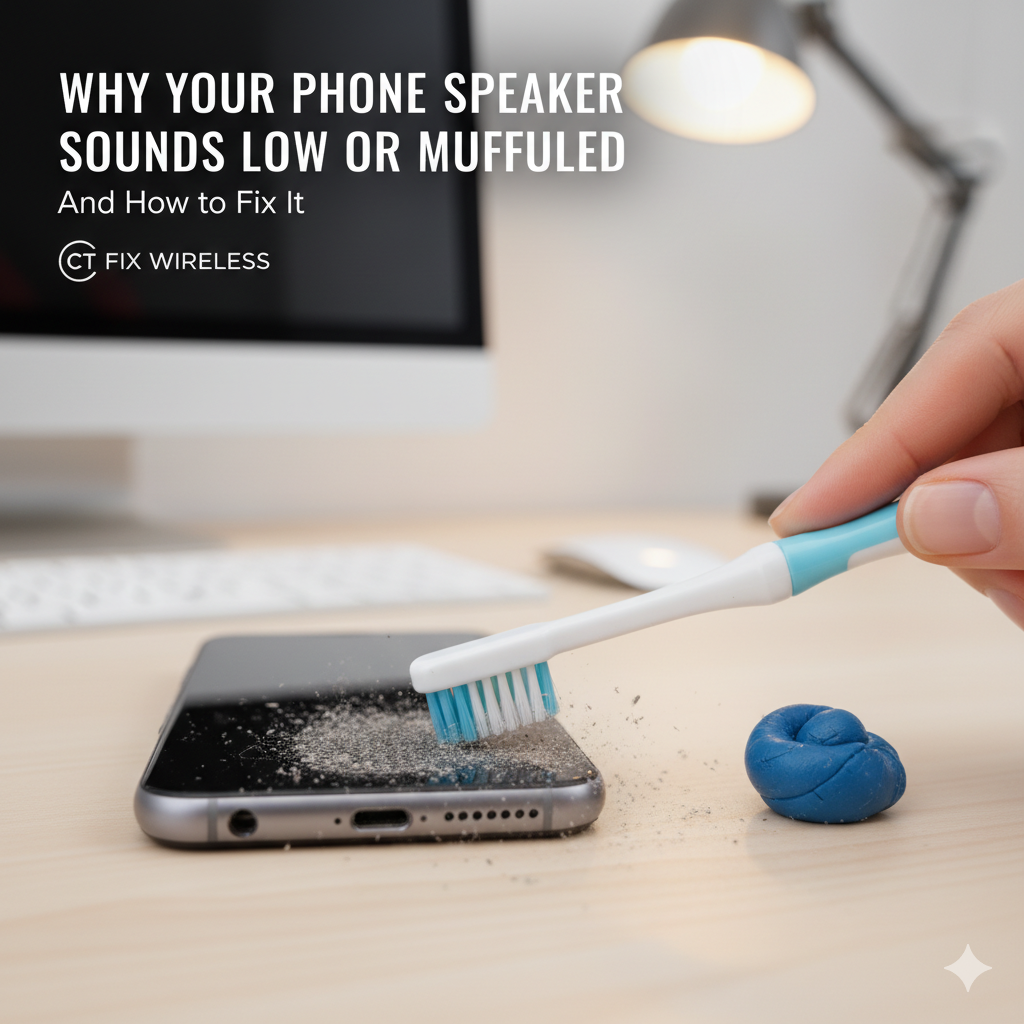
A person cleaning a smartphone speaker with a toothbrush and cleaning putty.

We have all been there. You are trying to show a friend a video, waiting for a crucial call, or listening to a voice note, and the sound coming out of your smartphone is barely a whisper. You find yourself pressing the volume button repeatedly, only to realize it is already maxed out.

A muffled or low-volume speaker isn’t just an annoyance; it disrupts how you use your device daily. Whether it’s missing alarm clocks or struggling to hear navigation instructions while driving, audio issues are a major pain point for smartphone users.

As repair experts at CT Fix Wireless, we see this issue walk through our doors almost daily. The good news? In about 80% of cases, this is not a permanent hardware failure. It is often a matter of debris accumulation, software misconfiguration, or environmental factors.

In this comprehensive guide, we will walk you through the same diagnostic steps our technicians use. We will cover safe cleaning methods, deep software troubleshooting for both iOS and Android, and help you decide when it is time to bring the device in for a professional look.


Section 1: The Anatomy of Sound (Why It Goes Wrong)

To understand why your speaker sounds “fuzzy” or quiet, you have to understand how it works. Modern smartphones, whether it’s the latest iPhone or a Samsung Galaxy, rely on micro-mesh grills to protect the internal speaker components.

1. The Debris Barrier

The most common culprit is physical blockage. Your phone spends its life in pockets, purses, and on dusty tables. Over months, lint, makeup, dead skin cells, and natural oils form a paste that clogs the fine mesh of your speaker grill. This creates a physical wall that sound waves cannot penetrate effectively, resulting in that “underwater” sound.

2. The Hardware fatigue

Speakers are mechanical components. They vibrate to produce sound. Over time, or after a heavy impact (like a drop), the internal membrane can tear, or the connection coils can loosen. This usually results in a “crackling” or static noise rather than just low volume.

3. Software Throttling

Sometimes, the phone is protecting itself (or you). Features like “Headphone Safety” or “Volume Limiters” can inadvertently cap your output. Additionally, a glitchy Bluetooth connection can trick your phone into thinking it’s still playing audio through a device that isn’t there.


Section 2: The “Toothbrush Method” and Physical Maintenance

Disclaimer: Proceed with caution. Using sharp objects (like needles or SIM ejectors) to clean speaker grills can puncture the mesh and destroy the water resistance of your phone.

Before you panic about hardware failure, you need to perform a deep clean. This is the first step we take when a customer visits us at CT Fix Wireless.

Step 1: Visual Inspection

Use a flashlight to inspect the speaker holes at the bottom of your phone and the earpiece at the top. Do you see a layer of grey or black fuzz? That is your enemy.

Step 2: The Dry Brush

Use a clean, soft-bristled toothbrush (a child’s toothbrush works best).

  1. Hold the phone so the speaker faces down (gravity helps debris fall out rather than in).
  2. Gently brush across the speaker holes horizontally, then vertically.
  3. Do not press hard; let the bristles do the work.

Step 3: Painter’s Tape/Mounting Putty

If the brush loosens the dirt but doesn’t remove it:

  • Take a small piece of painter’s tape (blue tape) or specialized electronic cleaning putty.
  • Press it gently against the speaker grill and peel it back.
  • This lifts the dust out of the mesh without pushing it deeper.

Expert Tip: Avoid using compressed air (canned air) directly into the speaker grill. The high pressure can rupture the microphone or speaker diaphragm located immediately behind the mesh.


Section 3: Software Troubleshooting for iPhone Users

If your iPhone looks clean but still sounds quiet, the issue is likely buried in iOS settings. Apple includes several safety features that can sometimes be too aggressive.

Check “Reduce Loud Sounds”

  1. Go to Settings > Sounds & Haptics.
  2. Tap on Headphone Safety.
  3. Look for Reduce Loud Sounds. If this is toggled on, your iPhone might be capping the decibel level to protect your ears, even when using the loudspeaker. Try turning it off or adjusting the slider.

The “EQ” Fix

Sometimes the default equalizer setting dampens volume.

  1. Go to Settings > Music.
  2. Tap EQ.
  3. Select “Late Night”. Interestingly, the “Late Night” mode compresses the dynamic range, which often has the side effect of making quiet sounds louder and the overall volume appear boosted.

If these settings don’t resolve the issue and you suspect a hardware fault, you can always use our Instant Quote Widget to see how much a speaker replacement might cost for your specific model.


Section 4: Software Troubleshooting for Android Users

Android ecosystems are vast, but the audio architecture is generally similar across Samsung, Google Pixel, and Motorola devices.

Dolby Atmos and Sound Adapt

Many modern Androids feature Dolby Atmos.

  1. Go to Settings > Sounds and Vibration.
  2. Tap Sound Quality and Effects.
  3. Ensure Dolby Atmos is turned On.
  4. Check for an option called “Adapt Sound”. This feature runs a hearing test and boosts specific frequencies tailored to your ears. If it was set up poorly in the past, it might be muting frequencies you need.

Safe Mode Testing

If your sound issues started recently, a rogue app might be hijacking your audio focus.

  • Boot your phone into Safe Mode (usually by holding the power button, then long-pressing the “Power Off” icon on screen).
  • Test the speaker in Safe Mode. If it sounds crisp and loud, a third-party app you recently installed is the culprit. Uninstall recent apps one by one.

Section 5: The Water Damage Variable

Did you drop your phone in the sink, or use it in a steamy shower? Even water-resistant phones (IP68 rated) can suffer from muffled audio when water sits in the speaker cavity.

Do NOT use rice. Rice is a myth; it creates starch dust that gets into the phone and does not absorb moisture effectively from the inside.

The Fix:

  1. Download a “Water Eject” shortcut or app. These play a specific low-frequency tone that vibrates the speaker violently enough to push water droplets out.
  2. Let the phone dry in a well-ventilated area with airflow (like near a fan).

If the sound remains crackly after 24 hours of drying, the water may have corroded the contacts. This requires professional cleaning. You can learn more about our team’s experience with liquid damage on our About Us page.


Section 6: Advanced Hardware Failure – When to Call the Pros

If you have cleaned the mesh, reset the settings, and dried the device, but the sound is still low or distorted (buzzing/crackling), you are likely looking at a hardware failure.

Common Hardware Issues:

  • Blown Speaker: This happens if you play loud audio for extended periods or dropped the phone while audio was playing. The internal cone tears.
  • Displaced Components: A hard drop can knock the speaker module slightly out of alignment, breaking the seal that directs sound out of the phone.
  • IC Audio Failure: On some older devices (like iPhone 7/8), the “Audio IC” chip on the motherboard can loosen, causing greyed-out voice memos and speaker failure.

Is it worth fixing?

Speaker replacements are generally one of the more affordable repairs. However, if your phone is very old and has multiple issues (bad battery, cracked screen, bad speaker), it might be more economical to upgrade.

At CT Fix Wireless, we offer a unique solution: we can fix your current device, or if you decide it’s time for an upgrade, we can buy your old device from you. Check out our Buy and Sell page to see what your device might be worth.


Section 7: Conclusion

A muffled speaker doesn’t always mean a broken phone. By following the hygiene steps and software checks listed above, you can often restore your audio to crystal-clear quality without spending a dime.

However, smartphones are precision-engineered devices. If DIY methods fail, forcing the issue can cause more damage. Whether you need a quick speaker cleaning, a component replacement, or a logic board diagnosis, professional help is the safest route.

Ready to get your sound back? If you have tried everything and still can’t hear your calls, don’t suffer in silence.

  • Contact Us today to schedule a diagnostic.
  • Visit us in-store for a quick consultation.

Disclaimer: The information provided in this post is for educational purposes only. While cleaning your device can improve performance, improper handling can cause damage. CT Fix Wireless is not responsible for damage caused by DIY repair attempts. If you are unsure, please consult a professional technician.

Why Is My Phone Overheating? 5 Common Causes | CT Fix Wireless

Written By: Ronnie Gonenc

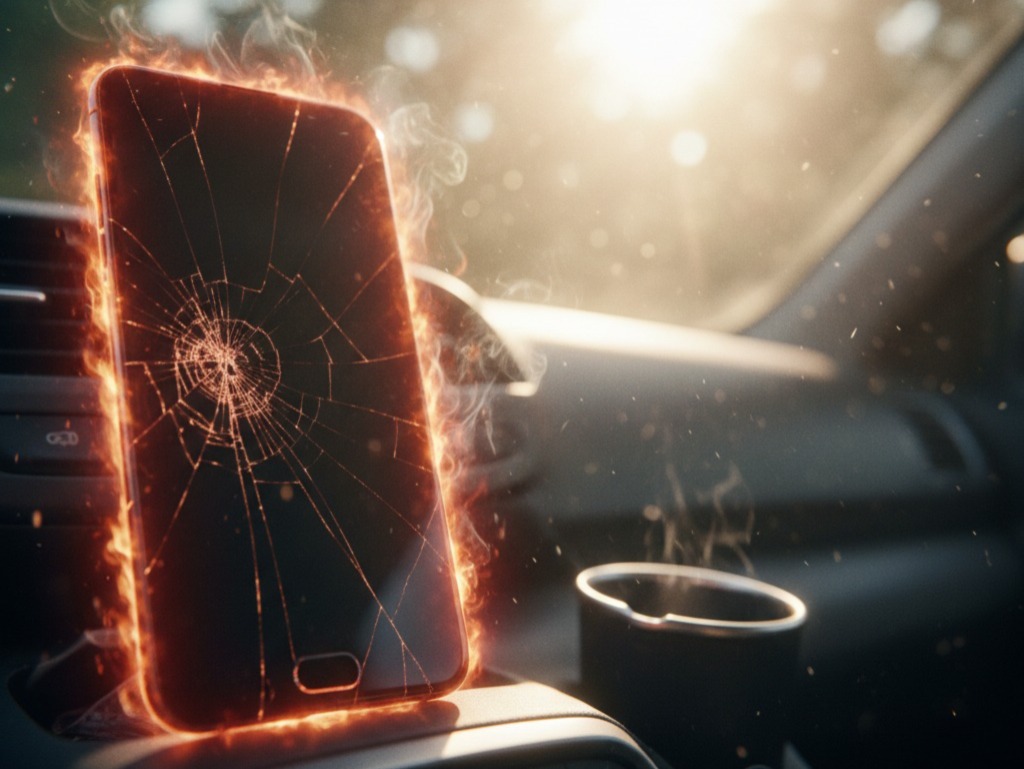
A smartphone with a cracked screen glowing red with heat and smoke, left on the dashboard of a hot car in direct sunlight.

We have all been there. You are in the middle of a high-stakes mobile game, streaming your favorite show in high definition, or simply navigating home using GPS on a sunny day, and suddenly, your device feels less like a smartphone and more like a hot coal.

For most users, a warm phone is a minor annoyance. But when does “warm” turn into “dangerously hot”?

In the world of mobile technology, heat is the silent killer of internal components. While modern smartphones—whether you are Team iPhone or Team Android—are engineering marvels designed to dissipate heat, they have their limits. Prolonged overheating can degrade your battery life, melt internal adhesive, permanently damage the Central Processing Unit (CPU), and in rare, extreme cases, cause the battery to swell or catch fire.

As a dedicated team of repair experts at CT Fix Wireless, we see overheating devices come into our shop every single day. Often, the issue is manageable with a few habit changes. However, sometimes it signals a critical hardware failure that requires immediate attention.

In this comprehensive guide, we will break down the science of why phones get hot, the five most common culprits, and exactly how to fix them. If you are worried that your device is already past the point of no return, don’t risk it—Contact Us immediately for a professional assessment.


The Science: Why Do Phones Get Hot?

Before we dive into the specific causes, it is vital to understand how your phone works. Unlike a desktop computer or a laptop, your smartphone does not have a fan to blow hot air out. It relies on passive cooling.

The components inside your phone—specifically the processor (CPU), the graphics chip (GPU), and the battery—generate heat as they work. The harder they work, the more electricity they consume, and the more heat is produced as a byproduct. Your phone’s frame (aluminum, glass, or plastic) acts as a heat sink, absorbing that heat and transferring it away from the critical internal chips and toward the air.

When you feel your phone getting hot, that is actually a sign the cooling system is working: it is moving heat from the inside to the outside. However, if the heat is being generated faster than it can be dissipated, or if the environment prevents that heat from escaping, you enter the overheating zone.


Cause 1: Environmental Factors (The “Greenhouse” Effect)

The most common reason a phone overheats has nothing to do with the phone itself and everything to do with where it is.

Direct Sunlight

Your phone is essentially a dark slab of glass and metal. If you leave it in direct sunlight—say, on a beach towel or a café table—it absorbs solar radiation rapidly. Smartphones are generally designed to operate between 32° F and 95° F (0° C to 35° C). Direct sunlight can push the internal temperature well past 110° F in minutes.

The “Hot Car” Scenario

Leaving your phone in a car on a warm day is one of the fastest ways to kill a battery. The interior of a car acts like a greenhouse. If it is 80° F outside, your car’s dashboard can reach 160° F within an hour. This extreme heat can cause the chemicals inside your Lithium-Ion battery to destabilize, leading to swelling or permanent capacity loss.

The Fix:

  • Keep your phone in the shade.
  • Never leave devices in a parked car.
  • If your phone gives you a temperature warning, move it to a cooler place immediately (but do not put it in the fridge/freezer—we will explain why later).

Cause 2: Intensity of Usage (Overworking the CPU)

Your phone is a pocket-sized supercomputer, but it has limits. When you ask it to perform heavy tasks for long periods, the CPU and GPU run at 100% capacity, generating massive amounts of heat.

High-Performance Gaming

Modern mobile games like Genshin Impact, Call of Duty Mobile, or PUBG require immense processing power. They force the screen to stay on at high brightness, the GPU to render complex 3D graphics, and the data modem to maintain a connection—all simultaneously.

Streaming and GPS

Streaming 4K video or using turn-by-turn navigation requires constant data transfer and screen usage. GPS is particularly taxing because the phone’s GPS chip is constantly pinging satellites while the screen displays a moving map, often while the phone is mounted on a dashboard in the sun (a double whammy).

The Fix:

  • Take breaks during long gaming sessions.
  • Lower your screen brightness or graphics settings in games.
  • If you are a heavy user and your phone can no longer keep up, it might be time for an upgrade. You can trade in your current device at our Buy and Sell section.

Cause 3: Battery and Charging Issues (The Dangerous Heat)

Heat generated during charging is normal, but excessive heat during charging is a red flag.

Faulty Cables and Adapters

Using cheap, uncertified, or frayed charging cables can lead to unstable power delivery. If the charger doesn’t regulate the voltage correctly, your phone’s power management chip has to work overtime to convert that energy, creating excess heat.

Charging While Using

“Passthrough usage” is when you use the phone for high-intensity tasks (like gaming) while it is plugged in. The battery is trying to charge while simultaneously discharging to power the screen and CPU. This generates heat from two sources at once, leading to rapid thermal buildup.

The Aging Battery

As Lithium-Ion batteries age, their internal resistance increases. This means they have to work harder to accept and deliver a charge, generating more heat in the process. If your phone is several years old and gets hot the moment you plug it in, the battery is likely failing.

Expert Insight: If your battery is swelling (pushing the screen up), unplug it immediately. This is a fire hazard. You need a replacement right away. Check our About Us page to see how our technicians handle safe battery disposal and replacement.


Cause 4: Software Glitches and Malware

Sometimes, the heat is ghost-generated by software you aren’t even using.

Background Processes

An app might crash in the background but get stuck in a “loop,” constantly trying to restart or sync data. This causes the CPU to run at high speeds even when the phone is in your pocket.

Malware and Cryptojacking

In rarer cases, malicious software (malware) may have infected your device. Some sophisticated malware uses your phone’s processing power to mine cryptocurrency for hackers (cryptojacking). This runs your processor at maximum capacity 24/7, causing severe overheating and battery drain.

Buggy Updates

Occasionally, a new iOS or Android update might contain a bug that optimizes battery usage poorly.

The Fix:

  • Check your battery settings to see which app is using the most energy.
  • Keep your apps and operating system updated.
  • Perform a factory reset if you suspect malware (backup your data first!).

Cause 5: Hardware Failure (Internal Shorts)

If your phone heats up immediately after turning it on, or heats up in a specific spot even when not in use, you may be dealing with a logic board issue.

This can happen after:

  1. Water Damage: Even if the phone dried out, corrosion can create short circuits that generate heat.
  2. Drops: A hard fall can dislodge thermal paste or crack internal components, disrupting the flow of electricity.

This type of overheating is not solvable with software updates. It requires board-level diagnostics. If you suspect internal damage, do not wait. Get a quote for a repair using our Instant Quote Widget.


When Is Overheating Dangerous? (YMYL Safety Warning)

It is crucial to distinguish between “operating warm” and “dangerously hot.”

Safe Warmth:

  • Slightly warm during charging.
  • Warm after 30 minutes of gaming.
  • Warm after recording a 4K video.

Dangerous Heat (Take Action Immediately):

  • The phone is too hot to hold comfortably.
  • You smell burning plastic or chemicals.
  • The screen displays a temperature warning and shuts down.
  • The most critical sign: The battery is swollen. If your phone case no longer fits, or the screen is lifting away from the frame, the battery is expanding due to gas buildup. Do not press on it. Do not charge it.

Safety Disclaimer: Dealing with swollen batteries is dangerous. They can puncture and ignite. Bring the device to a professional repair shop like CT Fix Wireless immediately for safe handling.


Practical Advice: How to Cool Down a Hot Phone

If your phone is overheating right now, follow these steps to cool it down safely.

What TO Do:

  1. Remove the Case: Cases trap heat. Taking it off allows the aluminum or glass body to release heat into the air.
  2. Turn on Airplane Mode: This kills GPS, Bluetooth, Wi-Fi, and Cellular data, stopping almost all background processing.
  3. Move to the Shade: Get it out of direct sunlight.
  4. Place it near a Fan: Gentle airflow helps passive cooling.
  5. Close All Apps: Swipe away all open applications.

What NOT To Do (Crucial!):

  • Do NOT put it in the fridge or freezer. Rapid cooling causes condensation (moisture) to form inside the phone. This water damage can kill the phone faster than the heat would have.
  • Do NOT dunk it in water. Even “water-resistant” phones lose their seals over time.

Conclusion: Don’t Let the Heat Win

Smartphones are resilient, but they aren’t invincible. Heat is the number one enemy of electronics longevity. By understanding the causes—whether it is that intense gaming session, a sunny day at the park, or an aging battery—you can take steps to protect your investment.

Regular maintenance, using quality chargers, and monitoring your battery health are the keys to a cool, long-lasting device. However, if you have tried everything and your phone still feels like a toaster, it is time for professional help.

At CT Fix Wireless, we specialize in diagnosing thermal issues, replacing batteries, and repairing logic boards. Don’t let a hot phone turn into a melted brick.


FAQs: Overheating Questions Answered

Q1: Can a virus cause my phone to overheat? A1: Yes. Malware, specifically adware or cryptomining software, can run heavy processes in the background without your knowledge. This forces the CPU to run at max capacity, generating significant heat.

Q2: Is it bad to use my phone while it’s charging? A2: It is generally safe for light tasks (texting, reading), but heavy tasks (gaming, video calls) during charging cause “parasitic load.” This generates excessive heat and cycles the battery, degrading its health faster.

Q3: Why does my phone get hot after an update? A3: Immediately after a system update, your phone effectively “re-indexes” its files and optimizes apps in the background. This can cause temporary heating for 24-48 hours. If it persists longer, it may be a software bug.

Q4: Can I fix a swollen battery by cooling it down? A4: No. A swollen battery is a chemical failure. Cooling it will not reverse the gas buildup. It requires immediate professional replacement to avoid fire risks.


Disclaimer: The information provided in this blog post is for educational purposes only and should not be considered a substitute for professional repair diagnostics. Attempting DIY repairs on swollen batteries or internal components can be dangerous. Always consult a professional technician for hardware issues.

Why Your Phone’s Battery Health Drops After Updates | CT Fix Wireless

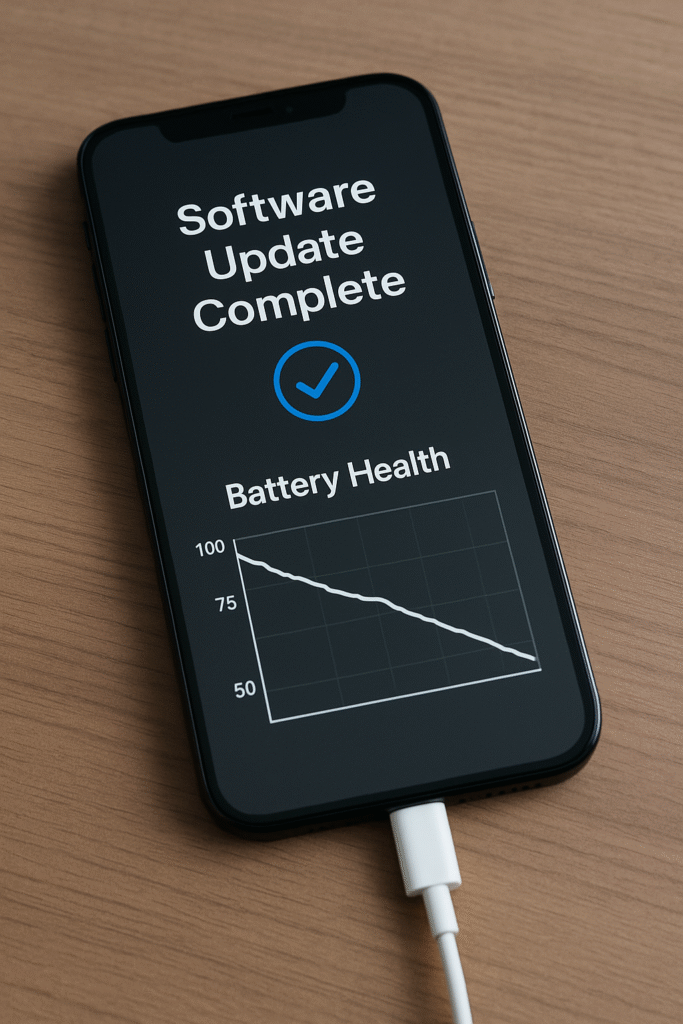
Smartphone displaying “Software Update Complete” with a downward battery health graph, symbolizing faster battery drain after updates — CT Fix Wireless repair experts.

Have you ever updated your phone, only to realize the battery suddenly drains faster than before? You’re not alone. Many smartphone users experience rapid battery decline right after installing a new system update. These updates promise better performance, security, and new features — but often come with hidden effects on your battery’s overall health.

At CT Fix Wireless, our certified technicians have seen hundreds of cases where battery wear accelerates after updates. This guide will break down the why behind this issue, what you can do about it, and when it’s time to visit your local repair experts.


Section 1 – Understanding Battery Health and Software Updates

Your phone’s battery health reflects how efficiently it can hold a charge over time. When you buy a new device, the battery health is 100%, meaning it performs at full capacity. Over months and years, that percentage decreases — a natural effect of charge cycles and heat exposure.

Software updates, however, can accelerate that decline. Here’s how:

1. New Features Increase Power Demand

Updates often introduce advanced features — like improved camera processing, always-on displays, or enhanced background AI operations. While exciting, these consume more energy than older versions.

2. Recalibration of Battery Data

Every update triggers system recalibration — the software re-evaluates your battery capacity and adjusts its reporting. In some cases, the update simply becomes more honest, showing a lower health percentage that was previously hidden.

3. Background Optimization and Sync Tasks

After updating, the system re-indexes files, optimizes apps, and resyncs data to cloud services. This heavy processing can cause temporary heat and battery drain for several days.

4. Incompatibility with Old Apps

Outdated third-party apps may not align with the new OS, causing background loops or crashes that drain the battery quickly.

5. Thermal Management Changes

Some updates adjust how your phone handles heat. While this prevents damage, it can slightly reduce performance and power efficiency.

To understand whether the update or the hardware is to blame, it’s important to analyze your battery performance over time.

If you notice drastic changes, schedule a diagnostic check with our technicians — we’ll test both software and hardware components.


Section 2 – Key Reasons Your Battery Drains Faster After Updates

Let’s explore the most common culprits behind the post-update battery slump.

1. New Operating System Demands

Modern operating systems are heavier. A phone designed for an earlier OS might struggle with the latest version, forcing it to use more processing power — and thus more battery — to run the same tasks.

2. Background App Refresh

Each app updates to remain compatible with the system. During this process, apps re-download data, fetch new content, and perform background tasks continuously, consuming energy even when you’re not using them.

3. Temporary Battery Re-Calibration

Your phone’s algorithm recalculates charge cycles after an update. This might make your battery health indicator drop sharply, though actual capacity may not have changed dramatically.

4. Increased CPU and GPU Usage

Some updates boost visual performance, animations, and UI smoothness. The result? More load on your graphics and main processor — and more battery consumption.

5. New Security Protocols

Enhanced encryption and background scanning features introduced in updates can constantly monitor your system for threats, which may subtly impact battery performance.

If these changes persist for over a week, it’s a sign your phone’s battery might not be adapting well — time to get it professionally checked at CT Fix Wireless Repair Services.


Section 3 – How Software Updates Affect Different Phone Brands

Apple (iPhone)

Apple’s updates are designed for uniformity, but older iPhones often experience noticeable battery degradation after major iOS upgrades. The recalibration process and additional background tasks — like iCloud Photos, indexing, or Spotlight Search — consume significant power.
If your iPhone’s battery health drops below 80%, Apple’s system limits peak performance to prevent random shutdowns.

At this stage, a battery replacement restores not just charge life but also performance stability.

Android (Various Manufacturers)

Android phones are diverse — Samsung, Pixel, Huawei, and others all handle updates differently. Some brands push large OS files that introduce background AI, adaptive brightness, and auto-optimization that might tax the processor more.

Inconsistent app optimization across models can cause erratic drain until future patches fix it.


Section 4 – Practical Steps to Protect Your Battery After Updates

If you’ve noticed faster drain after an update, try these expert-approved steps to slow down the damage.

1. Perform a Clean Restart

After installation, restart your phone twice. This helps finalize installation scripts and removes any temporary glitches in battery reporting.

2. Calibrate Your Battery

Let the battery drain completely, then charge it to 100% without interruption. Do this once after a major update to help the system relearn full capacity boundaries.

3. Turn Off Background Refresh

Disable auto-sync for apps like Mail, Facebook, or Instagram if not needed. These background processes are notorious for power consumption after updates.

4. Avoid Overcharging

Keep charge levels between 20–80%. Prolonged charging to 100% can generate heat, reducing long-term health.

5. Update Apps Manually

Instead of letting all apps auto-update simultaneously, manually update critical ones first. This avoids multiple background installations occurring together.

6. Check Battery Usage Reports

Under Settings > Battery, identify which apps spike in usage after updates. Uninstall or restrict the ones consuming more power than usual.

7. Seek Professional Inspection

If you see sudden drops (for example, 40% to 5% within minutes), this may signal a failing battery or logic-board issue.

Visit CT Fix Wireless for a same-day diagnostic and instant quote — we’ll determine whether a software reset, new battery, or micro-repair is required.


Section 5 – Long-Term Battery Care Tips After Major Updates

1. Avoid Beta Software

Early releases often contain unoptimized code that drains the battery. Stick to official versions.

2. Enable Battery Optimization Mode

Modern phones include power-saving or adaptive battery modes. These restrict background tasks intelligently, extending battery life.

3. Limit Push Notifications

Each notification wakes the processor and display — reduce unnecessary alerts to save energy.

4. Keep the Device Cool

Heat accelerates lithium-ion aging. Avoid gaming or charging under direct sunlight, especially after updates that increase processor load.

5. Replace Batteries Before They Fail

A declining battery strains internal components and logic circuits. Regular replacement keeps your phone efficient and protects hardware integrity.

For reliable service, head to CT Fix Wireless Repair Center — we use premium-grade replacement cells backed by warranty.


Section 6 – When Software Isn’t the Only Culprit

Sometimes, software updates expose underlying hardware weaknesses.

  • Worn-out batteries: If your device is 2+ years old, capacity loss is expected — updates merely highlight it.
  • Power IC damage: Hardware controlling charging and distribution might weaken from heat or surge, causing rapid percentage drops.
  • Corrupted charging circuits: Dust, moisture, or connector wear leads to unstable charging patterns.
  • Motherboard issues: Faulty logic boards misreport power data, leading to erratic health readings.

If you suspect these issues, it’s best to get a professional evaluation to prevent further internal damage.


Section 7 – Signs It’s Time for a Battery Replacement

  • Battery drains more than 30% overnight even in standby mode.
  • Device overheats during normal tasks.
  • The back panel bulges slightly.
  • Sudden shutdowns occur despite 40–50% charge.
  • Battery health in settings shows below 80%.

Ignoring these symptoms could lead to performance throttling, app crashes, or even board damage.

Get a replacement quote today and restore your phone’s efficiency instantly.


Section 8 – Why CT Fix Wireless Is the Right Choice

At CT Fix Wireless, we understand how frustrating battery decline can be — especially after an update meant to improve performance.

Here’s why our customers trust us:

  • Expert diagnostics: We test both hardware and firmware interactions.
  • Premium batteries: Only top-tier, factory-grade replacements are used.
  • Transparent pricing: No hidden fees — get your instant quote anytime.
  • Buy & Sell Options: Upgrade or trade devices at Buy and Sell.
  • Trusted Reputation: Learn more on our About Us page — our mission is quality repair and honest service.
  • Easy Contact: Reach out directly through Contact Us for quick support.

Section 9 – Conclusion and Final Thoughts

Battery health decline after software updates is more common than you think — but rarely irreversible. By understanding how updates affect your phone’s system, monitoring usage, and seeking timely repairs, you can keep your battery lasting longer.

If you’ve recently updated your phone and noticed faster drain, don’t ignore it. Get a full diagnostic at CT Fix Wireless — our specialists will identify whether the issue is software, hardware, or both.


FAQs

Q1: Why does my battery drain faster right after an update?
A: Your phone re-indexes and optimizes background data after updates. This process temporarily increases CPU load and power consumption.

Q2: Can software updates permanently reduce battery life?
A: Not directly — but updates can expose aging batteries, making degradation more noticeable.

Q3: Should I avoid updating my phone to save battery life?
A: No. Updates are crucial for security. Instead, manage settings and calibrate your battery after each update.

Q4: How long does it take for battery performance to normalize after an update?
A: Usually 3–7 days. If the drain continues, get a professional checkup.

Q5: Can CT Fix Wireless replace my phone battery the same day?
A: Yes. Most replacements are completed within 30–45 minutes using certified batteries backed by warranty.

Disclaimer

This content is for informational purposes only. Battery performance can vary depending on model, age, and user habits. Always seek professional evaluation before attempting hardware repairs.

Inside Your Smartphone: What Happens When the Logic Board Fails | CT Fix Wireless

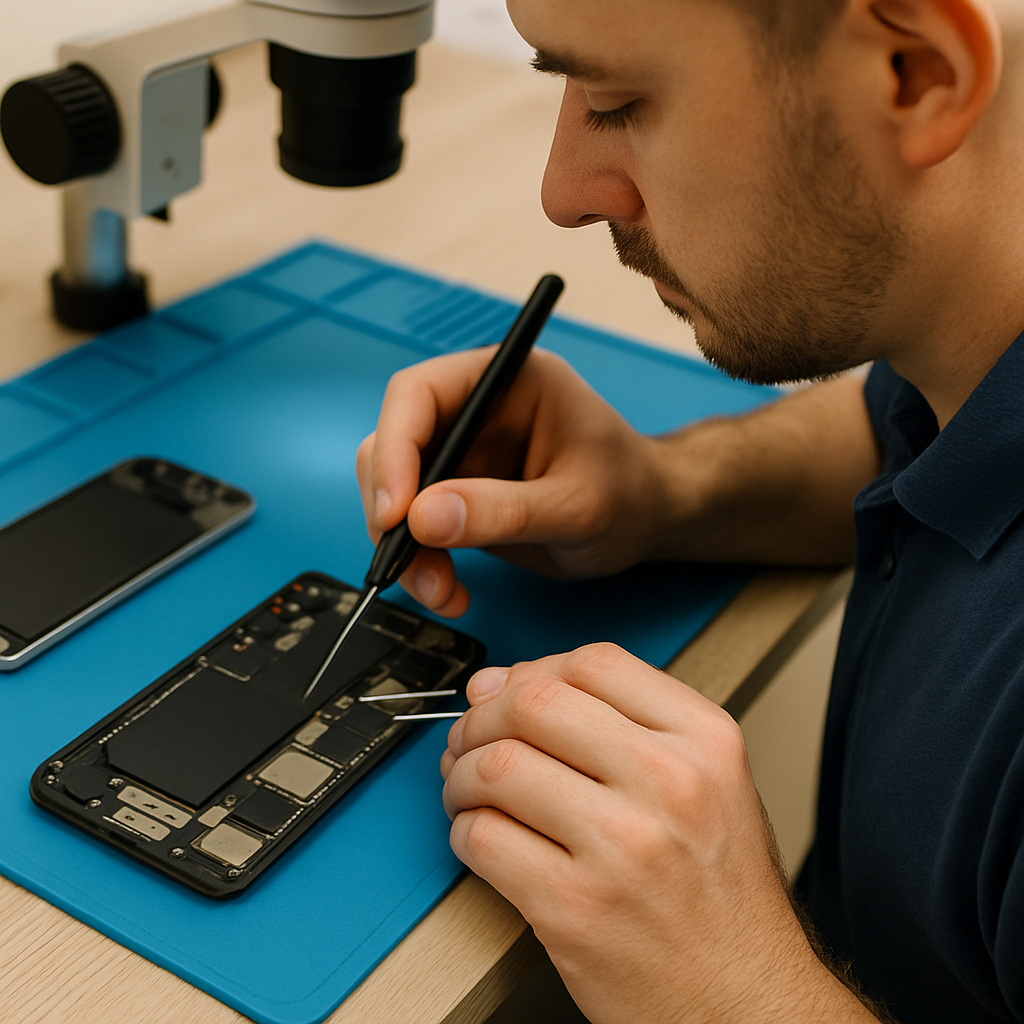
technician performing logic board repair at CT Fix Wireless

When your phone suddenly won’t turn on, keeps restarting, or overheats for no reason—it’s often more than a dead battery. Deep inside every smartphone lies the logic board — the brain that powers everything from charging to data processing.

At CT Fix Wireless, we specialize in diagnosing and repairing these hidden internal failures that most users never see. This guide walks you through what happens when the logic board fails, why it’s so crucial, and how professional technicians can bring your phone back to life.


Section 1: What Is the Logic Board and Why It Matters

The logic board, also known as the motherboard, is the central circuit board that connects all major components of your phone—processor, memory, storage, battery, display, and communication modules. It’s what allows your smartphone to think, communicate, and function.

Every time you send a text, open an app, or charge your device, signals travel through the logic board’s microscopic circuits.

Core Components Inside the Logic Board

  1. CPU (Central Processing Unit) – Handles all processing and calculations.
  2. RAM (Memory Chips) – Stores temporary data while the phone runs apps.
  3. PMIC (Power Management IC) – Regulates charging and power flow.
  4. Baseband Chip – Manages network connectivity (Wi-Fi, cellular).
  5. NAND Flash Storage – Holds your photos, apps, and files.
  6. Display & Touch ICs – Control visuals and touch response.

When even one of these components fails, your entire phone’s behavior changes.


Section 2: Early Signs of Logic Board Damage

Logic board failure rarely happens overnight—it starts small.

Common Symptoms Include:

  • Phone Won’t Turn On: Even after charging or replacing the battery.
  • Random Reboots: Device restarts without warning.
  • No Display or Backlight: Screen stays black though you hear notifications.
  • Charging Problems: Phone shows charging but battery doesn’t increase.
  • No Sound or Camera Access: One or more hardware functions stop working.
  • Overheating: Constant heat even when idle.
  • Touch or Display Glitches: Ghost touches or partial unresponsiveness.

If you experience any of these, it’s time for diagnostics at CT Fix Wireless.


Section 3: What Actually Happens When the Logic Board Fails

When a logic board fails, the electrical current inside your phone no longer flows properly between components. Here’s how that chaos unfolds:

  1. Broken Data Pathways:
    Micro-cracks in solder joints interrupt communication between chips.
  2. Short Circuits:
    Corrosion or liquid damage creates unwanted electrical bridges, causing the board to heat up.
  3. Power IC Failure:
    The phone may receive current, but the IC fails to distribute it evenly—leading to fake charging or shutdown loops.
  4. NAND Failure:
    When the main memory chip dies, your phone can’t boot or access system files.
  5. CPU Overload:
    Overheating or age weakens the processor, causing performance crashes.

This chain reaction means one small defect can take down multiple systems—display, charging, Wi-Fi, or audio—at once.


Section 4: Major Causes of Logic Board Failure

1. Water or Moisture Damage

Liquid is the number one cause. Even a single drop can corrode metallic connections and cause shorts.

2. Physical Shock

Dropping your phone can bend or crack solder joints under key chips.

3. Overheating

High temperatures weaken circuitry and solder, especially during heavy use or charging.

4. Poor-Quality Repairs

Cheap part replacements or inexperienced technicians can break delicate flex cables or damage ICs.

5. Manufacturing Defects

Some devices, particularly older iPhones and Androids, develop board faults due to factory solder weaknesses.


Section 5: How CT Fix Wireless Diagnoses a Logic Board Problem

Diagnosing logic board damage isn’t guesswork—it’s a science. At CT Fix Wireless, our technicians use professional diagnostic tools and microscopes to trace electrical flow and pinpoint the exact fault.

Our 5-Step Process:

  1. Visual Inspection – Checking for corrosion, cracks, or burnt areas.
  2. Power Supply Testing – Measuring voltage input from charging port to PMIC.
  3. Thermal Camera Scan – Detecting overheating chips or shorts.
  4. Microsoldering Analysis – Examining solder joints under high magnification.
  5. Component-Level Testing – Isolating and testing individual chips and circuits.

Once identified, faulty chips are reworked or replaced using specialized tools.


Section 6: How Logic Board Repairs Are Performed

1. Cleaning and Ultrasonic Treatment

For water-damaged phones, the board is deep-cleaned in an ultrasonic cleaner to remove corrosion.

2. Reballing ICs

If a chip detaches from the board, technicians “reball” it by applying new solder balls for reconnection.

3. Chip Replacement

Defective power or audio ICs are replaced using precise temperature-controlled equipment.

4. Tracing and Jumper Repair

When circuits are cut or burnt, micro-jumpers (tiny wire bridges) restore continuity.

5. Final Testing

After repairs, we perform power, signal, and stress tests to ensure full recovery before reassembly.

All of these advanced repairs are performed at CT Fix Wireless by certified specialists.


Section 7: Can Logic Board Damage Be Prevented?

While not every failure is avoidable, proper care reduces risk:

  • Avoid Water Exposure: Even “water-resistant” phones aren’t waterproof.
  • Use Original Chargers: Cheap chargers can overheat the PMIC.
  • Keep Software Updated: Updates regulate battery and CPU load.
  • Avoid Excessive Heat: Don’t charge under pillows or direct sunlight.
  • Handle With Care: Physical drops cause invisible micro-fractures over time.

You can schedule a preventive inspection via our Instant Quote Widget to keep your phone’s core safe.


Section 8: Real Case Study from CT Fix Wireless

A customer brought in an iPhone 11 that wouldn’t turn on despite new batteries and charging port replacements elsewhere. Our technicians discovered a shorted power IC and two burnt traces on the logic board. After cleaning, re-soldering, and IC replacement, the device powered up flawlessly.

The customer had nearly replaced the entire phone—but one precise repair solved the issue at a fraction of the cost.


Section 9: Why Logic Board Repairs Require Professionals

Logic board repair is among the most delicate procedures in mobile technology. One wrong move—too much heat or misaligned solder—and the phone becomes irreparable.

That’s why CT Fix Wireless invests in trained experts, advanced microscopes, and ESD-safe labs to ensure 100% safe repairs.

Our technicians are equipped for:

  • iPhone board-level microsoldering
  • Android IC replacement
  • Water damage recovery
  • NAND reprogramming
  • Data preservation and retrieval

Section 10: The Long-Term Benefits of Professional Logic Board Repair

  • Save Money: Board repair costs far less than phone replacement.
  • Preserve Data: Fixing the board often restores your stored photos and files.
  • Sustainability: Repairing reduces e-waste and environmental impact.
  • Improved Reliability: Quality IC replacement can extend device lifespan by years.

At CT Fix Wireless, we ensure every repair goes through quality control and performance checks before delivery.


Conclusion

Your smartphone’s logic board is its heartbeat—when it fails, everything stops. But with expert diagnostics and precision repair, most phones can be revived.

If your device shows signs like random restarts, no power, or overheating, don’t wait. Visit CT Fix Wireless or get an Instant Quote to restore your phone’s brain and keep your data safe.


FAQs

Q1. What causes logic board failure in smartphones?
Physical damage, water exposure, overheating, or manufacturing flaws are the most common causes.

Q2. Can a damaged logic board be repaired?
Yes, with professional microsoldering tools and expertise available at CT Fix Wireless.

Q3. Is logic board repair expensive?
It’s usually cheaper than replacing the phone, and costs vary by model and damage extent.

Q4. Can I recover data after a logic board failure?
Often yes. Our technicians can retrieve data directly from the NAND chip during repair.

Q5. How long does a logic board repair take?
Most are completed within 1–3 business days, depending on part availability.

Disclaimer

This content is for informational purposes only. Logic board repair involves high-level expertise and should only be performed by certified professionals.

Hidden Dangers of Ignoring Tiny Phone Glitches | CT Fix Wireless

technician repairing phone with small glitch at CT Fix Wireless

Your phone freezes for a second. The screen flickers once. Maybe your charger connects only after twisting the cable a little. You shrug it off—until one day, the device won’t turn on at all.

At CT Fix Wireless, we see it every day: tiny issues that, if caught early, could’ve been fixed in minutes but now require board-level repair. This article explains how small glitches spiral into expensive damage—and how timely service can prevent it.


Section 1: Why “Tiny” Phone Glitches Shouldn’t Be Ignored

Minor issues—like slow charging, flickering displays, or random restarts—signal underlying hardware or software faults. Your device is essentially trying to warn you.

Early Signs You Might Overlook

  • Screen flickering or ghost touches
  • Random reboots or shutdowns
  • Charger not connecting properly
  • Slight overheating during use
  • Unresponsive buttons or lagging touch

Each of these might seem harmless, but behind them could be battery stress, damaged ICs, worn connectors, or moisture corrosion.


Section 2: The Chain Reaction — How Small Glitches Escalate

Let’s break down how neglecting a small problem leads to big repairs:

  1. Flickering Screen → Burnt Display or IC Failure
    That brief flicker can mean voltage instability in the screen’s power circuit. Over time, it damages your display driver or motherboard.
  2. Slow Charging → Charging Port or Battery Damage
    Loose ports or faulty cables cause arcing (tiny electric sparks). This heat weakens the port, melts connectors, and eventually burns the charging IC.
  3. Overheating → Logic Board Short Circuits
    Heat stress weakens solder joints and power chips. Continuous exposure can destroy the PMIC (Power Management IC).
  4. Random Shutdowns → Data Loss & Boot Failure
    When power delivery becomes unstable, files corrupt and storage chips degrade, leading to startup failure.
  5. Touch Lag → Digitizer Failure
    Minor unresponsiveness often points to moisture, glass separation, or IC miscommunication—all of which worsen without repair.

Section 3: Real-World Example from CT Fix Wireless

A customer recently brought in an iPhone XR that restarted randomly once a week. They ignored it for two months until it refused to power on. Upon inspection, our technicians found corrosion spreading beneath the power IC. What could’ve been a $70 cleaning became a board-level IC replacement.

The takeaway? Small glitches compound over time, and the damage extends beyond what’s visible on the surface.


Section 4: Diagnosing the Root Causes of Common Glitches

Here’s what might be going wrong behind the scenes:

SymptomLikely CauseRecommended Fix
Flickering screenDisplay cable or IC damageDisplay replacement or reflow
Lagging performanceSoftware conflict or overheatingSystem cleanup or battery replacement
Battery drains fastPower IC or battery degradationBattery replacement
Charger fits looselyPort wear or debrisCharging port cleaning/replacement
Touch unresponsiveDigitizer malfunctionScreen replacement

Our Instant Quote Widget helps you identify what kind of repair your device might need instantly.


Section 5: The Cost of Delay — Why Early Repair Saves Money

Ignoring small issues doesn’t just increase damage—it also multiplies costs.

  • Immediate Fix: Cleaning or minor part replacement ($).
  • Delayed Fix: Full component replacement or board rework ($$$).

For example:

  • A simple charging port cleaning might cost little. But if corrosion reaches the motherboard, you’ll need an IC re-soldering service.
  • A slightly cracked screen might only affect aesthetics—but over time, it can lead to touch failure and LCD burnout.

By booking an early diagnosis at CT Fix Wireless, you avoid paying for what could’ve been prevented.


Section 6: Preventing Glitches Before They Grow

1. Keep Your Software Updated

System updates patch bugs that cause freezes and crashes.

2. Avoid Cheap Accessories

Low-quality chargers and cables deliver unstable voltage, stressing your ICs.

3. Protect Against Heat and Moisture

Avoid placing your phone under direct sunlight or near humid environments.

4. Regular Device Checkups

Visit CT Fix Wireless for routine inspections. Early detection is the best protection.

5. Replace Worn Parts Promptly

If your screen, port, or battery starts acting up, schedule repair at our iPhone Repairs page for model-specific solutions.


Section 7: Why CT Fix Wireless Is the Trusted Choice

  • Expert Technicians: Skilled in micro-soldering and advanced diagnostics.
  • OEM-Grade Parts: Ensuring every repair matches manufacturer quality.
  • Transparent Pricing: Get clear estimates through the Instant Quote Widget.
  • Comprehensive Services: From minor glitches to motherboard replacements.
  • Customer-Focused Approach: We explain every repair before starting.

If you’re unsure whether your issue needs repair, use our Contact Page or visit the About Us section to learn more about our process.


Section 8: The Long-Term Benefit of Fixing Glitches Early

Timely maintenance extends the lifespan of your phone by 30–50%. It preserves resale value and prevents unexpected breakdowns when you need your device most.

At CT Fix Wireless, our goal isn’t just to repair—it’s to help you maintain your device’s long-term performance and safety.


Conclusion

Those small freezes, flickers, or lags aren’t random—they’re warnings. Ignoring them risks expensive, avoidable damage later. The next time your phone behaves strangely, act early.

Visit CT Fix Wireless or use the Instant Quote Widget for a quick checkup. A five-minute diagnosis today could save you hundreds tomorrow.


FAQs

Q1. Why does my phone lag sometimes?
Lagging can stem from background app overload or early-stage hardware wear. A system cleanup or diagnostic can help identify the cause.

Q2. My charging cable wiggles but still works—should I replace it?
Yes, a loose cable increases resistance and can burn your charging port over time.

Q3. What happens if I ignore a flickering screen?
It can damage your display driver IC, leading to total display failure.

Q4. Can small glitches affect my battery life?
Absolutely. Power regulation errors cause battery stress and reduce lifespan.

Q5. How can CT Fix Wireless help?
We provide precise diagnosis and same-day repair to prevent small problems from escalating.

Disclaimer

This article is for educational purposes only. Always consult a certified repair professional before attempting to fix phone hardware issues on your own.

How to Fix Phone Charging But Battery Not Increasing | CT Fix Wireless

phone charging but battery not increasing repair CT Fix Wireless

You plug in your charger, see the lightning icon, but your battery percentage just won’t budge. Frustrating, right? This issue—where your phone says it’s charging but doesn’t actually gain power—is more common than you’d think.

At CT Fix Wireless, our technicians handle dozens of these “false charging” cases weekly. Whether it’s a failing battery, corroded charging port, bad charging IC, or software miscommunication, we’ll break down how to diagnose and fix this issue in detail.


Section 1: Understanding the Problem — When ‘Charging’ Isn’t Charging

When your phone displays the charging symbol but the percentage remains stagnant (or even drops), it means the charging current is too weak—or not reaching the battery properly.

What’s Really Happening

Your charger delivers power to the charging port → power passes through the charging IC (Integrated Circuit) → IC regulates voltage → power reaches the battery.
If any step in this flow is disrupted, the phone “thinks” it’s charging while the battery doesn’t fill.


Section 2: Common Causes of False Charging

  1. Faulty or Low-Quality Charging Cable
    Cables wear out over time. A damaged wire may pass minimal current—enough to trigger the charging icon but not to increase battery percentage.
  2. Dirty or Blocked Charging Port
    Dust, lint, or corrosion can partially block power flow. This can create intermittent connections that fool your phone into thinking it’s charging.
  3. Weak Power Adapter
    Some third-party chargers output less current than required, especially for fast-charging phones.
  4. Damaged Battery Cell
    Over time, lithium-ion cells degrade and can no longer store charge effectively—even if the input current is fine.
  5. Charging IC or Power Management IC Failure
    The PMIC controls voltage flow from the port to the battery. A damaged IC will cause the device to show “charging” but not transfer energy efficiently.
  6. Software Glitches
    Outdated firmware or corrupted power management data can cause the percentage to “freeze.”

Section 3: Step-by-Step Troubleshooting at Home

Before rushing to a repair shop, try these safe checks:

1. Inspect the Charging Cable

Swap your cable with an original one. If charging starts normally, the old cable is at fault.

2. Clean the Charging Port

Use a soft brush or toothpick to gently remove debris. Never use metal tools—static can damage internal pins.

3. Try Another Charger

Always use a charger that meets your phone’s official wattage. A mismatched adapter can create under-voltage issues.

4. Test with Another Outlet or Power Bank

Sometimes, the problem lies with unstable current flow from your socket.

5. Restart the Device

A simple reboot resets the battery monitoring system.

6. Calibrate Your Battery

Discharge your phone completely until it turns off, then charge it uninterrupted to 100%. This can correct incorrect battery readings.


Section 4: Deep Technical Causes (When DIY Fixes Fail)

If your battery still won’t increase after trying the above, the issue is likely internal.

Charging IC (PMIC) Failure

The Power Management IC regulates current flow. When it malfunctions due to water damage, overheating, or solder fatigue, it causes “ghost charging.”

Repair involves board-level microsoldering—a service best handled by professionals at CT Fix Wireless.

Battery Connector Damage

If the battery connector is loose, the battery won’t receive enough current even if the IC works fine.

Corrosion Under Charging Port

Even invisible corrosion can reduce voltage flow. Our technicians perform ultrasonic cleaning to restore proper connectivity.

Short Circuit in Battery

Some lithium-ion batteries short internally, leading to false readings. In this case, replacing the battery is the only safe fix.


Section 5: How Professionals Fix This at CT Fix Wireless

At CT Fix Wireless, every charging issue undergoes a multi-point diagnostic process:

  1. Initial Voltage Test – Measures charging input from the port.
  2. Battery Health Scan – Determines whether the cell can hold charge.
  3. Charging IC Board-Level Check – Verifies IC functionality and solder condition.
  4. Port and Connector Cleaning – Removes oxidation or buildup.
  5. Full Power Cycle Test – Ensures real charging flow before returning the device.

Depending on the result, we perform:

  • Battery Replacement (for degraded cells)
  • Charging Port Replacement (for damaged connectors)
  • IC Rework (for logic board issues)

You can easily request your repair cost via the Instant Quote Widget and get an accurate model-based estimate.


Section 6: Preventing Charging Problems in the Future

  1. Use Original Chargers Only
    Cheap chargers can cause voltage spikes that damage ICs.
    Visit Buy and Sell to find certified accessories.
  2. Avoid Charging Overnight
    Continuous trickle charging stresses the IC and battery.
  3. Keep Charging Ports Dry
    Humidity and condensation cause corrosion over time.
  4. Regular Maintenance Checks
    Schedule a diagnostic visit at CT Fix Wireless to ensure your device’s battery health stays optimal.

Section 7: Real Case Example from CT Fix Wireless

A customer brought in a Samsung Galaxy A52 showing the charging symbol but stuck at 34%. Our team discovered a corroded charging IC caused by humidity exposure. After board-level rework and reflowing solder joints, the phone began charging normally again.

This demonstrates how “battery not increasing” is often not a battery issue—but an electrical management one.


Section 8: Why Choose CT Fix Wireless for Power Issues

  • Certified Technicians – Trained in microsoldering and board-level repair.
  • OEM-Quality Parts – Every battery and IC meets manufacturer standards.
  • Quick Turnaround – Most repairs completed same-day.
  • Transparent Pricing – Get an Instant Quote before visiting.
  • Customer-First Service – See full details on our About Us page.

Conclusion

A phone showing “charging” but not gaining battery power often signals deeper hardware or power IC issues. Quick home tests can help, but lasting fixes usually require professional expertise.

For reliable diagnosis, visit CT Fix Wireless today or book your repair via the Instant Quote Widget to get your device charging like new again.


FAQs

Q1. Why does my phone show charging but the percentage doesn’t move?
It could be a faulty cable, weak adapter, battery damage, or internal IC malfunction.

Q2. Can I fix this issue at home?
You can try cleaning the port, changing the cable, and restarting. For IC or board issues, visit CT Fix Wireless.

Q3. How do I know if my battery needs replacement?
If your phone shuts down early or takes too long to charge, check it through our diagnostics service.

Q4. Is this problem dangerous for my phone?
Yes, prolonged undercharging can overheat circuits or shorten battery lifespan.

Q5. How can I prevent this from happening again?
Use certified chargers, keep ports clean, and avoid moisture exposure.

Disclaimer

This article is for educational purposes only. Attempting power IC or charging circuit repairs at home can cause further damage. Always seek professional repair assistance from certified technicians.

How to Fix a Phone That Loses Touch Response | CT Fix Wireless

phone screen unresponsive repair at CT Fix Wireless

Few things are more frustrating than when your phone suddenly stops responding to touch. You tap, swipe, or pinch—and nothing happens. Whether it’s a frozen digitizer, a loose Screen IC connection, or moisture sneaking under the glass, touch failure can make your device nearly unusable.

At CT Fix Wireless, our repair specialists handle dozens of touch-related cases every week. This guide breaks down the exact causes behind random touch loss and how to fix it safely.


Section 1: Understanding Touch Response Failures

What Is the Digitizer?

The digitizer is a thin, transparent layer that converts your finger taps into digital signals. It sits between the glass and the display. When it malfunctions, your phone can show an image perfectly but ignore your touch inputs.

What Is the Screen IC (Integrated Circuit)?

The Screen IC is a tiny chip on the logic board responsible for interpreting signals from the digitizer. If it becomes loose or overheated, the device may register touches incorrectly—or not at all.

How These Components Work Together

Both parts must function together. The digitizer detects your movement, while the Screen IC interprets it. Damage or a bad connection anywhere along this chain results in lost touch response.


Section 2: Common Causes of Random Touch Failure

  1. Physical Damage
    Drops, cracks, or pressure can sever digitizer connections. Even small hairline cracks may lead to unresponsive zones.
  2. Moisture or Liquid Ingress
    Tiny amounts of moisture under the glass or on the motherboard can short the digitizer circuit, causing intermittent touch problems.
  3. Faulty Screen IC
    Over time, heat cycles weaken the solder joints under the IC. The result: ghost touches, freezing, or total loss of responsiveness.
  4. Software Bugs or System Lag
    Some touch issues come from overloaded firmware. Corrupted cache files or incompatible updates can mimic hardware faults.
  5. Low-Quality Replacement Parts
    Cheap third-party screens often lack precision manufacturing, causing poor sensitivity or inconsistent performance.

Section 3: Diagnosing the Root Cause

Step 1 — Observe the Pattern

Does the touch stop working only after charging, gaming, or exposure to heat? Noting the pattern helps determine if it’s thermal, hardware, or software-related.

Step 2 — Run a Screen Test

Most phones include hidden diagnostics (e.g., Android → Dial #0# → Touch Test). This reveals dead zones or partial digitizer failure.

Step 3 — Restart and Check Safe Mode

Booting in safe mode disables third-party apps. If the touch works fine there, a background app or UI overlay is the culprit.

Step 4 — Check for System Updates

Pending updates often contain touchscreen driver fixes. Keep your device firmware current.

Step 5 — Look for Signs of Physical Damage

Tiny cracks, lifted screens, or swelling batteries all affect the digitizer. Examine edges carefully before assuming a logic-board problem.


Section 4: Practical Fixes You Can Try

1. Clean the Screen Surface

Use a microfiber cloth slightly dampened with 70% isopropyl alcohol to remove oils and debris. Dirt can block capacitance, leading to false touches.

2. Remove Screen Protector or Case

Some protectors interfere with sensitivity. If removing it restores response, switch to a thinner, compatible one.

3. Perform a Soft Reset

Holding the power and volume-down buttons for 10 seconds clears temporary memory and resets touch drivers.

4. Calibrate Touch Settings

In “Accessibility → Touch Sensitivity,” recalibrate to restore accuracy.

5. Factory Reset (Last Resort)

If software corruption persists, back up data and perform a reset. Persistent failure afterward means a hardware fault.


Section 5: When the Problem Is Hardware

If none of the above works, the digitizer or Screen IC may need repair. Here’s what each entails:

Digitizer Replacement

A professional technician removes the cracked glass and installs a new OEM-grade panel using heat separation tools and adhesive frames.

Book a repair directly through CT Fix Wireless Instant Quote Widget for an accurate price estimate.

Screen IC Rework or Replacement

This complex procedure involves microsoldering—a process only certified technicians should perform. The IC chip is carefully removed, cleaned, re-balled, and resoldered under a microscope.

If you suspect this issue, schedule service via iPhone Repairs Page or our Other Device Repairs section for Androids and tablets.


Section 6: Preventing Future Touch Problems

  1. Use OEM Parts Only
    Avoid third-party screens. OEM parts maintain correct digitizer sensitivity.
  2. Avoid Excessive Heat
    Keep devices away from direct sunlight and gaming heat buildup.
  3. Invest in a Quality Case
    Shock-absorbent edges protect against impact.
  4. Dry Devices Immediately
    If the phone gets wet, power it off and bring it for Professional Inspection.
  5. Get Regular Maintenance
    Routine checkups at CT Fix Wireless ensure all components remain in optimal condition.

Section 7: Real-World Case Example

A client brought in an iPhone 12 Pro Max that randomly froze mid-scroll. Diagnostics revealed a partially detached Screen IC. After re-balling and resoldering, touch accuracy returned to normal—proving that even “random” failures often trace to a precise hardware cause.

Such precision repairs require training, equipment, and experience. DIY attempts can easily damage nearby circuits, costing more in the long run.


Section 8: Why Choose CT Fix Wireless

At CT Fix Wireless, we combine advanced diagnostics, quality OEM parts, and same-day service. Whether it’s a faint ghost-touch or complete digitizer failure, our team can identify the issue quickly and repair it efficiently.

Explore our Buy and Sell Devices program if you decide upgrading is a better option. You can trade in your old device for credit toward a new one.

Learn more About Us or contact the nearest location through the Contact Page for personalized help.


Conclusion

A phone that randomly loses touch response isn’t just inconvenient—it signals an underlying issue with either the digitizer or Screen IC. Early diagnosis prevents permanent damage. Start with simple cleaning and calibration, but if the problem persists, seek professional repair from CT Fix Wireless.

Timely service not only restores smooth operation but also extends your device’s lifespan and performance.


FAQs

Q1. Why does my phone screen stop responding randomly?
This usually happens due to a faulty digitizer, loose Screen IC, or moisture intrusion. Software glitches can also cause temporary unresponsiveness.

Q2. Is it safe to keep using my phone if the touch stops occasionally?
Intermittent touch loss often worsens over time. Continuous use may further damage the connectors—getting it checked early is safer.

Q3. Can software updates fix touch response issues?
Yes, if the cause is firmware-related. Always install official updates before assuming hardware failure.

Q4. How much does digitizer or Screen IC repair cost?
Prices vary by model. Use the Instant Quote Widget to get an accurate, model-specific estimate.

Q5. Does CT Fix Wireless offer same-day touchscreen repair?
Yes, most digitizer replacements are completed within the same day, depending on part availability.

Disclaimer

This article is for informational purposes only. Repairing logic-board components or Screen ICs should be performed by qualified technicians. Always back up your data and consult professional repair experts before attempting any DIY hardware fixes.