Written By: Ronnie Gonenc
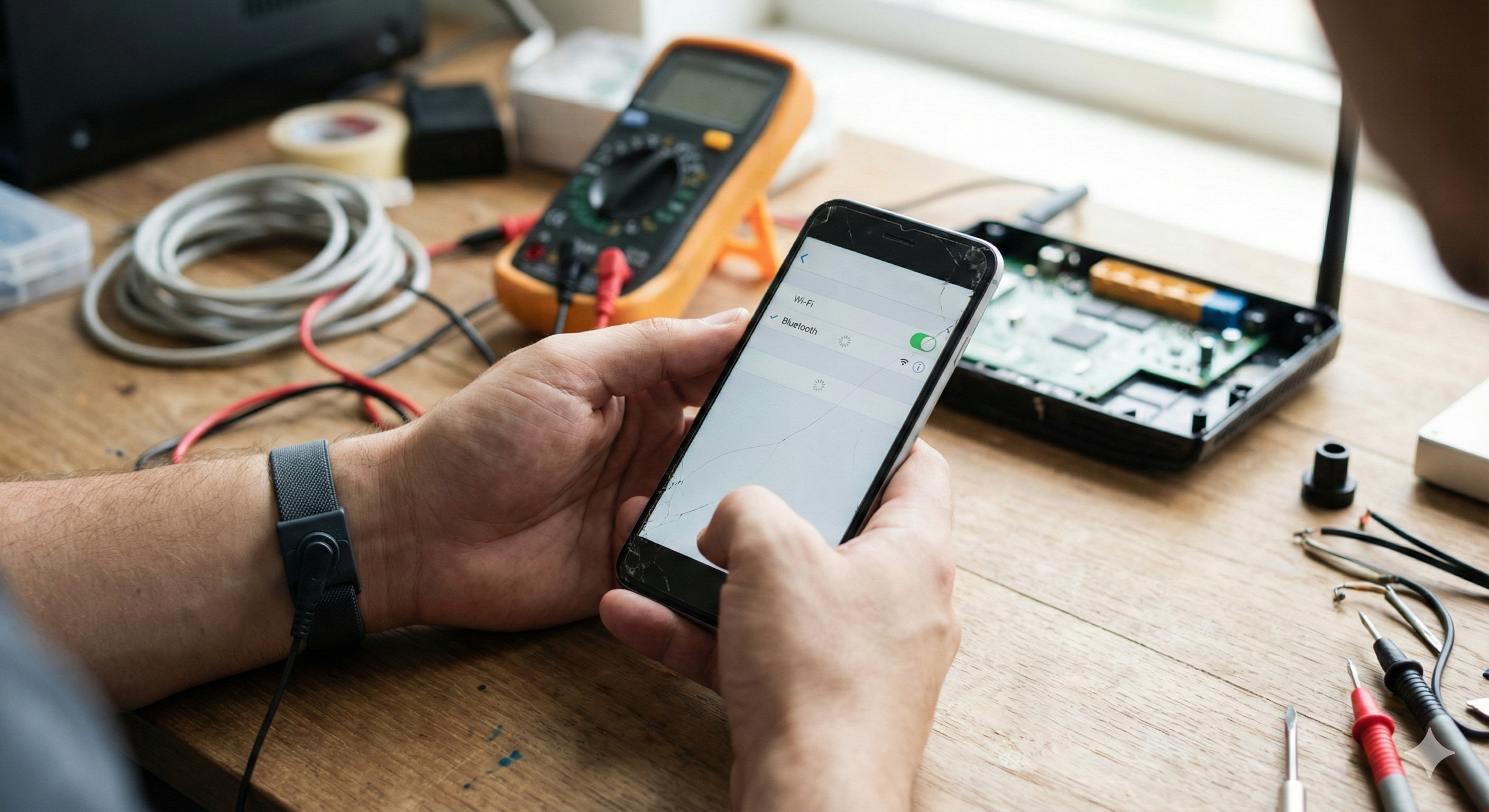
There is nothing quite as frustrating as seeing the “Connected, No Internet” message or watching your Bluetooth headphones refuse to pair right before a workout. We live in a wireless world, and when that invisible tether snaps, your smartphone feels a lot less “smart” and a lot more like a paperweight.
At CT Fix Wireless, we see connection issues all the time. Customers often come in convinced their phone is broken beyond repair because it won’t connect to their car or home network. The truth? 80% of the time, this is a software conflict or a “digital knot” that needs untangling. The other 20%? That’s usually hardware damage to the antenna, often caused by a drop you might have forgotten about.
In this guide, I’m going to walk you through the troubleshooting hierarchy we use in our shop. We will start with the simple resets and move all the way down to the hardware diagnostics. Let’s get you reconnected.
Section 1: The “Digital Handshake” (Why Connections Fail)
Before we start pressing buttons, it helps to understand why this happens. Both Wi-Fi and Bluetooth rely on radio waves to “shake hands” with a router or another device.
Sometimes, that handshake gets interrupted. This can happen because:
- Software Glitches: A driver crashed in the background.
- Corrupted Profiles: The saved data for “Home Wi-Fi” or “Toyota Camry” is corrupted.
- Interference: Physical walls or other electronic devices are jamming the signal.
The goal of troubleshooting is to force your phone to forget the bad handshake and start a fresh one.
Section 2: The Easy Fixes (Try These First)
Don’t roll your eyes—these simple steps fix about half of the devices that come across our counter.
1. The Airplane Mode Toggle
This is the quickest way to refresh your phone’s radios without a full restart.
- How to do it: Swipe down to access your control center. Tap the Airplane icon to turn it On. Wait 30 seconds. Tap it again to turn it Off. This forces the Wi-Fi and Bluetooth chips to power down and restart their search for signals.
2. The “Forget” Method
If your Bluetooth connects but the audio cuts out, or your Wi-Fi connects but doesn’t load pages, the saved profile might be buggy. You need to delete it and reconnect like it’s the first time.
- For Wi-Fi: Go to Settings > Wi-Fi. Tap the “i” or the gear icon next to your network. Select “Forget This Network.” Then, tap the network again and re-enter your password.
- For Bluetooth: Go to Settings > Bluetooth. Find the device giving you trouble. Tap the info icon and select “Unpair” or “Forget This Device.” Put your accessory back into pairing mode and try again.
3. Restart the Other Device
It’s not always your phone’s fault. If your Wi-Fi isn’t working, pull the power plug on your router for 60 seconds and plug it back in. If your headphones won’t pair, factory reset the headphones (usually by holding the power button for 10+ seconds).
Section 3: Deep Dive into Bluetooth Issues
Bluetooth is notoriously finicky. If the basics didn’t work, here are the pro tips.
Clear the Bluetooth Cache (Android Only)
On Android, Bluetooth is an app like any other system process. Its temporary data (cache) can get corrupted.
- Go to Settings > Apps.
- Tap the sort icon or menu and select “Show System Apps.”
- Find Bluetooth in the list.
- Tap Storage and then Clear Cache. (Do not clear “Data” unless you want to lose all your paired devices).
Check for Interference
Did you know USB 3.0 cables and microwave ovens operate on a frequency very close to Bluetooth (2.4GHz)? If you are standing next to a running microwave or have a poorly shielded hard drive plugged into your laptop, it can kill your Bluetooth connection. Move away from other electronics and test again.
Section 4: Deep Dive into Wi-Fi Issues
If your Wi-Fi is greyed out or constantly drops, try these specific settings.
Disable “Private Wi-Fi Address” (Temporarily)
Newer iPhones and Androids use a feature that randomizes your MAC address (your device’s ID card) for privacy. Some older home routers hate this feature and will block the connection.
- iPhone: Settings > Wi-Fi > Tap the “i” icon > Toggle off Private Wi-Fi Address.
- Android: Settings > Wi-Fi > Network Details > Privacy > Switch to Use Device MAC.
Reset Network Settings (The Magic Fix)
This is the most effective software fix available. Note: This will wipe all your saved Wi-Fi passwords and Bluetooth pairings. It will not touch your photos, contacts, or apps.
- iOS: Settings > General > Transfer or Reset iPhone > Reset > Reset Network Settings.
- Android: Settings > System > Reset Options > Reset Wi-Fi, mobile & Bluetooth.
After the phone reboots, you will have to re-enter your Wi-Fi password. If the issue was software-related, this usually fixes it.
Section 5: Hardware Failure (When to Call a Pro)
If you have done a Network Settings Reset and the issue persists, or if the Wi-Fi/Bluetooth toggle is “greyed out” (you can’t even tap it), you are likely dealing with hardware damage.
The Antenna
Your phone has delicate antenna lines running through the frame. A hard drop can crack these lines or pop the connector off the motherboard. If you have weak signal even when standing next to the router, it’s usually an antenna issue.
The Wi-Fi/Bluetooth Chip
On motherboard-level repairs, the actual chip responsible for wireless connections can overheat or desolder. This is common in phones that have been exposed to moisture. If your phone took a swim recently, corrosion might be eating away at the Bluetooth circuits.
This is where we come in. Diagnosing a motherboard issue requires opening the phone and using a multimeter. You can get an idea of what a repair might cost by using our Instant Quote Widget.
If you aren’t sure if you want to repair it, visit our About Us page to learn how we handle diagnostics. We believe in being honest—if the repair costs more than the phone is worth, we will tell you.
Section 6: Is It Time to Upgrade?
Sometimes, older phones just can’t keep up with modern router protocols (like Wi-Fi 6) or new Bluetooth 5.0 accessories. If you are holding onto an iPhone 6 or a Galaxy S7, the hardware simply might be too old to maintain a stable connection with modern tech.
In that case, repairing it might not be the best investment. You might be better off trading it in. Check out our Buy and Sell section to see what your device is worth and browse our inventory of newer, certified pre-owned phones.
Conclusion
Connection issues usually fall into one of two buckets: a confused software system or a broken hardware component. By following the “Forget, Reset, Restore” method, you can fix the majority of these problems at home in under ten minutes.
However, if your Wi-Fi button is greyed out or your signal is persistently weak despite a reset, don’t suffer through data overage charges. It’s likely a hardware fix that we can handle quickly.
Need help identifying the problem? Reach out to us directly via our Contact Us page. We are here to get you back online.
FAQs
Q1: Why is my Wi-Fi button greyed out and I can’t turn it on? A1: This is almost always a hardware failure. It usually points to the Wi-Fi IC (chip) on the motherboard being damaged or disconnected, often due to a drop or overheating. A standard software reset rarely fixes this; it requires professional repair.
Q2: Will resetting network settings delete my photos? A2: No. Resetting network settings only deletes wireless information: saved Wi-Fi networks/passwords, Bluetooth pairings, and VPN settings. Your photos, apps, contacts, and messages are 100% safe.
Q3: Why does my Bluetooth audio skip or stutter? A3: This is often caused by interference. If your phone is in your back pocket, your body can actually block the signal (water blocks radio waves). It can also happen if you have too many apps open in the background using up your phone’s processing power.
Disclaimer
This guide is for informational purposes. While software resets are safe, opening your device to check antennas or hardware components can void your warranty and cause damage if not done correctly. CT Fix Wireless is not liable for damages resulting from DIY repair attempts. For hardware issues, professional service is recommended.